
Privacy Policy popup
× Privacy Policy popup
×
 2
 17 Minutes
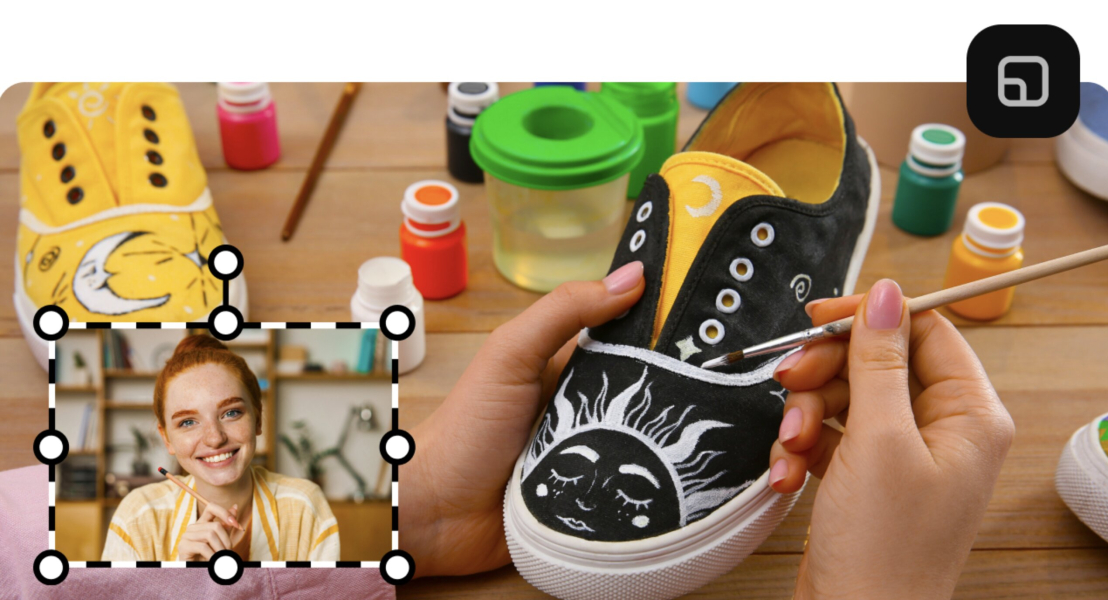
To add a photo to a video on a computer, pick the picture-in-picture video editor that fits the job. Movavi Video Editor suits vloggers who want a channel logo, a picture-in-picture callout, or a side-by-side reaction in a few clicks. Adobe® Premiere® Pro and DaVinci Resolve fit layered brand and travel projects, iMovie covers family occasion videos on a Mac, and Shotcut handles basic multitrack edits. CyberLink PowerDirector adds keyframes and AI tools on Windows, and Lightworks brings a film-industry timeline to Windows, macOS, and Linux.
The picture can be a product shot for an unboxing, a screenshot for a review, a logo for your channel, or a stack of photos from a trip. This guide is for you if you run a YouTube channel, put together birthday and graduation videos for the family, or promote a small business online.
| Video overlay software | OS | Overlay modes | Animation | Starting price |
| Movavi Video Editor | Windows, macOS | Ready modes: Picture-in-picture, Logo, Side-by-side, Trio, Overlap | Easy presets or Advanced keyframes; Pan and Zoom; AI Motion Tracking | Free version; full from $19.95/month |
| CyberLink PowerDirector | Windows, macOS | Multi-track layering with adjustable position, scale, and opacity | Keyframes for position, scale, opacity, masks, and titles | Free version; $79.99/year |
| Adobe® Premiere® Pro | Windows, macOS | Multi-track layers with shape masks and AI Object Mask | Manual keyframes; animated title templates | $22.99/month (annual plan) |
| DaVinci Resolve | Windows, macOS, Linux | Stacked tracks sized in the Inspector; Fusion compositing | Inspector keyframes; Dynamic Zoom | Free; Studio $295 one-time |
| iMovie | Mac, iPhone, iPad | Picture in Picture, Split Screen | Ken Burns effect; dissolve, zoom, or swap entrances for insets | Free |
| Shotcut | Windows, macOS, Linux | Compositing across tracks with blend modes; Size and Position filter | Keyframes with easing; Motion Tracker filter | Free |
| Lightworks | Windows, macOS, Linux | Reframe with position and scale; chroma and luma keying with masks | Keyframes for composition, shapes, and SVG graphics | Free version; Create from $20/month |
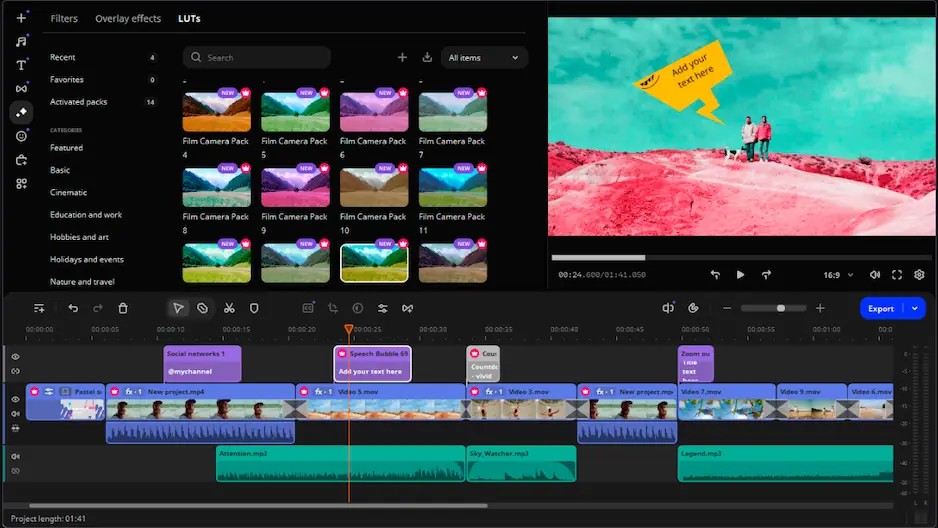
Best for: vloggers who want a channel logo, a picture-in-picture callout, or a side-by-side reaction in their daily vlogs and unboxings.
Price and platforms: full version from $19.95 per month, with monthly and yearly options; Movavi Video Editor Free (60-second exports, watermark, no 4K) and Movavi Video Editor Lite are also available; Windows 10 and 11, macOS 12.0 or higher.
When you film a vlog, the photo usually has one of a few jobs: brand the clip, point at a product, or sit next to your reaction. Movavi Video Editor is an intuitive video editor with customizable video templates, one-click AI tools, and hundreds of drag-and-drop effects. For photos, you choose a ready position mode instead of sizing a layer by hand, and hover previews show the result on your clip before you commit, so the overlay looks tidy on the first try. Movavi Video Editor has 70M+ users worldwide, and new tools keep arriving with 25+ updates a year. The free Movavi Ideas hub adds a new editing idea with a step-by-step tutorial every week.
Key features:
Pros:
Cons:
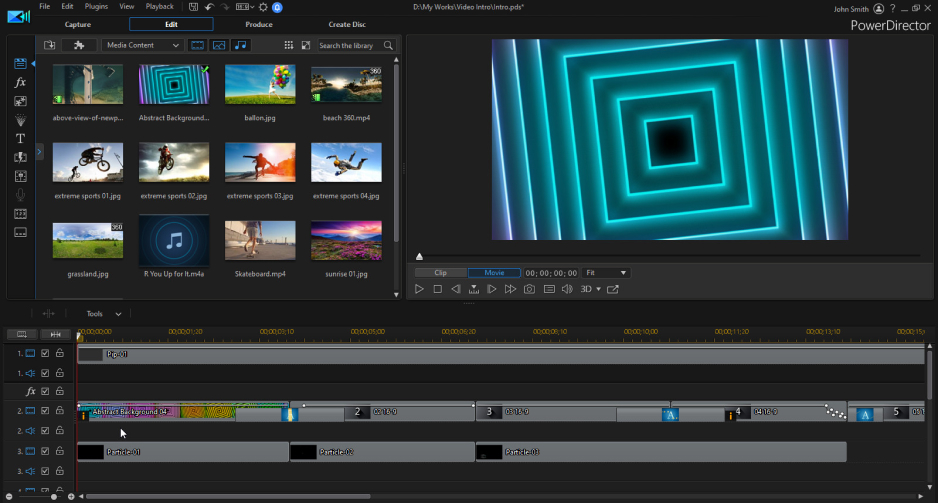
Best for: YouTube videos and social media promos.
Price and platforms: PowerDirector Essential free; PowerDirector 365 $79.99 per year; Windows, macOS.
PowerDirector pairs a multi-track timeline with detailed keyframe controls, so a product photo or logo can sit on its own track and change position, scale, and opacity over time. It imports PNG, APNG, HEIC, GIF, and RAW stills, and a long list of AI tools sits on top, from background removal to an Agentic Editor that builds a rough cut from a text request.
Key features:
Pros:
Cons:
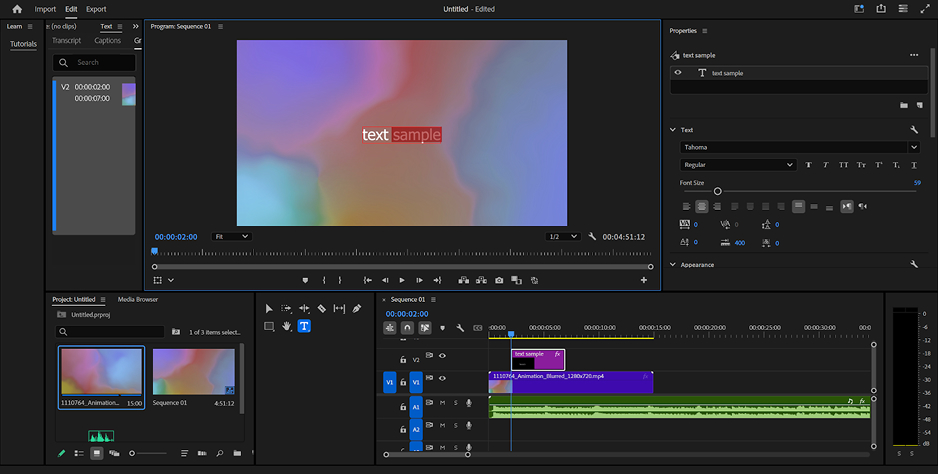
Best for: social media ads and brand videos for a business that already designs in After Effects® or Photoshop®.
Price and platforms: $22.99 per month on the annual plan, with a 7-day free trial; Windows, macOS.
Premiere® Pro is the industry standard for professional video editing, and it connects directly to other Adobe products. A logo or product photo can be prepared in Photoshop® and animated in After Effects® before it reaches the timeline. The Object Mask lets you frame or cut out a photo layer precisely, and title templates come built in.
Key features:
Pros:
Cons:
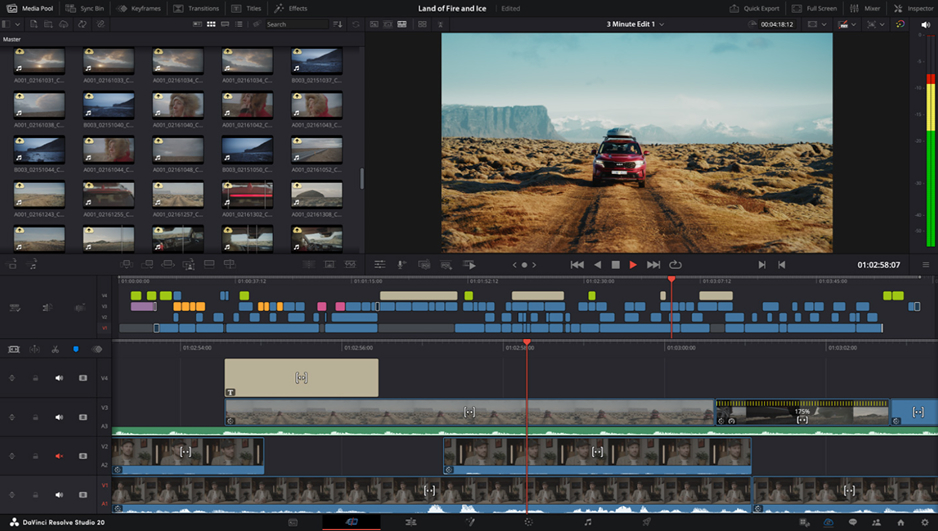
Best for: travel videos where your trip photos need film-grade color grading or VFX compositing.
Price and platforms: base version free; DaVinci Resolve Studio $295 one-time; Windows, macOS, Linux.
Resolve splits work into separate modules: Edit, Color, Fairlight for audio, and Fusion for VFX. The base version includes nearly all editing, color, audio, and VFX tools and adds no watermark. For a picture-in-picture, you stack the photo on a track above the footage and set Zoom and Position in the Inspector; Dynamic Zoom pans across a still for a Ken Burns-style move.
Key features:
Pros:
Cons:
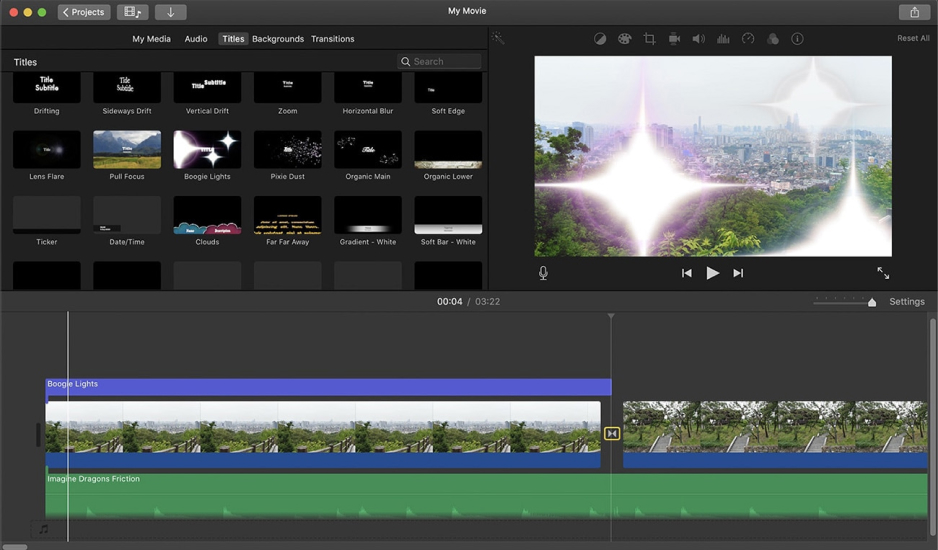
Best for: birthday, wedding, and graduation videos on a Mac.
Price and platforms: free; Mac, iPhone, iPad.
iMovie is Apple’s simple editor, preinstalled on its devices, and it’s a common place for first edits on a Mac. Ready-made trailer templates give an occasion video a structure without much setup. Its overlay settings include picture-in-picture and split-screen effects. You can resize the inset, add a border, and bring it in with a dissolve, zoom, or swap effect.
Key features:
Pros:
Cons:
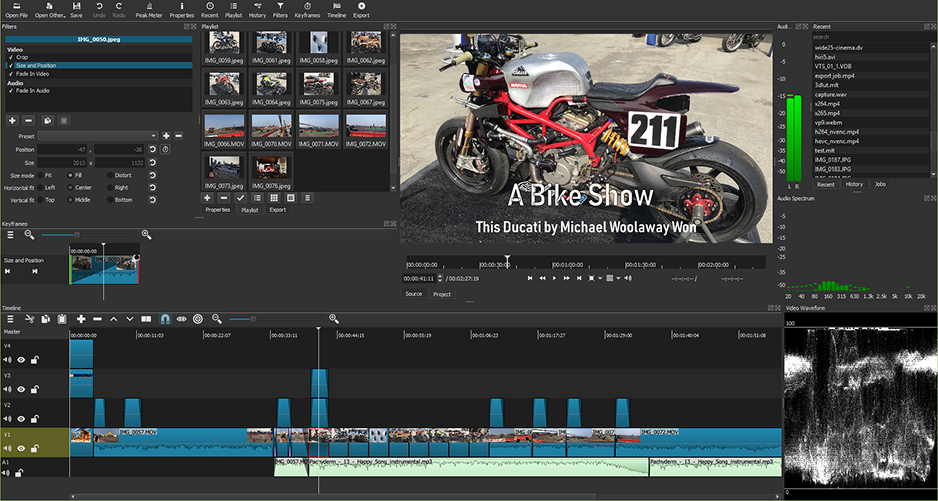
Best for: basic daily-routine vlogs when you’re happy to set everything by hand.
Price and platforms: free; Windows, macOS, Linux.
Shotcut is a free, open-source editor for tech-savvy users who prefer manual control. It gives you basic multitrack editing, so a photo can sit on its own track above the footage. A picture-in-picture is built from filters such as Size and Position and Opacity, and keyframes with easing functions move the photo over time.
Key features:
Pros:
Cons:
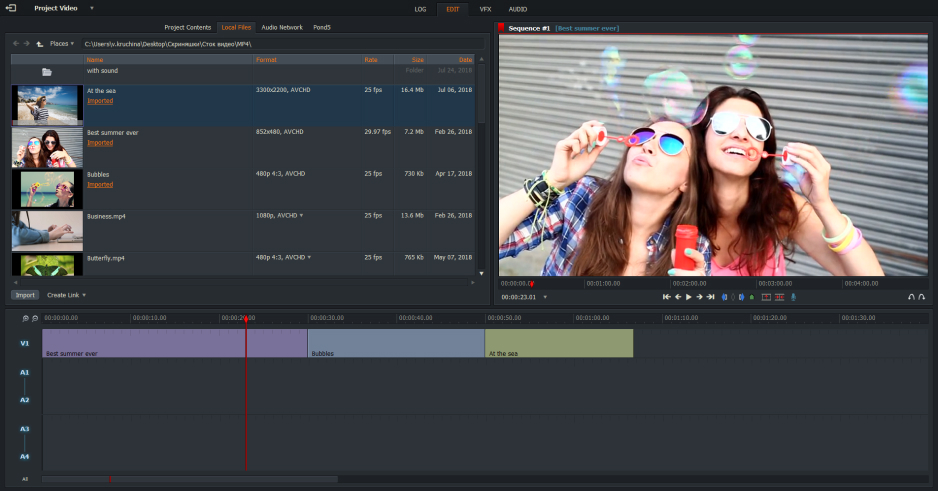
Best for: long-form review videos and vlogs where precise trimming matters more than ready-made effects.
Price and platforms: Lightworks Free; Create from $20 per month; Windows, macOS, Linux.
Lightworks is a professional editor with a film pedigree: its credits include Pulp Fiction and Braveheart, and it has won two Emmy Awards for editing innovations. For photos, the Reframe tools control position, scale, and background, and keyframes change the composition over time. Lightworks Free isn’t a time-limited trial.
Key features:
Pros:
Cons:
Match the editor to the job your photo does in the video.
A channel logo on every vlog. In Movavi Video Editor, Logo tool parks a small mark in a corner. You can lower the logo’s opacity so it doesn’t compete with your face. If you walk and talk on camera, AI Motion Tracking pins a graphic to you automatically, so you never nudge it frame by frame.
A side-by-side video for reactions and reviews. Side-by-side mode splits the frame between a film poster or album cover and your reaction; Trio adds a third picture when you compare three releases.
A travel video from photos and clips. For travel vlogs and family road trips, the Travel template category in Movavi Video Editor gives you a ready-made project. You only need to drop your trip photos and clips into Blocks, keep or swap the template’s music and transitions, and retype the titles. If photos need detailed color grading first, choose DaVinci Resolve.
A property video for social media. To promote a place you sell or rent out on social media, the Real estate template turns room photos into a structured video. Additionally, use the Pan and zoom feature to keep each photo moving instead of sitting like a static gallery.
Family slideshows for birthdays and graduations. The Holidays and family template category give occasion videos a finished structure from your own pictures. On a Mac, iMovie’s trailer templates are a simple alternative.
Professional compositing. For multi-layer VFX, DaVinci Resolve’s Fusion module or Adobe® Premiere® Pro with After Effects® gives the most control, with a longer learning curve.
For more than the basics, the optional Movavi Effects subscription adds 10,000+ effects and 1,500+ music tracks, and you can preview each one on your own video for free. Start with your channel logo, then try a side-by-side reaction on your next review: the free version lets you test both, and later you pick a monthly or yearly plan and add Movavi Effects or Movavi Templates only if your videos need them.
To add a picture to a video on a PC or Mac, open Movavi Video Editor, import the video and the logo. Then place the logo on a track above the video and choose Logo mode. A still image has its own duration setting, so stretch the logo to match the video’s length rather than copying it clip by clip. Finish with Export, then Start.
The quickest route is a Ken Burns effect: in Movavi Video Editor, Pan and zoom sets keyframed camera moves on a still, and you can chain several pans and zooms inside one photo to move from face to face in a group shot. For a photo that slides in or spins, Animation tool offers drag-on presets.
Use the highest-resolution source you have: a photo only looks soft if the original was low-resolution before you scaled it up. Export to MP4 for the widest compatibility, and turn on H.264 encoding in the export settings.