
Privacy Policy popup
× Privacy Policy popup
×
 8
 13 Minutes
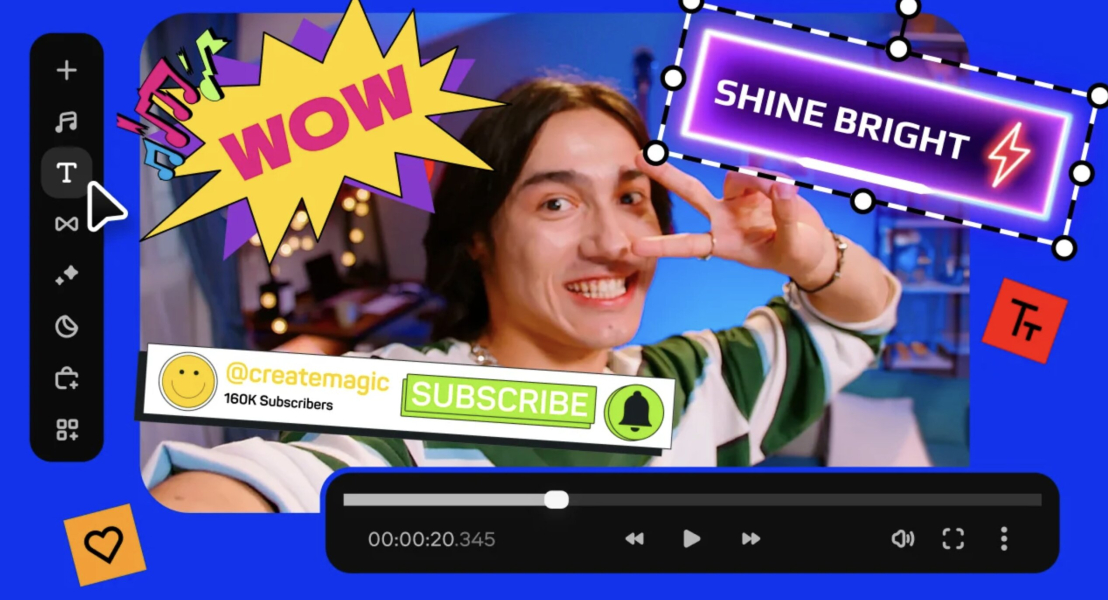
The best alternatives to Filmora for beginners and everyday creators are Movavi Video Editor for lifestyle vlogs, CapCut for quick vertical cuts, DaVinci Resolve for hands-on color work, Clipchamp for fast edits on Windows 11, and VEED for captions made in a browser. If you film daily routines, unbox gadgets for a review channel, or piece together family road trips, this list matches each editor to that job. Some picks need no editing experience at all, and every one has a free or cheap way to start.
We checked each editor against the videos lifestyle, tech, and family creators make every week. Four criteria: the video-editing tools those jobs need (auto subtitles, noise reduction, vertical cropping, ready-made templates), where it runs (PC, Mac, or browser), price and what the free version exports, and the learning curve for a first-timer.
Wondershare Filmora is an AI-powered desktop editor aimed at serious production: frequent YouTube uploads, client work, and multi-layer projects.
Filmora’s multitrack timeline handles keyframe animation and motion tracking, and its AI covers real blogger chores: automatic pause removal, auto-reframing, and pulling vertical highlights out of long videos. It also offers a large library of trending templates and runs on Windows and Mac without powerful hardware. If you already use your credits every week, staying put makes sense.
| Editor | Best for | Platforms | Starting price |
| Movavi Video Editor | Lifestyle vlogs: daily routines, unboxings, travel videos | Windows, macOS | $19.95/month |
| CapCut | Vertical cuts of daily vlogs for TikTok, Reels, and Shorts | Desktop, web, mobile | $9.99/month (Standard) |
| DaVinci Resolve | Game highlight edits with hands-on color work | Windows, macOS, Linux | $295 one-time (DaVinci Resolve Studio) |
| Clipchamp | Quick unboxing clips on a Windows 11 PC | Browser, Windows 11 app, iOS app | $9.99/month (premium features via Microsoft 365 Personal) |
| VEED | Captioned gadget reviews edited online | Browser, mobile app | $12/month, billed yearly |
Best for: lifestyle vlogs (daily routines, unboxings, travel videos), plus family road trips and gadget reviews.
Price and platforms: Windows and macOS. Movavi Video Editor Free; the full version costs from $19.95/month. Movavi Effects and Movavi Templates add-on subscriptions are priced separately.
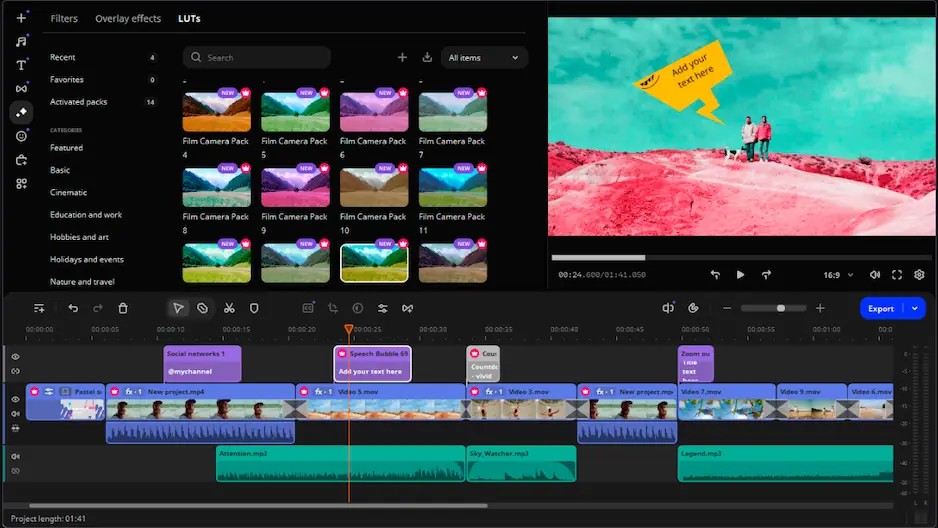
Movavi Video Editor is an intuitive video editor with customizable video templates, one-click AI tools, and hundreds of drag-and-drop effects. It’s a desktop app for Windows and macOS, so a long travel vlog stays on your PC or Mac. Hover previews show a clip or effect before you add it, and drag-and-drop puts it on the timeline. Where Filmora sells AI through credits, every Movavi AI tool comes with the full version: auto subtitles, video and audio noise removal, silence removal, auto-tracked cropping, and motion tracking, each in one click. On your very first vlog, that means captions synced to your voice and the wind hiss gone before you’ve touched a slider. More than 70 million people in 190+ countries already edit with Movavi, and the software gets 25+ updates a year.
Key features
Pros
Cons
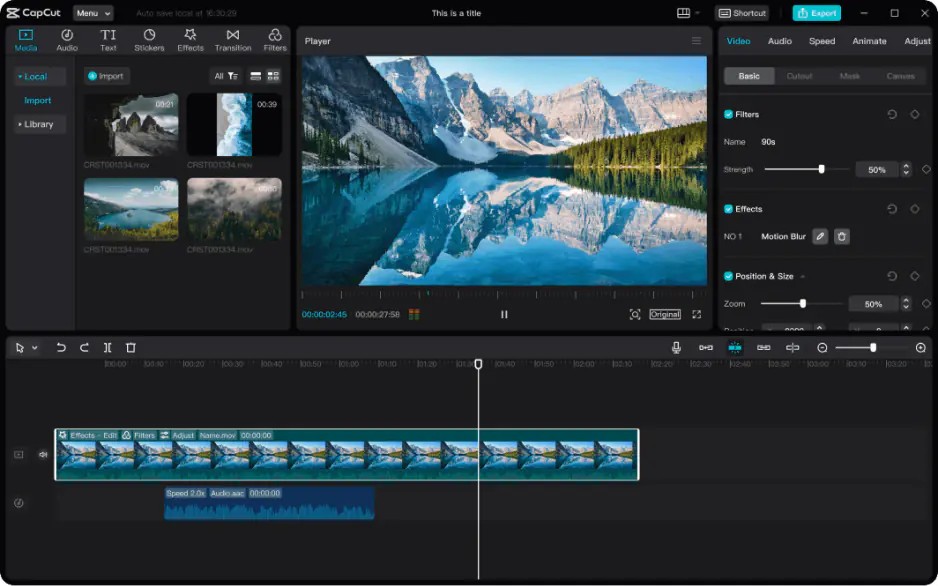
Best for: cutting daily-routine vlogs into vertical clips for TikTok, Reels, and Shorts.
Price and platforms: mobile, web, and desktop. Free; Standard at $9.99/month (no watermark, no 4K or AI); Pro at $19.99/month or $179.99/year (4K and AI on credits).
CapCut is a mobile-first editor for short, trending videos, part of the TikTok ecosystem, with desktop and web versions too. Like Filmora, it pairs a large AI toolkit with a big library of trending templates, and the best of both sits behind a subscription. Choose it over Filmora if your videos start on a phone and end on TikTok.
Key features
Pros
Cons
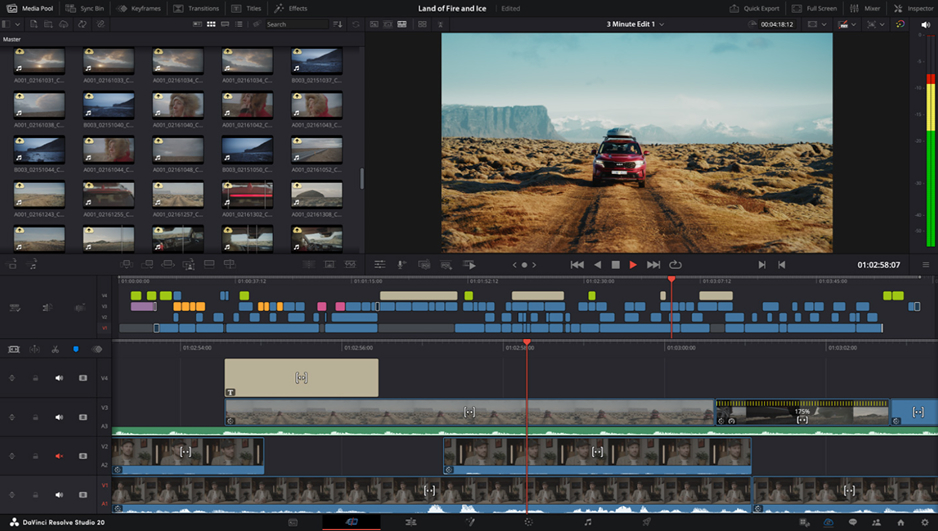
Best for: game highlight edits where you want full control over color.
Price and platforms: Windows, macOS, and Linux. Free; DaVinci Resolve Studio is a one-time purchase at $295.
DaVinci Resolve is a professional tool with separate modules for editing, color, audio, and visual effects. Its color grading, the shot-by-shot adjustment of tone and color that gives a video its look, goes well past Filmora’s. The base version is free and exports without a watermark, and Studio is a one-time purchase instead of a subscription. The cost is time: tools don’t work in one click, and the interface takes study. Pick it if you’re experienced or eager to learn.
Key features
Pros
Cons

Best for: quick unboxing clips edited on a Windows 11 PC.
Price and platforms: browser (Edge or Chrome), Windows 11 app, and iOS app. Free; premium features such as 4K export and premium stock come with Microsoft 365 Personal from $9.99/month.
Clipchamp is Microsoft’s browser-based editor, built into Windows 11 and Microsoft 365. It covers basic editing on a simple timeline, adds screen and webcam recording, and keeps all its AI features free. Next to Filmora, the toolset is small: no AI video noise removal and no auto-reframing with tracking. For a beginner who wants a clip posted today, it’s an easy first step.
Key features
Pros
Cons
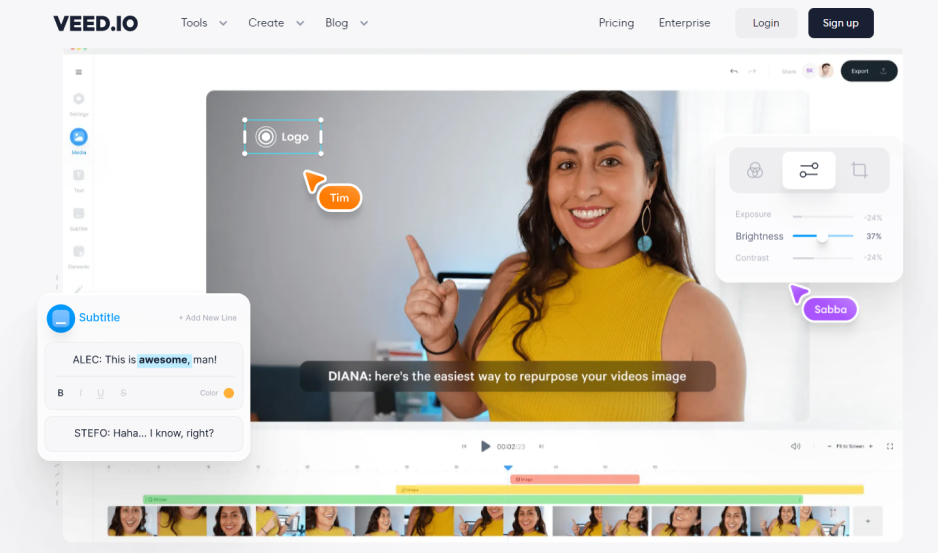
Best for: captioned gadget reviews edited online.
Price and platforms: browser and mobile app. Free; paid plans from $12 per user per month, billed yearly.
VEED is a browser-based AI editor for team collaboration and business videos, so there’s nothing to install. For talking to camera, it offers accurate auto subtitles with translation, Clean Audio, and Remove Silences, which cuts pauses and filler words. Compared with Filmora, it trades desktop power for the browser: long, heavy files can lag, and there are only 42 effects. Subtitle translation spends AI credits.
Key features
Pros
Cons
If you shoot vertical clips on your phone daily, CapCut keeps you in one ecosystem. If you love color work and have weeks to learn, take DaVinci Resolve. On Windows 11 with an unboxing clip due tonight, Clipchamp is already there. For gadget reviews across devices, VEED fits.
Our pick for lifestyle vloggers is Movavi Video Editor: the hour-long travel vlog and the 30-second vertical cut live on the same PC or Mac, and the AI never asks you to count credits. You pay only for what you use, too: start with Movavi Video Editor Free and move to the full version when your videos ask for more. Want a fresh look for each new series? The Movavi Effects subscription adds 10,000+ effects across every theme and 1,500+ music tracks, and you can preview any of them on your own footage before you buy.
Download the app and run auto subtitles on last weekend’s footage. When you want something new to try, Movavi Ideas posts fresh editing ideas every week, each with a free step-by-step tutorial that takes less than a minute to follow.
Which Filmora alternative is best for free video editing without a watermark?
DaVinci Resolve’s free version exports without a watermark or time limit, and Clipchamp’s free plan exports 1080p video without one. Resolve’s paid Studio edition lifts further limits, such as the number of timeline tracks.
Is there a Filmora alternative for a Mac and for a PC?
Movavi Video Editor and DaVinci Resolve run as desktop apps on both. Movavi Video Editor supports Windows 10 and 11 (64-bit) and macOS 12.0 or higher, with native support for Apple M1 and newer chips. Clipchamp and VEED run in a browser on either system.
Can these editors fix grainy footage shot at night?
Movavi Video Editor’s AI video denoise removes grain and low-light artifacts in one click while keeping faces and edges sharp, which rescues evening clips from a family road trip. DaVinci Resolve has a grain tool you adjust by hand, Filmora reduces noise only within its overall quality enhancement, and CapCut, Clipchamp, and VEED have no video noise removal tool.