
Privacy Policy popup
× Privacy Policy popup
×
 14
 15 Minutes
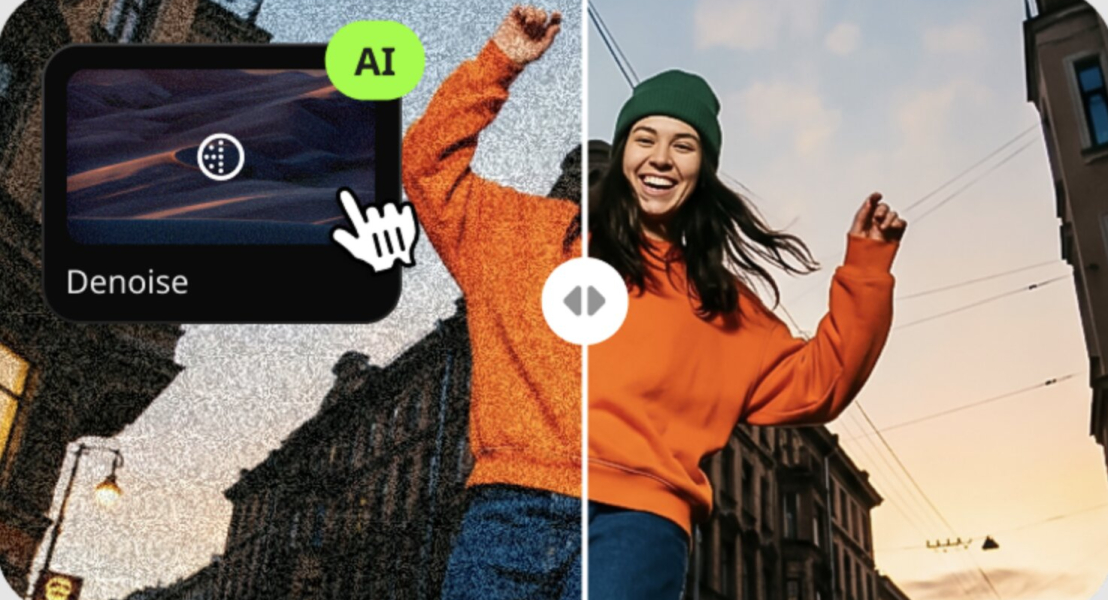
An AI video upscaler adds detail to low-resolution clips, while a video enhancer cleans grain and softness without changing the frame size. This list covers both kinds: DaVinci Resolve Studio for resolution upscaling, Clideo for one-off fixes, and Movavi Video Editor for beginners who want cleaner footage in a click.
We looked at what a beginner needs to fix a soft, grainy clip:
| Product | Best for | Free version | Starting price |
| Movavi Video Editor | Lifestyle vlogs and family travel clips from phone footage | Movavi Video Editor Free: 60-second cap, watermark, no 4K | $19.95 per month |
| DaVinci Resolve | Travel and cinema-review creators who want resolution upscaling | Free base version, no watermark | Studio: $295 one-time |
| Filmora | Beauty and fashion creators who post often | Free, always watermarked | Basic: $49.99 per year |
| CapCut | Short lifestyle clips and travel videos | Free: 1080p, watermark with Pro content or AI clips | Pro: $19.99 per month |
| Adobe® Premiere® Pro | Cinema and music reviews in a professional workflow | 7-day trial | $22.99 per month |
| Clideo | One unboxing clip fixed in the browser | Free: watermark, 500 MB, up to 720p | Pro: $9 per month, billed yearly |
| Final Cut Pro | Mac-based vlogs from iPhone or pro-camera footage | 90-day trial | $299.99 one-time |
| VEED | Talking-head beauty tips that need captions | Free: watermark, 10 minutes, 720p | From $9 per month, billed yearly |
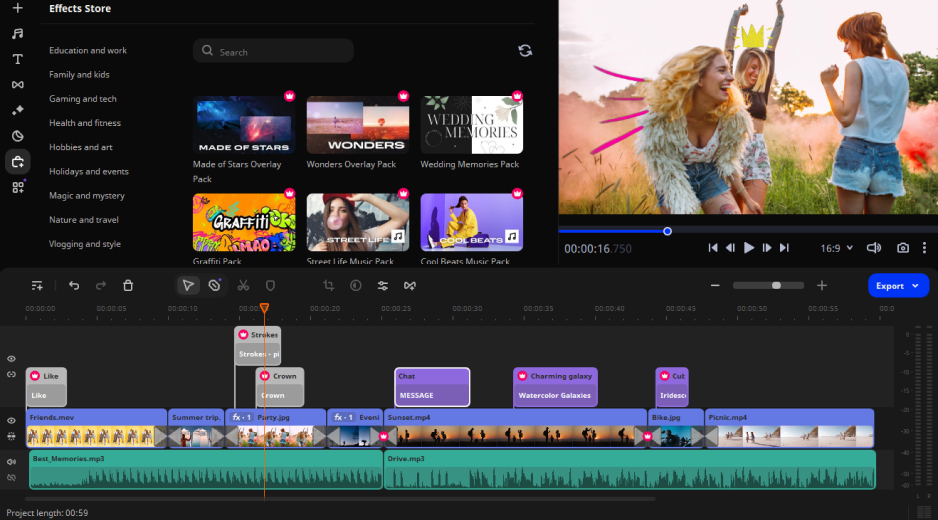
Best for: beginners with no editing experience who make lifestyle vlogs and family travel videos from phone footage.
Price and platforms: Windows and macOS. Movavi Video Editor Free exports with a watermark. Movavi Video Editor Lite keeps a small watermark and limits some AI tools. The full version is $19.95 per month.
Why we picked it: Movavi Video Editor is an intuitive video editor with customizable video templates, one-click AI tools, and hundreds of drag-and-drop effects. It is a desktop app for Windows and macOS, and it is easy to use: hover previews show a clip or effect before you drop it onto the timeline, and AI video denoise clears grain in one click, so a dim daily-routine vlog or an old phone clip looks cleaner on the first export. The optional Movavi Effects subscription adds 10,000+ effects, and you can preview them on your own video for free. Movavi Ideas, a free hub with a new step-by-step tutorial every week, gives you a place to start. Movavi software has more than 70 million users worldwide, and the editor gets 25+ updates a year.
Key features:
Pros:
Cons:
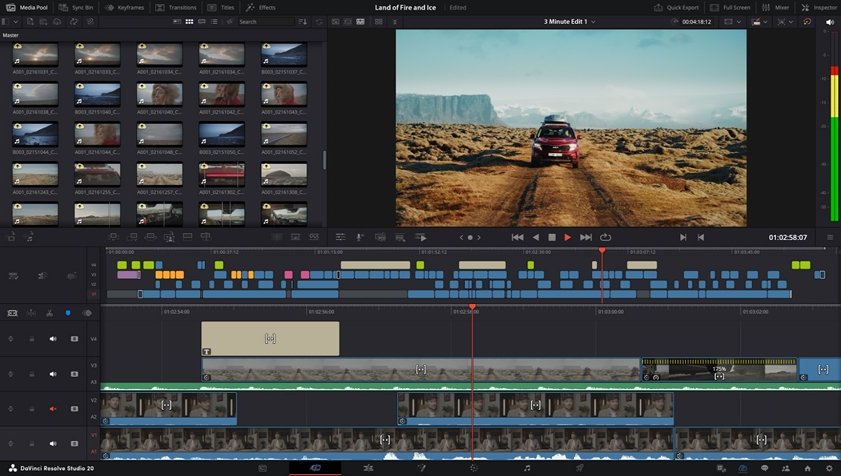
Best for: travel and cinema-review creators who want resolution upscaling and will spend time learning a professional interface.
Price and platforms: Windows, macOS, and Linux. Free version available. Studio costs $295 once.
Why we picked it: Super Scale, its AI upscaling tool, raises sharpness and resolution, which makes DaVinci Resolve the clearest answer to the upscaling question. The full AI toolkit sits in the paid Studio version.
Key features:
Pros:
Cons:
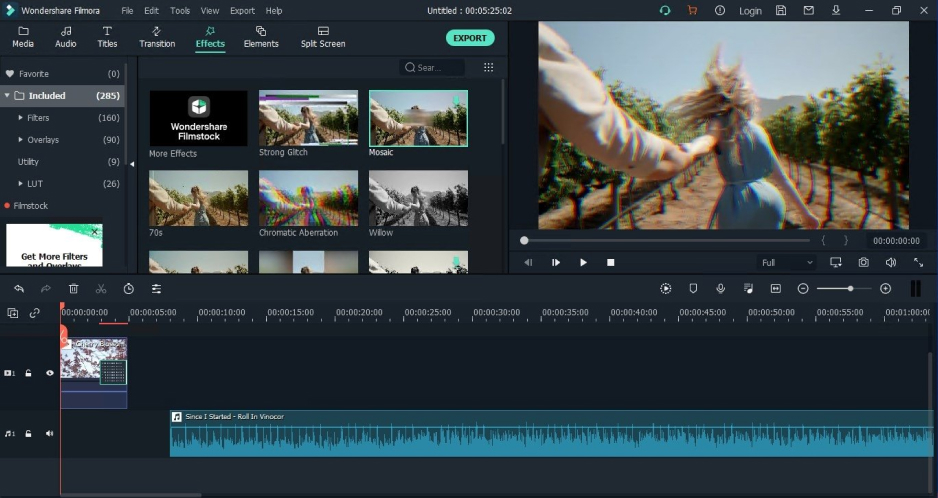
Best for: beauty and fashion creators who post often and want AI quality tools that run on AI credits.
Price and platforms: Windows and macOS. The free version is always watermarked. Basic is $49.99 per year, Advanced is $59.99 per year, and a perpetual license is $79.99 once.
Why we picked it: Filmora pairs AI quality tools with a multitrack timeline, so you can fix a soft clip and keep editing in one place on Windows or Mac.
Key features:
Pros:
Cons:
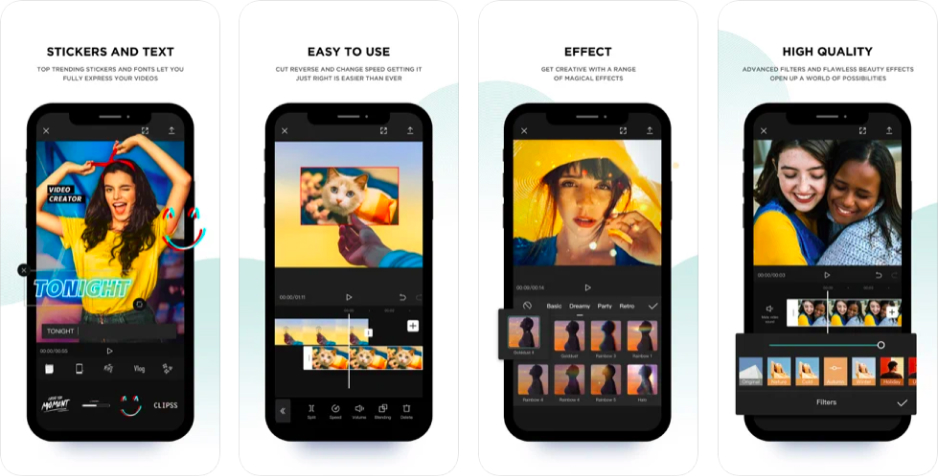
Best for: lifestyle vloggers who post short clips and travel videos.
Price and platforms: mobile, web, and desktop. Free version available. Pro is $19.99 per month or $179.99 per year and adds 4K and the full AI toolkit.
Why we picked it: CapCut lists a tool to sharpen videos and precise quality settings, and it runs on mobile, web, and desktop, so you can start a clip on your phone.
Key features:
Pros:
Cons:
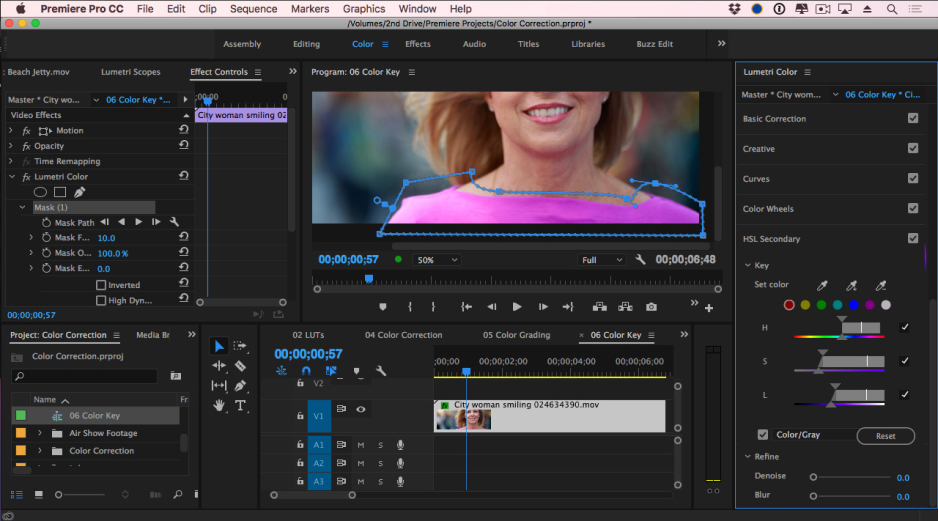
Best for: cinema and music reviewers who edit in a professional workflow.
Price and platforms: Windows and macOS. Seven-day trial; the single-app plan is $22.99 per month on an annual plan.
Why we picked it: Premiere® Pro gives manual control over sharpness and color, which suits people who already know panel-based editors.
Key features:
Pros:
Cons:
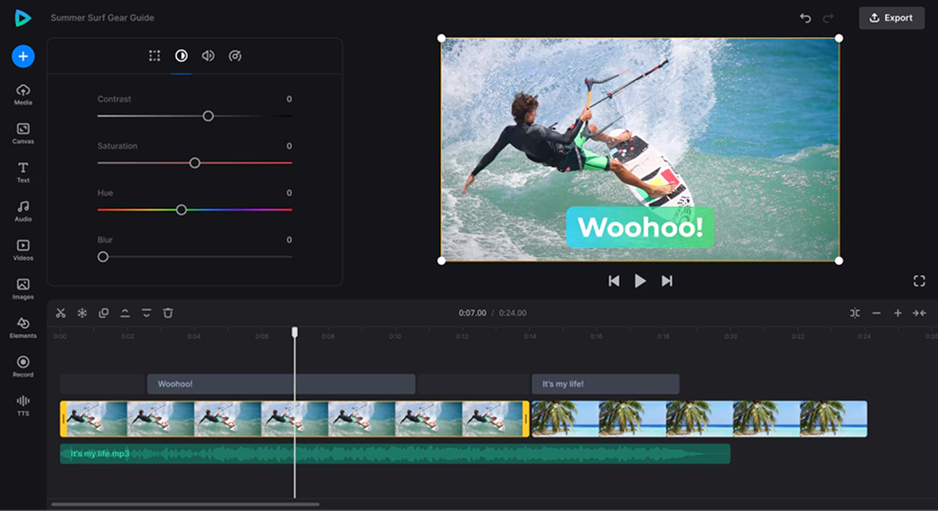
Best for: creators who need to clean up one unboxing clip in the browser.
Price and platforms: Browser. The free version is always watermarked, with a 500 MB limit and up to 720p. Pro is $9 per month billed yearly, or $12 month to month.
Why we picked it: Clideo offers simple video and audio editing tools, and recently added an AI Video Enhancer to its set of 30+ web utilities, so a quick fix needs no installation.
Key features:
Pros:
Cons:
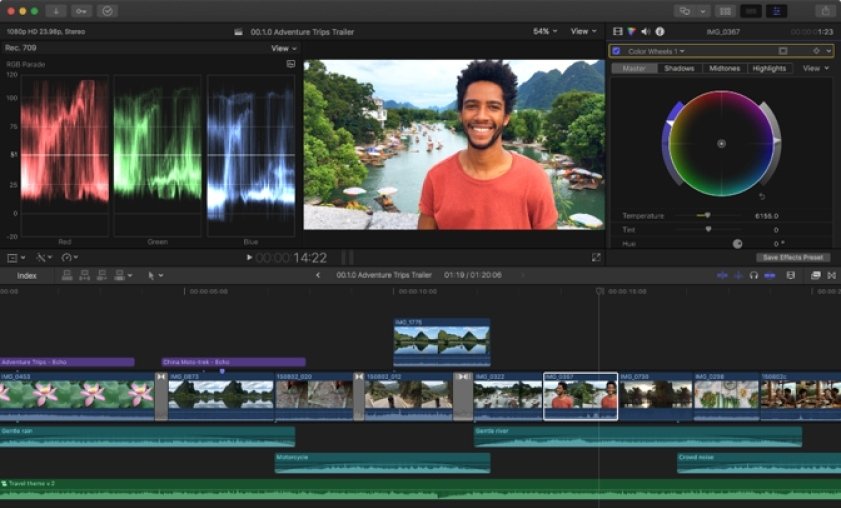
Best for: Mac-based vloggers who edit iPhone or pro-camera footage for YouTube and want one purchase instead of a subscription.
Price and platforms: Mac only. 90-day trial, then $299.99 once, with no subscription.
Why we picked it: Final Cut Pro is Apple’s professional editor, built for near-professional editing on Mac hardware. If your lifestyle vlogs start on an iPhone or a pro camera and finish on a Mac, it keeps the whole workflow inside the Apple ecosystem. It is also sold as a one-time purchase, so you pay once instead of renewing.
Key features:
Pros:
Cons:
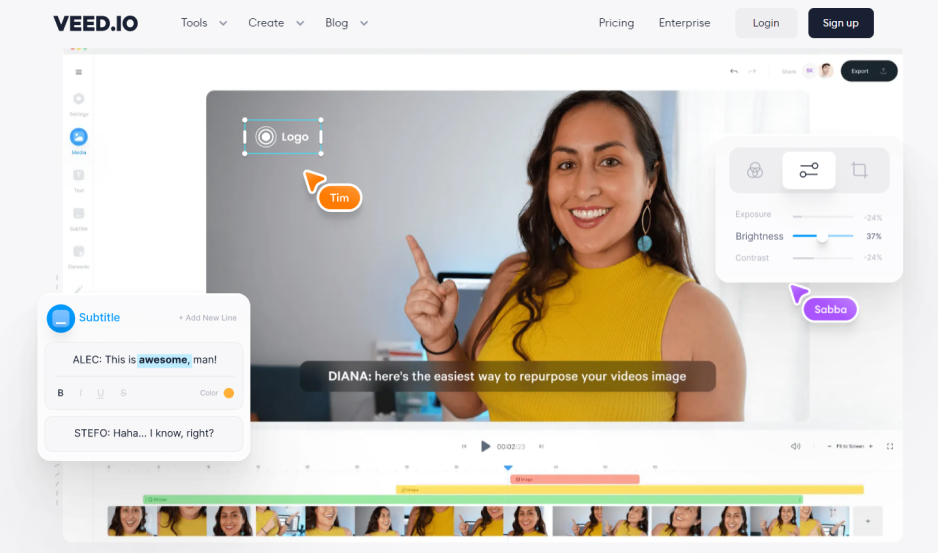
Best for: talking-head beauty tips that need captions and clean audio.
Price and platforms: browser, plus a mobile app. The free version is watermarked, up to 10 minutes and 720p. Paid plans start at $9 per month billed yearly.
Why we picked it: VEED has no standalone quality-enhancement tool, only basic sliders in clip settings. It earns a place for creators whose clip problem is sound and subtitles rather than resolution.
Key features:
Pros:
Cons:
Match AI video upscaling software to the footage and to how much time you want to spend learning it.
For beginners and everyday creators, pick Movavi Video Editor. The comparison comes down to the learning curve: DaVinci Resolve and Premiere® Pro take the most time to learn, CapCut and Filmora sit in the middle, and Movavi Video Editor has tooltips in its interface. You can start with the free version, move to the full version, and add Movavi Effects or Movavi Video Templates only when a project calls for them.
Next, grab the dimmest clip from your last trip, run it through the tool that fits your budget, and play it next to the original. Movavi Ideas has a fresh tutorial waiting for whatever you edit after that.
Beginners who care more about clean footage than a bigger frame can look at AI denoise in Movavi Video Editor and the sharpness preset in Filmora.
Mostly yes, with limits. DaVinci Resolve’s free version has no watermark, but its AI tools sit in Studio. Clideo’s free version exports up to 720p, and VEED’s up to 720p and 10 minutes. CapCut’s free exports reach 1080p.
No for Movavi Video Editor, where basic editing needs only cutting, cropping, and color presets. Yes, or at least patience, for DaVinci Resolve and Premiere® Pro, where tools need fine-tuning settings.
A diffusion-based upscaler uses a generative AI model that rebuilds detail step by step, guided by your original frame. It can add convincing texture to a soft clip, but it invents detail rather than recovering it, so results can vary from frame to frame and processing is often slow. 8K only pays off if you have an 8K screen or plan to crop heavily. For most videos, 1080p or 4K is plenty, and a clean source matters more.