
Privacy Policy popup
× Privacy Policy popup
×
 15
 16 Minutes

The best DaVinci Resolve alternatives depend on where you edit and what you post. Movavi Video Editor fits lifestyle vloggers on Windows or Mac who want a simple desktop editor, Clipchamp and VEED run in the browser for quick tutorials, and Adobe® Premiere® Pro suits creators who want a professional timeline and accept a subscription. The entries below match each editor to a task, with free version limits and learning curve spelled out.
DaVinci Resolve is a professional tool for editing, color grading, audio, and VFX. It splits those jobs into separate modules (Edit, Color, Fairlight for audio, Fusion for VFX), which is a lot of software to learn before your first vlog is finished. Its learning curve is steep, and powerful hardware is recommended.
The free version is generous, though. According to Blackmagic Design’s product page, it runs on Mac, Windows, and Linux and handles resolutions up to Ultra HD (3840 x 2160). It exports without a watermark. DaVinci Resolve Studio is a one-time purchase with no subscription, priced at $295, and it adds the AI tools, noise reduction, and Magic Mask. If you cut everyday videos, you may never miss them.
We judged each editor on what a beginner notices in the first week:
| Editor | Best for | Free version | Starting price | Learning curve |
| Movavi Video Editor | Lifestyle vlogs, unboxings, game highlights | Yes: 60-second cap, watermark | $19.95/month | Easy |
| Filmora | Vlogs on a frequent posting schedule | Yes: always watermarked | $4.17/month | Medium |
| CapCut | Lifestyle vlogs cut into vertical clips | Yes: 1080p, watermark with Pro content or AI clips | $19.99/month | Medium |
| Adobe® Premiere® Pro | Game review channels that need pro control | No: 7-day trial | $22.99/month | Hard |
| Clipchamp | Tutorials and screen recordings | Yes: 1080p, no watermark | $9.99/month | Easy |
| VEED | Captioned tutorials and explainers | Yes: 720p, 10-minute exports, watermark | $12/month | Easy, with caveats |
| Canva | School and university project presentations | Yes, with limits on premium content | $18/month | Easy for design, medium for editing |
| Adobe® Express® | Quick post clips for lifestyle creators | Yes, with limits on features, content, and AI | $9.99/month | Easy |
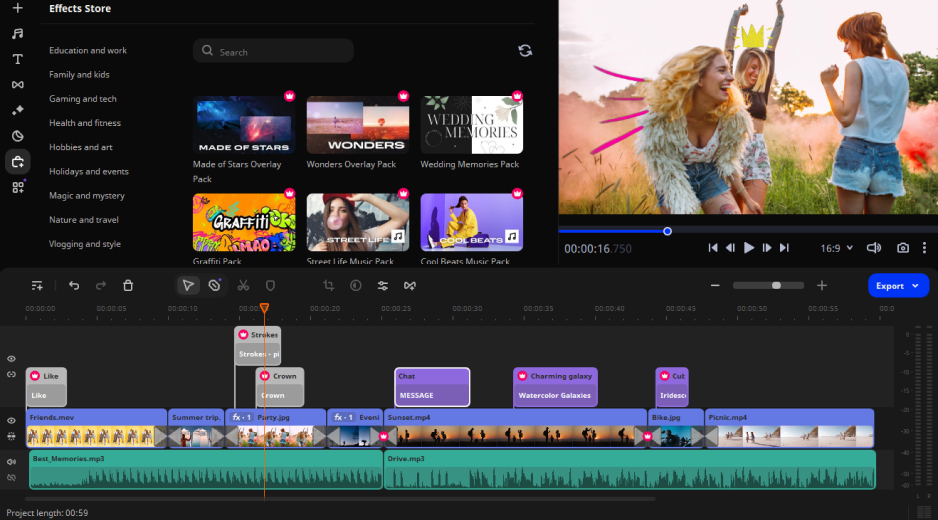
Best for: lifestyle vlogs, unboxings, game highlights, and tutorials.
Why we picked it: Movavi Video Editor is an intuitive video editor with customizable video templates, one-click AI tools, and hundreds of drag-and-drop effects. It is a desktop app for Windows and macOS. Hover over a clip, effect, or transition and a preview appears before you drop it on the timeline, and the free Movavi Ideas tutorial hub adds a new step-by-step idea every week.
Say you are cutting a travel vlog. The Blade tool handles the cuts, and templates handle the rest. Movavi Video Templates is a multi-style library of customizable, pro-looking, modular templates for any kind of video. Each template is a ready-made project made of short segments called Blocks, where you drop in your own clips, photos, and text. Editing, music, transitions, and text come pre-set, so even your first vlog arrives with pacing and a soundtrack, and you can reorder, add, or remove Blocks. Several templates are included in the full version at no extra charge; the whole collection needs a separate subscription.
The AI tools cover the rest in one click. For a gadget review, AI background removal swaps your backdrop with no green screen. For a tutorial, auto silence removal cuts the pauses so the lesson keeps its pace.
Key features:
Pros:
Cons:
Price and platforms: Windows and macOS. Movavi Video Editor Free exports up to 60 seconds with a watermark. The full version is a monthly or annual subscription with no watermark or export limits; plan prices from $19.95/month.
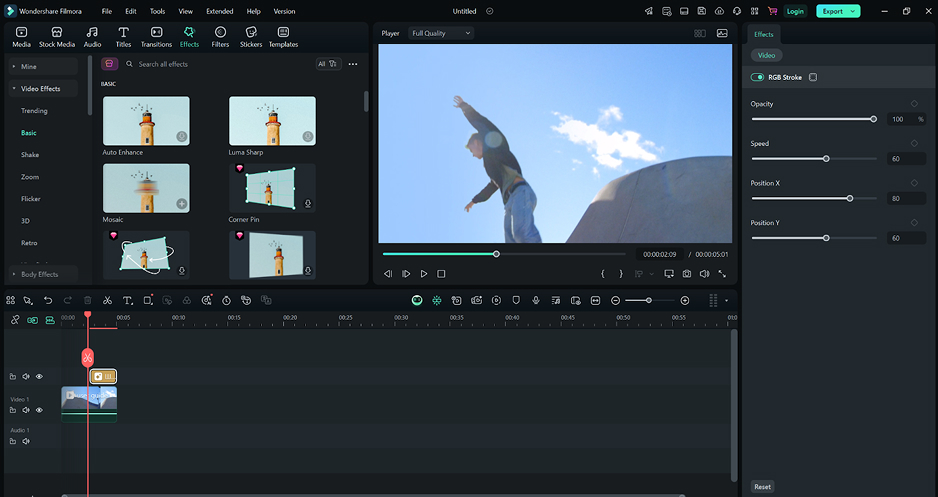
Best for: vloggers who post on a frequent schedule and want multitrack control.
Why we picked it: Filmora is positioned as a desktop tool for serious content production, yet its interface is simpler than professional editors’, with many templates and AI automation doing the heavy lifting.
Key features:
Pros:
Cons:
Price and platforms: Windows and macOS. Paid plans include a subscription and a one-time license for a single platform and version from $4.17/month.
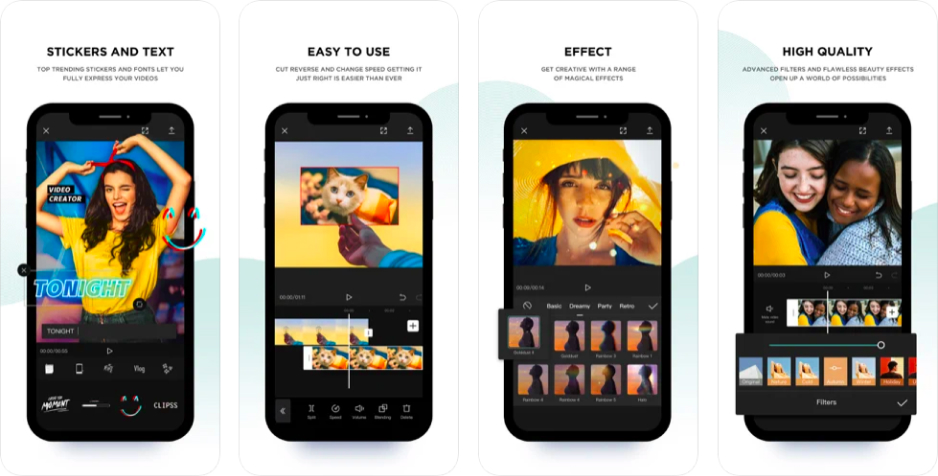
Best for: lifestyle vlogs cut into vertical clips.
Why we picked it: CapCut is a mobile-first editor for short, trending videos and part of the TikTok ecosystem. On desktop, its tools match the mobile version, which is where many users start.
Key features:
Pros:
Cons:
Price and platforms: mobile, web, and desktop. The free plan exports at 1080p with a watermark when you use Pro content or AI clips; Standard removes the watermark, and Pro adds 4K and the full AI toolkit from $19.99/month.
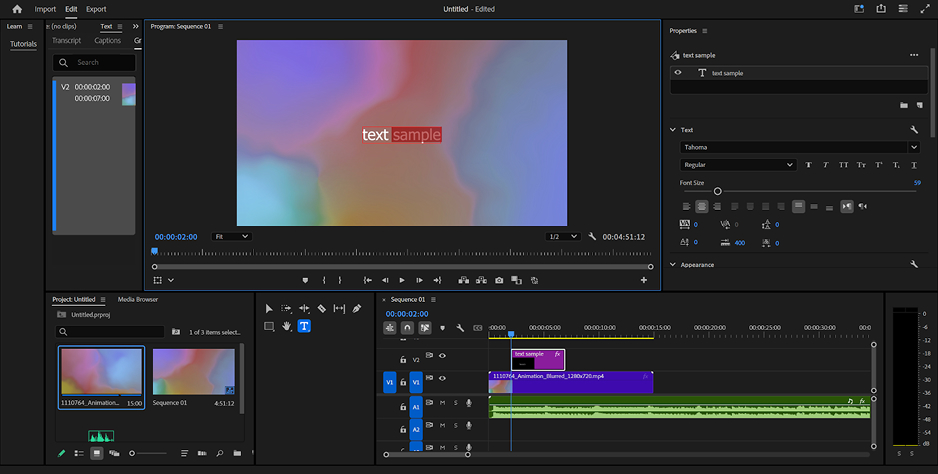
Best for: game review channels that need pro-level multitrack and color tools.
Why we picked it: Adobe® Premiere® Pro is the industry standard for people who edit video for a living. Pick it when a project outgrows an everyday editor and you are ready to learn a professional interface.
Key features:
Pros:
Cons:
Price and platforms: Windows and macOS. $22.99 per month on the annual plan billed monthly, with a 7-day free trial.
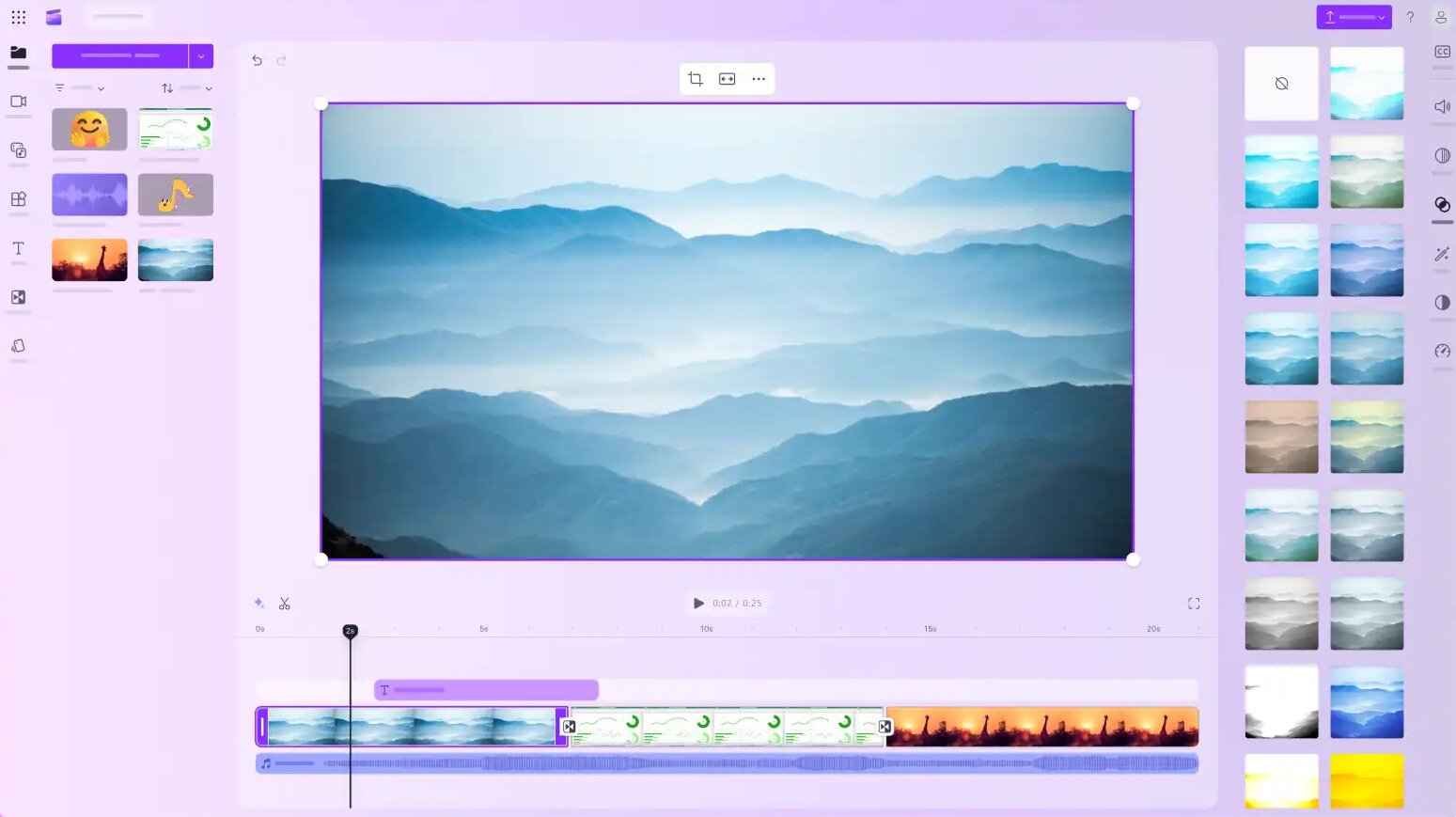
Best for: tutorials and screen recordings, especially on Windows.
Why we picked it: Clipchamp is Microsoft’s browser-based editor, built into Windows 11 and Microsoft 365. Its simple timeline is clear to beginners, and a free plan covers the basics.
Key features:
Pros:
Cons:
Price and platforms: browser (Edge or Chrome), a Windows 11 app, and iOS; a Microsoft account is required. The free plan exports up to 1080p without a watermark, while 4K export needs a qualifying Microsoft 365 subscription from $9.99/month.
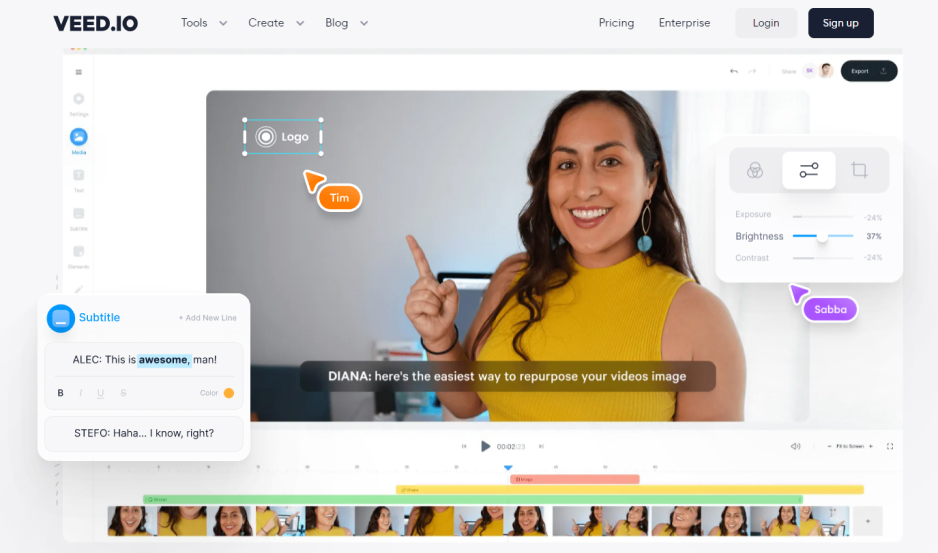
Best for: captioned tutorials and explainers.
Why we picked it: VEED is a browser-based AI editor built for team collaboration and business content. Subtitles are the headline tool, and nothing needs installing.
Key features:
Pros:
Cons:
Price and platforms: browser and a mobile app. The free plan adds a watermark, caps exports at 720p and 10 minutes, and limits imports to 1 GB. Paid plans are monthly or annual, billed per member from $12/month.
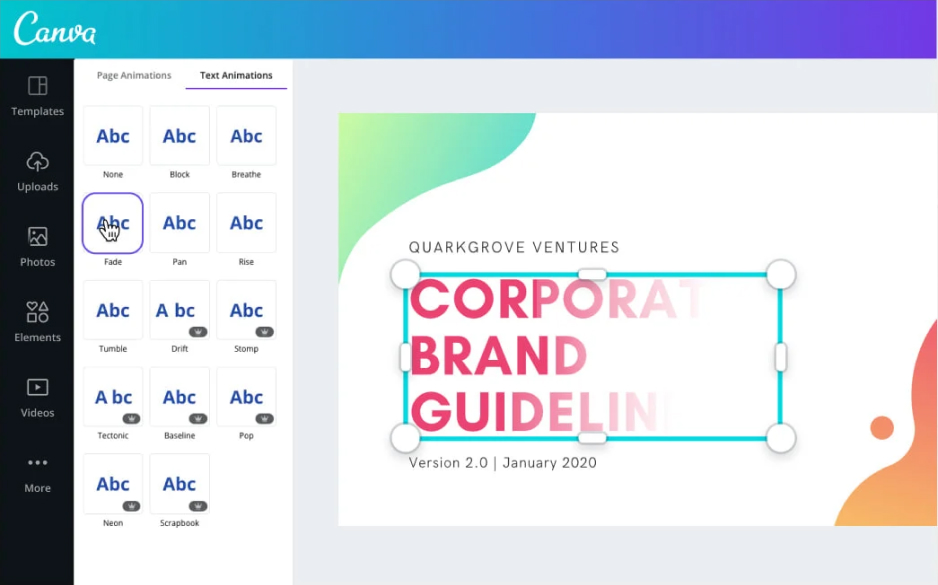
Best for: school and university project presentations with video clips.
Why we picked it: Canva is a graphic design builder with video as a secondary format. That makes it a fit for a presentation with a few clips, more than for a long edit.
Key features:
Pros:
Cons:
Price and platforms: browser, desktop, and mobile apps; an account is required. Free, with limits on premium content; Pro and Teams are monthly or annual per-user subscriptions from $18/month.
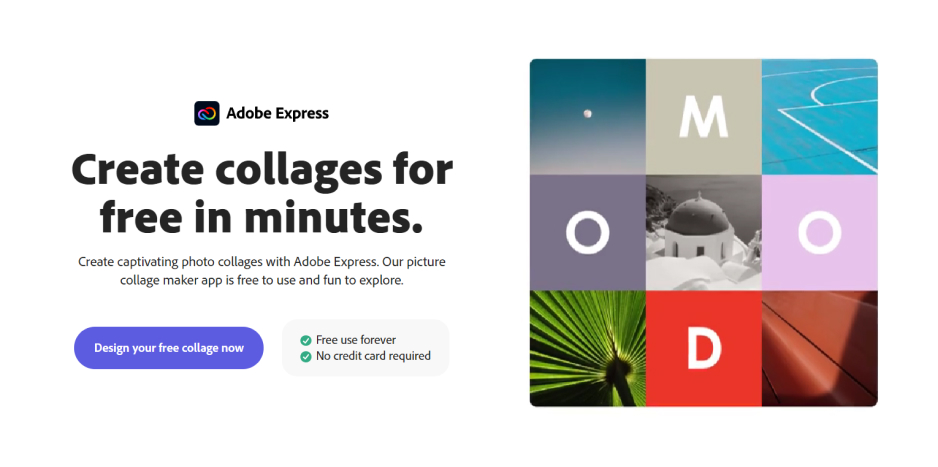
Best for: quick post clips for lifestyle creators.
Why we picked it: Adobe® Express® is a lightweight web builder for social media and marketing. Its ready-made templates are easy to edit right on the canvas.
Key features:
Pros:
Cons:
Price and platforms: browser and a mobile app; an Adobe® account and an internet connection are required. Free, with limits on features, content, and AI; Premium is a monthly or annual subscription from $9.99/month.
Stay if color grading is the job. DaVinci Resolve offers full color correction through nodes, HDR grading, and LUTs, plus Fairlight for audio and Fusion for VFX. The free version costs nothing and runs on Linux, while Movavi Video Editor runs on Windows and macOS.
Yes. The free version covers frame rates up to 60 fps, and Studio goes up to 120 fps. Studio also adds the DaVinci AI Neural Engine, noise reduction, text-based editing, and Magic Mask, as a one-time purchase.
Movavi Video Editor and Clipchamp both rate as easy to learn. Choose Movavi for a desktop timeline that handles large files, and Clipchamp for a free browser editor on Windows.
Movavi Video Editor runs even on low-end PCs, and Filmora runs on a mid-range laptop. Browser editors such as VEED depend on your internet speed and can lag on heavy files.