
Privacy Policy popup
× Privacy Policy popup
×
 8
 19 Minutes

If you have no editing experience, the right intro maker is the one that fits the device you edit on and doesn’t require much time to learn. Whether you make lifestyle vlogs, beauty or fashion tips, recipe videos, or reviews for YouTube, you’ll find a suitable app from our list. Movavi Video Editor covers PC and Mac, iMovie covers iPhone, iPad, and Mac, and CapCut and InShot cover phone-only editing. The others run in a browser or on desktop; the table shows which job each fits.
| App | Best for | Platforms | Free version and limits |
| Movavi Video Editor | Daily-routine, unboxing, and travel vlogs on PC or Mac | Windows, macOS | Yes. Watermark, 60-second cap, no 4K export. |
| iMovie | Travel vlogs shot on iPhone | Mac, iPhone, iPad | Yes. No watermark or limits. |
| CapCut | Short vertical beauty and daily-routine clips | iPhone, Android, plus web and desktop | Yes. 1080p export, watermark with Pro content or AI clips. |
| InShot | Daily-routine vlogs cut on a phone | iPhone, iPad, Android | Yes. Watermark and ads; Pro removes both. |
| Filmora | Music, art, and cinema reviews on PC or Mac | Windows, macOS | Yes. Watermarked exports, limited number of exports. |
| Kapwing | Music and history reviews with subtitles, in a browser | Browser | Yes. Watermark, 1–4 minute exports, 720p, limits on AI features |
| VEED | Beauty and skincare tips with subtitles, in a browser | Browser, mobile app | Yes. Watermark, 720p, 10-minute export, 1 GB import. |
| Clipchamp | Vlogs and unboxing videos on a Windows 11 laptop | Browser, Windows 11 app, iOS app | Yes. No watermark; 4K and brand tools need Premium. |
| Canva | Beauty and fashion tips with a design-first opener | Browser, desktop and mobile apps | Yes. Limits on premium content and AI features. |
| Adobe® Express® | Cooking and recipe videos with a quick branded opener | Browser, mobile app | Yes. Limits on features, content, and AI. |
Every app had to give you a way to build an opener or a closing sequence: a template, a title card, a trailer, or a merge tool. Then we compared these video editing tools on four criteria:
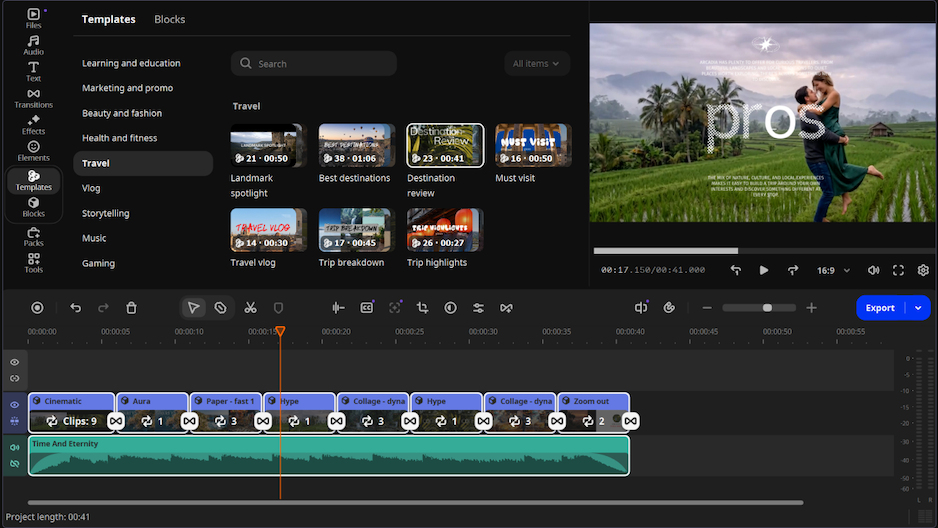
Best for: Vloggers on PC or Mac who shoot travel and daily-routine videos and want an opener and a closing sequence without a long learning curve.
Why we picked it: Movavi Video Editor is an intuitive video editor with customizable video templates, one-click AI tools, and hundreds of drag-and-drop effects. Hover previews show clips, effects, and transitions as you move the cursor, so you can judge a title or a transition before it touches the timeline. Some templates come with the full version of Movavi Video Editor. Movavi Video Templates is a multi-style library of customizable, pro-looking, modular templates for any kind of video. A beginner also gets Movavi Ideas, a free tutorial hub that adds a new editing idea with step-by-step instructions every week.
For an intro, you’ll find various title presets with custom fonts, colors, outlines, and backgrounds. Plus, you can save your own presets, so every episode opens in the same style. Movavi also lets you add your logo on screen and adjust its position, size, opacity, and duration. And if you lack starting material, use built-in sample videos, backgrounds, and intro videos, plus copyright-free music and sounds for the mood.
Key features:
Pros:
Cons:
Platforms: Desktop app for Windows, including Windows 11, and for macOS, including Apple M1 Macs and newer.
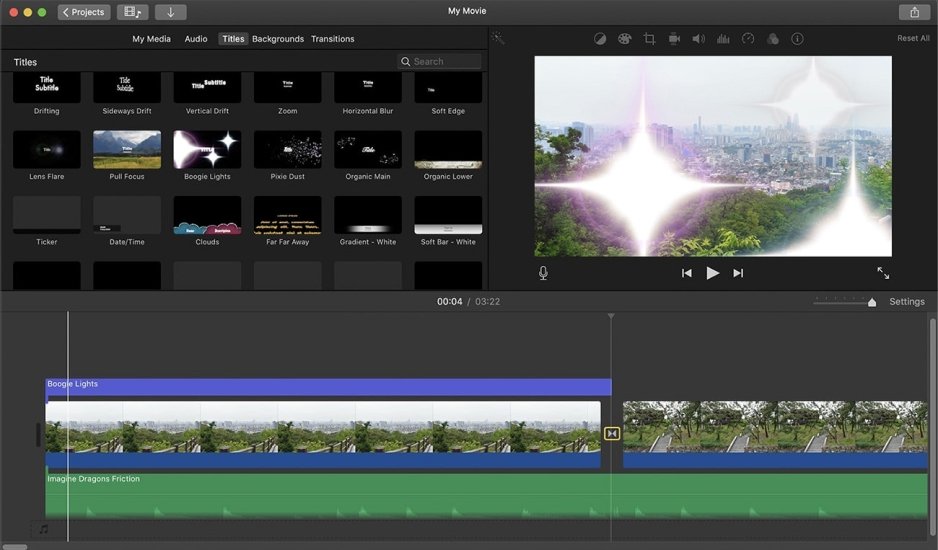
Best for: Travel vloggers who shoot on an iPhone and want an opening title card or a trailer-style opener.
Why we picked it: iMovie is Apple’s own editor for iPhone, iPad, and Mac, and its trailers come with preset titles that you edit by typing over placeholder text. On iPhone and iPad, Magic Movie builds a styled edit with titles, transitions, and music from the footage you pick.
Key features:
Pros:
Cons:
Platforms: Mac, iPhone, iPad.
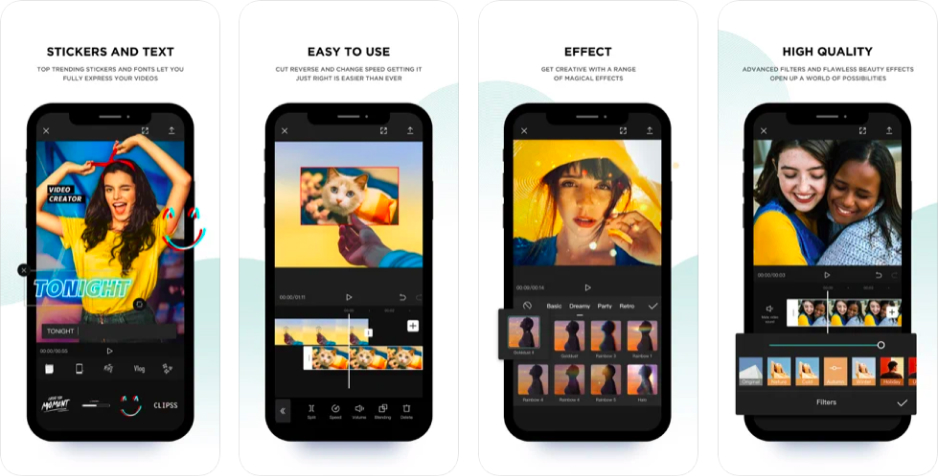
Best for: Short vertical beauty, fashion, and daily-routine clips edited on a phone.
Why we picked it: CapCut is a mobile-first editor that belongs to the TikTok family, and its template library is built around trending vertical video.
Key features:
Pros:
Cons:
Platforms: iPhone and Android, plus web and desktop.
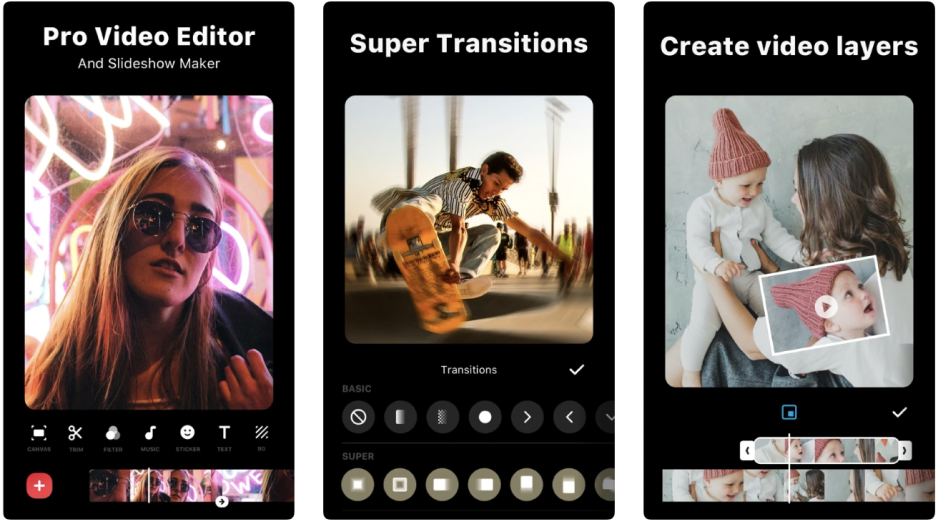
Best for: Daily-routine vlogs cut on a phone, with text templates and stickers for the title.
Why we picked it: InShot is a mobile editor for iPhone and Android with text templates, InShot-exclusive stickers, and support for your own fonts, so an on-screen title can match your channel.
Key features:
Pros:
Cons:
Platforms: iPhone, iPad, and Android; the iOS app needs iOS 15 or later.
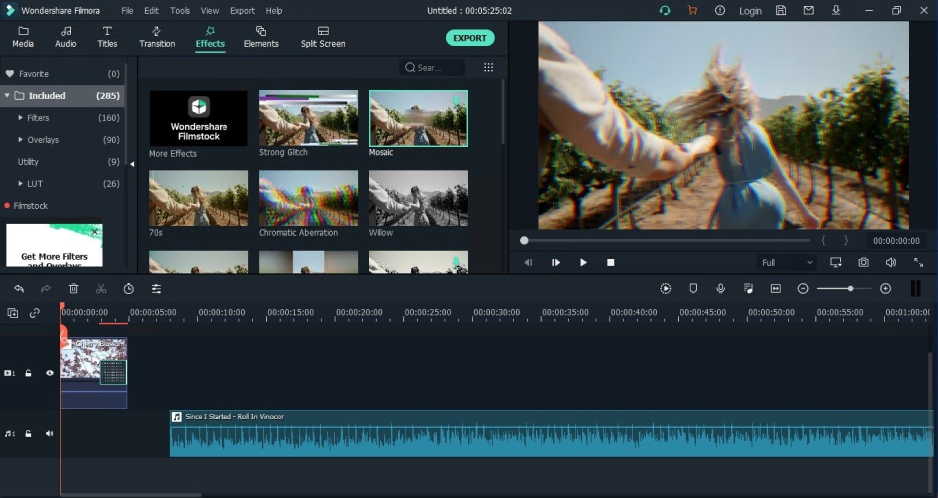
Best for: Music, art, and cinema reviews on PC or Mac that need a multi-track timeline.
Why we picked it: Filmora is a desktop editor for Windows and macOS with ready-made templates and Instant Mode for different occasions, so an opener can start from a template.
Key features:
Pros:
Cons:
Platforms: Windows and macOS.
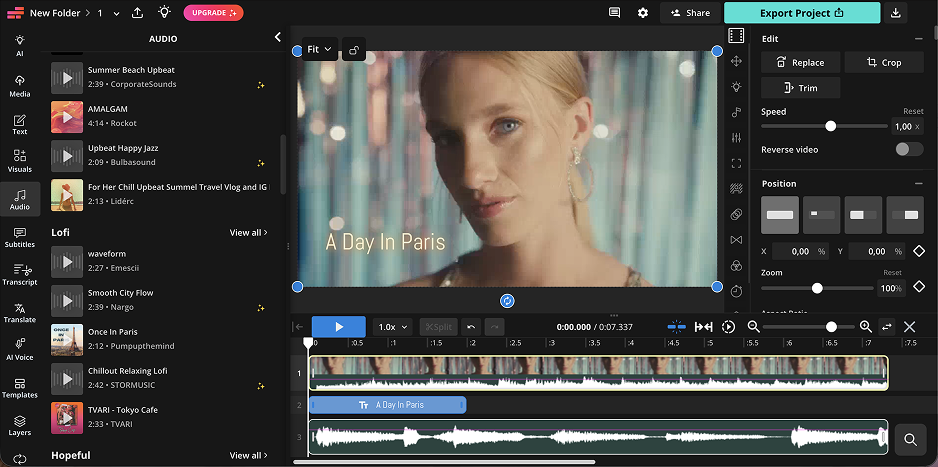
Best for: Music and history reviews that need subtitles for a multilingual audience, made in a browser.
Why we picked it: Kapwing is a browser-based editor for social content, built around real-time collaboration. Its auto subtitles suit a review channel with viewers in several languages.
Key features:
Pros:
Cons:
Platforms: Browser.
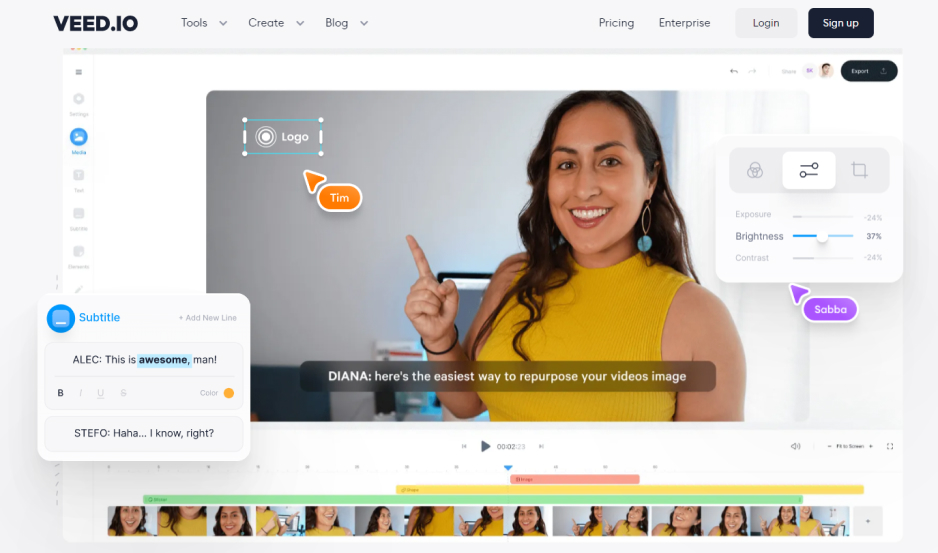
Best for: Beauty, fashion, and skincare tip videos that need subtitles and a logo, made in a browser.
Why we picked it: VEED is a browser-based AI editor whose templates for promos, webinars, onboarding, and stories work as prompt blueprints: AI generates a video from your content.
Key features:
Pros:
Cons:
Platforms: Browser, plus a mobile app.
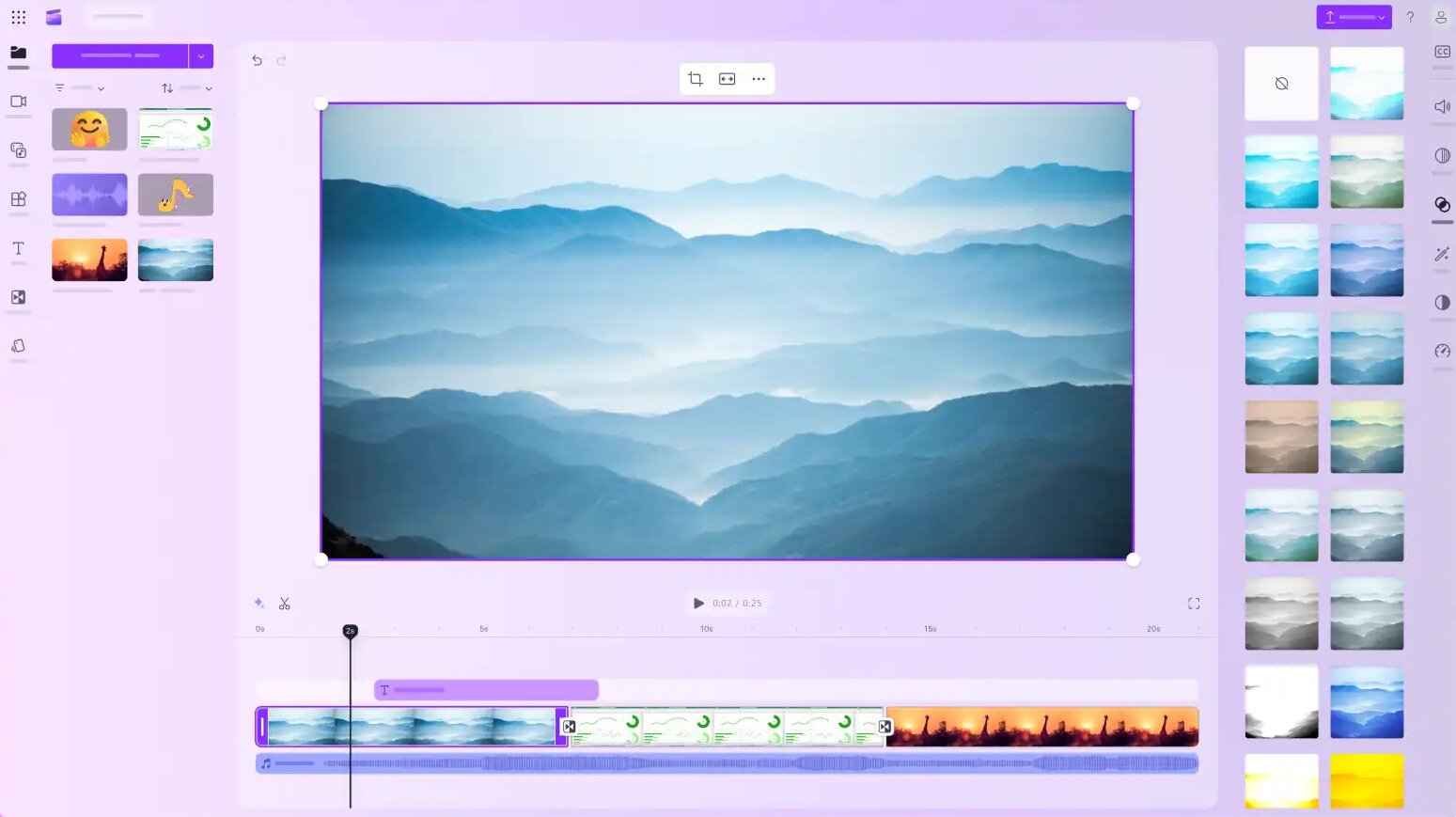
Best for: Vlogs and unboxing videos edited on a Windows 11 laptop.
Why we picked it: Clipchamp is Microsoft’s editor, built into Windows 11 and Microsoft 365, and its templates for social media, work, and school include intros.
Key features:
Pros:
Cons:
Platforms: Browser (Edge or Chrome), an app in Windows 11, and an iOS app.
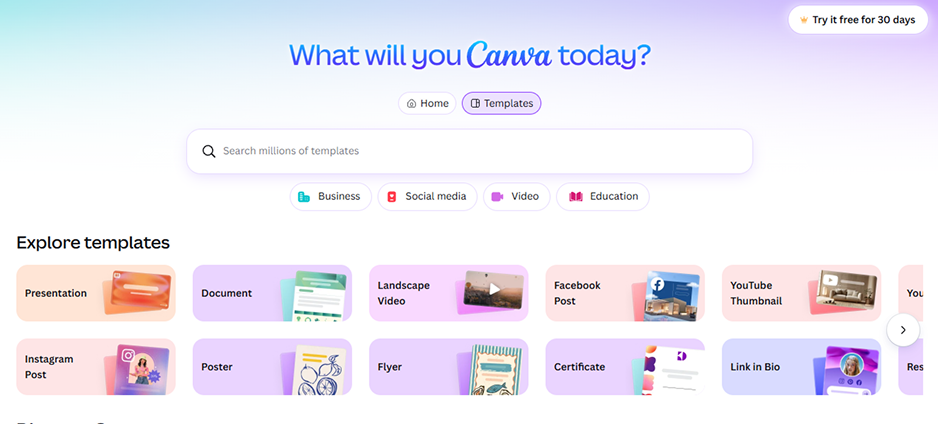
Best for: Beauty and fashion tip videos that need a short, design-first opener.
Why we picked it: Canva is a design builder with a giant library of video templates for posts, stories, and promos, and you edit them as a design layout.
Key features:
Pros:
Cons:
Platforms: Browser, desktop, and mobile apps; it needs an internet connection and an account.
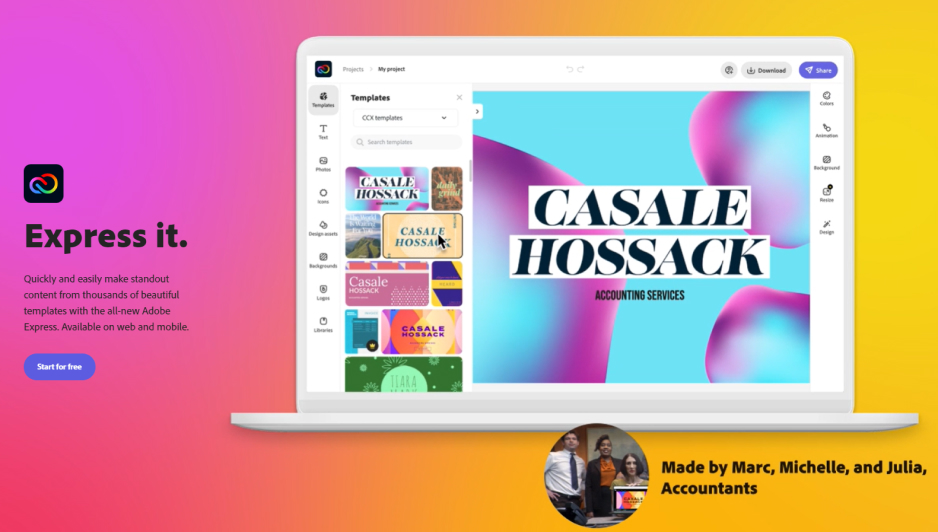
Best for: Cooking and recipe videos that need a quick branded opener.
Why we picked it: Adobe® Express® is a lightweight web builder with a huge library of templates for posts, stories, and short videos that you edit right on the canvas.
Key features:
Pros:
Cons:
Platforms: Browser plus a mobile app.
Experienced or not, choose by device first, then by job.
Our pick for channel branding on PC or Mac is Movavi Video Editor. Its logo tool adds your logo with adjustable position, size, and opacity, and MP4 export suits broad compatibility. Reuse the same title style in every opener, so viewers recognize your channel before the first word.
Give your channel a proper opening act: pick one app from the table, drop in a single clip, and build the opener before you sit down for the full edit. When you want the next idea for your channel, Movavi Ideas has a new one every week.
Pick one that gives you something to fill in rather than build: a template in Movavi Video Editor, Clipchamp, or CapCut, or a trailer in iMovie. Clipchamp’s own YouTube intro flow runs from an intro template to your clips, animated text, a logo, and a save.
Yes. Apps like iMovie and Clipchamp do not add a watermark, so you can use them for free video editing. CapCut’s free version adds one only when you use Pro content or AI clips.
Movavi Video Editor handles all of these video formats. For broad compatibility, use MP4.
Is there a video intro maker for Mac and for PC that needs no download?
Yes. Kapwing, VEED, Canva, and Adobe® Express® run in a browser. VEED needs an account and a stable connection, Clipchamp asks for a Microsoft account, and Adobe® Express® asks for an Adobe account.
A channel trailer is a short video that introduces your channel to new visitors. In Movavi Video Editor, you have everything you need to create a trailer – transitions, titles, effects, stickers, and audio. AI tools will help you remove noise from video and audio, add auto subtitles, and remove the background without a green screen. With templates, you can create a trailer by simply replacing placeholder media with your own and customizing the text.