
Privacy Policy popup
× Privacy Policy popup
×
 8
 23 Minutes
The best subtitle generator is the one that fits where you already edit. Movavi Video Editor suits desktop users who want AI subtitles without counting credits, VEED and Clipchamp work in a browser, and Premiere® Pro and DaVinci Resolve suit pro timelines. This list is for lifestyle bloggers, small-business social media managers, and teachers or students who need captions and subtitles on a video without typing every line.
AI captioning, also called auto-captions, works in three moves. The AI listens to your audio track, turns speech into text, and places each line on the timeline where it was spoken. You then fix any slips, pick a style, and export video captions as a separate file or as part of the picture. Accessibility and a wider audience are the usual reasons to add captions.
Each tool is compared on the points that decide whether captions save you time. A fact appears only where the tool’s documentation gives it, so a gap in an entry means the detail wasn’t available.
| Tool | Best for | Platforms | Free version | Starting price |
| Movavi Video Editor | Lifestyle vlogs with AI subtitles | Windows and macOS desktop app | Movavi Video Editor Free: watermark, 60-second cap | $19.95/month |
| VEED | Social media ads and brand videos | Browser, mobile app | Watermark, 720p, 10 minutes | $12/month |
| Canva | Short clips for posts and stories | Browser, desktop, mobile apps | Free, with limits on paid assets and AI | $12/month |
| Adobe® Premiere® Pro | Pro timelines with transcription | Windows, macOS | No free plan; 7-day trial | $22.99/month |
| CapCut | Short vertical clips for TikTok | Mobile, web, desktop | 1080p, watermark on Pro assets or AI clips | $19.99/month |
| Filmora | Frequent posting with AI subtitles | Windows, macOS | Free exports always watermarked | $4.17/month |
| DaVinci Resolve | A free pro editor for lectures | Windows, macOS, Linux | No watermark, no time limit | $295 |
| Clipchamp | School projects and lessons | Browser, Windows 11 app, iOS app | 1080p, no watermark, free AI features | $9.99/month |
| Adobe® Express® | Quick promos for social media | Browser, mobile app | Free, with limits on features, assets, and AI credits | $9.99/month |
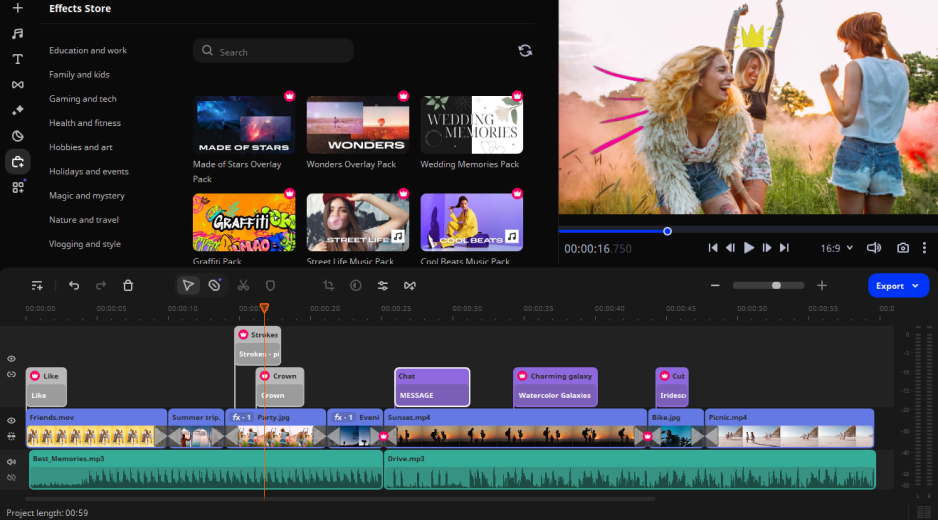
Best for: Lifestyle vloggers adding AI subtitles to travel videos and daily routines on a desktop.
Why we picked it: Movavi Video Editor is an intuitive video editor with customizable video templates, one-click AI tools, and hundreds of drag-and-drop effects. For captions, the one-click tool is auto subtitles: you get text for the whole video on the first run, ready to review, and there is no credit counter to watch. A travel vlog gets readable captions, an Instagram ad gets text you can restyle before it goes out, and a recorded lecture gets a standalone SRT file for the platform you upload to. It is a desktop app for Windows and macOS, and the free Movavi Ideas hub adds a new step-by-step tutorial every week, each short enough to follow in under a minute.
Key features:
Pros:
Cons:
Price and platforms: A desktop app for Windows and macOS. Start free, then move to the full version as projects grow; Movavi Effects and Movavi Video Templates are separate subscriptions. Free exports carry a watermark and stop at 60 seconds, while Lite includes auto subtitles and a small watermark. Starting price: $19.95/month.
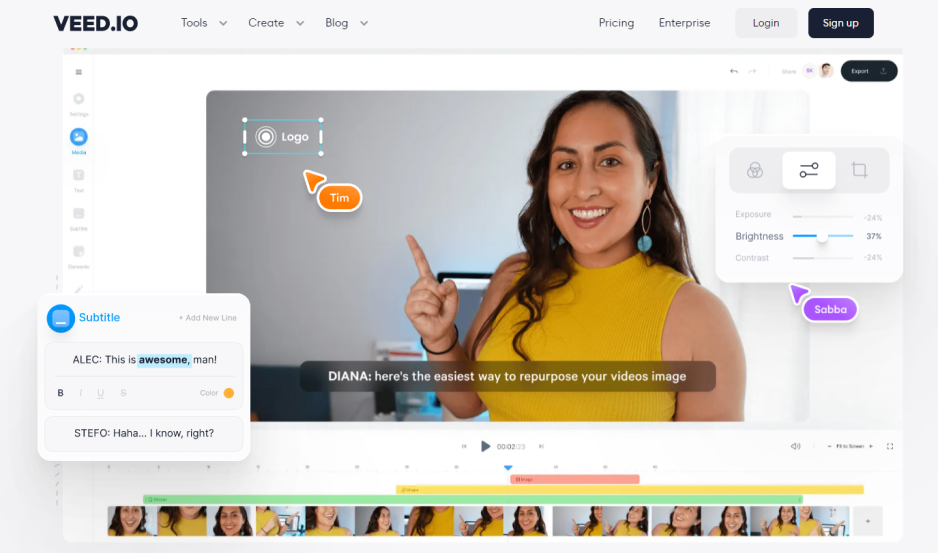
Best for: Entrepreneurs making social media ads or brand videos for Instagram or Facebook, with subtitles generated in a browser.
Why we picked it: VEED pairs AI subtitles that come with styles and translation with a browser editor, so there is nothing to install. For a quick brand clip, captions live in the same tab where you trim the video. The free plan caps exports, so check its limits before a long upload.
Key features:
Pros:
Cons:
Price and platforms: Browser plus a mobile app; an account and a stable connection are needed. The free plan has a watermark, 720p export, a 10-minute limit, and a 1 GB import limit. Paid monthly or annual plans are billed per member, starts from $12/month.
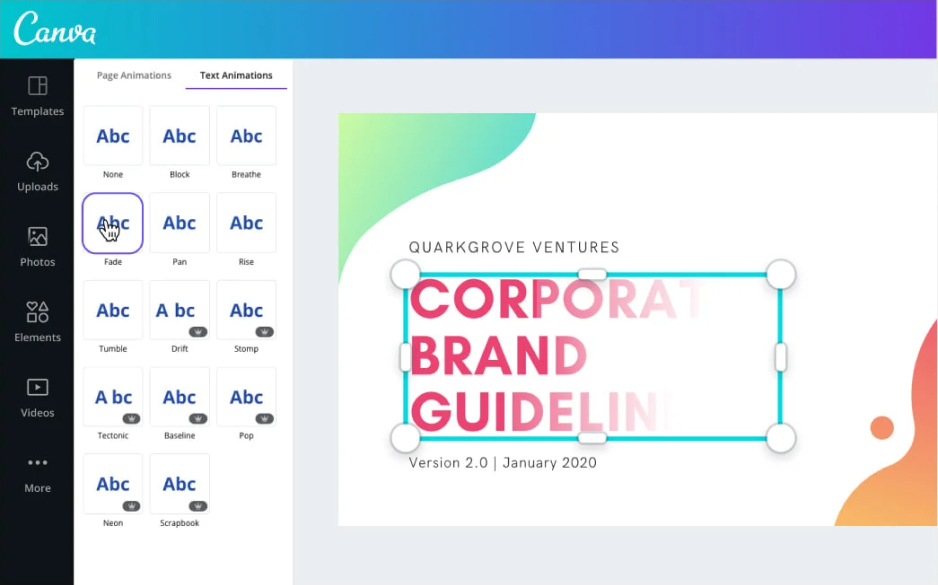
Best for: Bloggers and lifestyle creators turning short beauty or recipe clips into posts and stories.
Why we picked it: Canva treats video as one more design layout, so AI auto subtitles with a choice of styles sit beside a large library of templates, fonts, and elements. That suits a short clip that already lives inside a post or story. Trim long footage elsewhere first, since Canva isn’t designed for long videos and large files.
Key features:
Pros:
Cons:
Price and platforms: Browser, desktop, and mobile apps, all online with an account. The free plan limits paid assets and AI features; Pro and Teams are monthly or annual, per user, starts from $12/month.
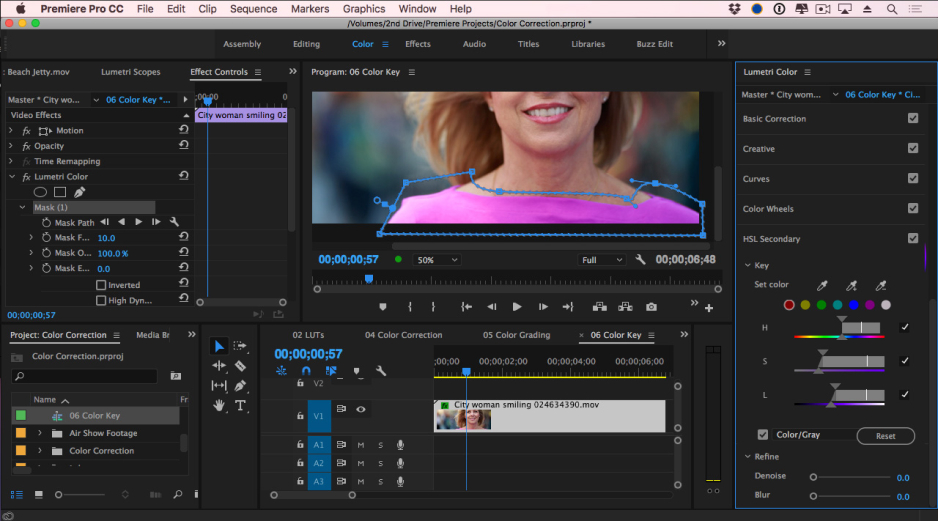
Best for: Bloggers who already cut lifestyle vlogs on a professional timeline and want transcription in 18 languages.
Why we picked it: Speech to Text creates the transcript and captions inside Premiere®, and the transcript doubles as an editing surface. It costs nothing beyond the Premiere® subscription. It is the pick when your project already lives in Premiere® and the captions have to match a professional timeline.
Key features:
Pros:
Cons:
Price and platforms: Windows and macOS. Subscription only, monthly or annual, standalone or inside Creative Cloud® Pro, with a 7-day trial that asks for payment details first. No one-time purchase, starts from $22.99/month.
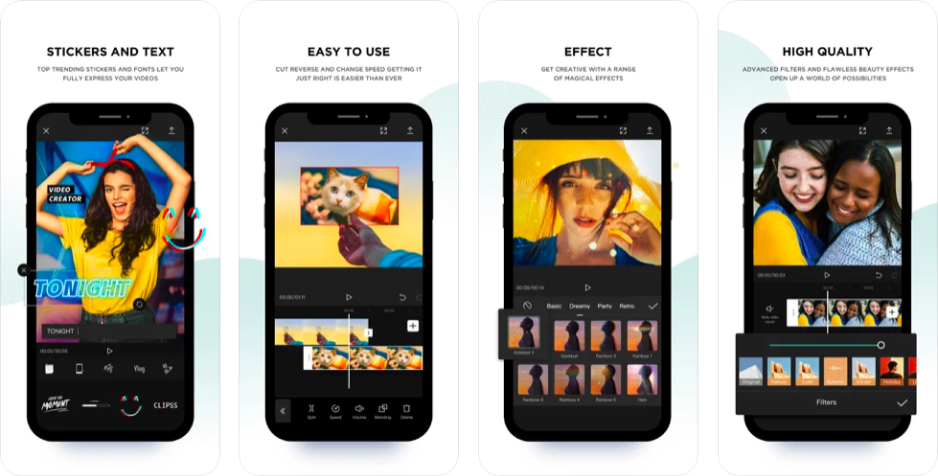
Best for: Entertainers and lifestyle bloggers captioning short vertical clips for TikTok.
Why we picked it: CapCut is a mobile-first editor for short, trending videos, and it is linked to TikTok. Its auto subtitles can be translated and come in ready-made styles, which keeps a quick vertical clip fast to caption. Desktop and mobile don’t share every feature, so test on the device you’ll edit on.
Key features:
Pros:
Cons:
Price and platforms: Mobile, web, and desktop. Free exports are 1080p with a watermark on Pro assets or AI clips; Standard removes the watermark without 4K or AI; Pro is monthly or annual. Starts from $19.99/month.
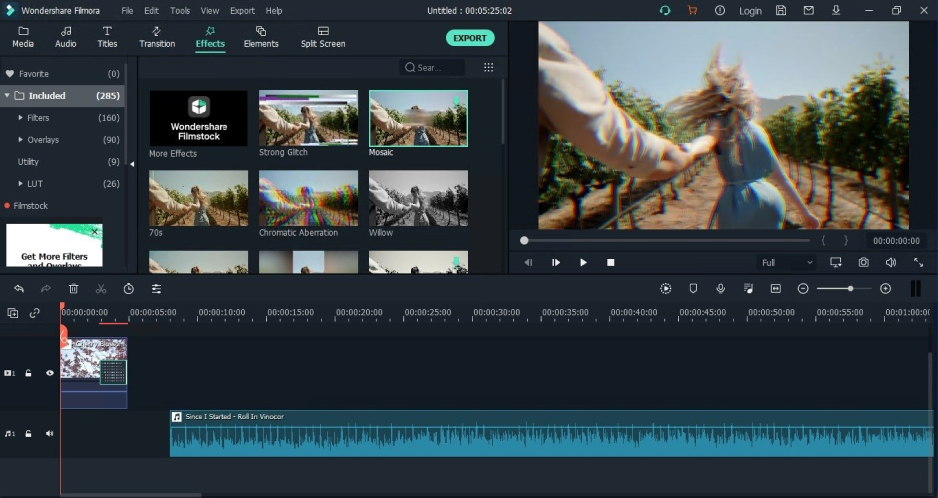
Best for: Bloggers who post often and want AI subtitles with fine-tuning on a Windows or Mac desktop.
Why we picked it: Filmora is an AI-focused desktop editor for serious production, with AI subtitles that can be translated and styled. It leans on single-task AI features, so the right plan matters. Check how many AI credits it includes before you commit to a long series.
Key features:
Pros:
Cons:
Price and platforms: Windows and macOS. Free exports are always watermarked; paid plans remove the watermark and come as a subscription or a one-time license for one platform and version. Starts from $4.17/month.
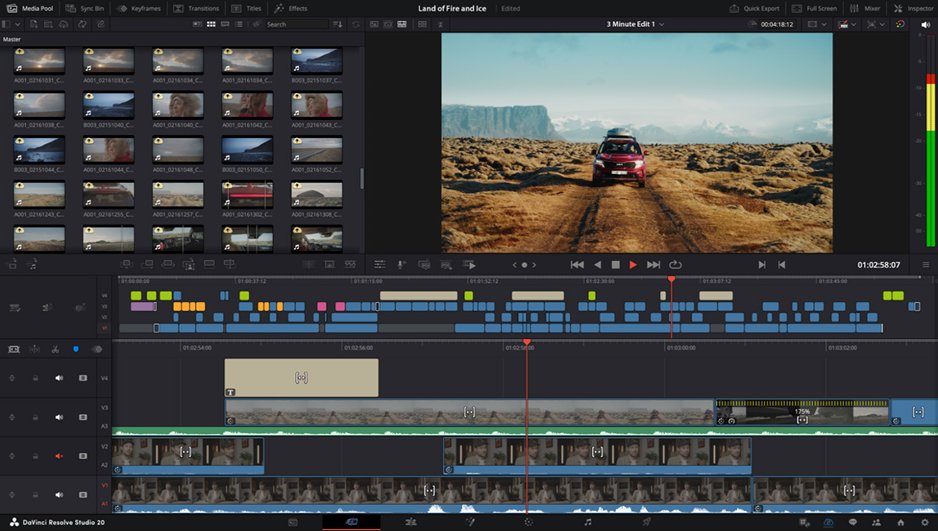
Best for: Teachers and students who want a free desktop editor for lectures and courses, and can spend time learning it.
Why we picked it: The free version has no watermark and no time limit, and it covers nearly all editing, color, audio, and effects tools. Subtitles come through a third-party plugin that you install separately, so plan for that step. The missing time limit matters for a course or a lecture series.
Key features:
Pros:
Cons:
Price and platforms: Windows, macOS, and Linux. Free version with no watermark; Studio is a one-time purchase of $295.
Best for: Students and teachers captioning school project videos and lessons on a Windows PC.
Why we picked it: Clipchamp is Microsoft’s browser editor, built into Windows 11, and its AI auto subtitles are free with a choice of language. You can also download the transcript, which makes it a low-friction start for a school project.
Key features:
Pros:
Cons:
Price and platforms: Browser, Windows 11 app, and iOS app. Premium adds 4K, stock assets, and a brand kit, as a separate subscription or inside Microsoft 365 Personal or Family. Starts from $9.99/month.
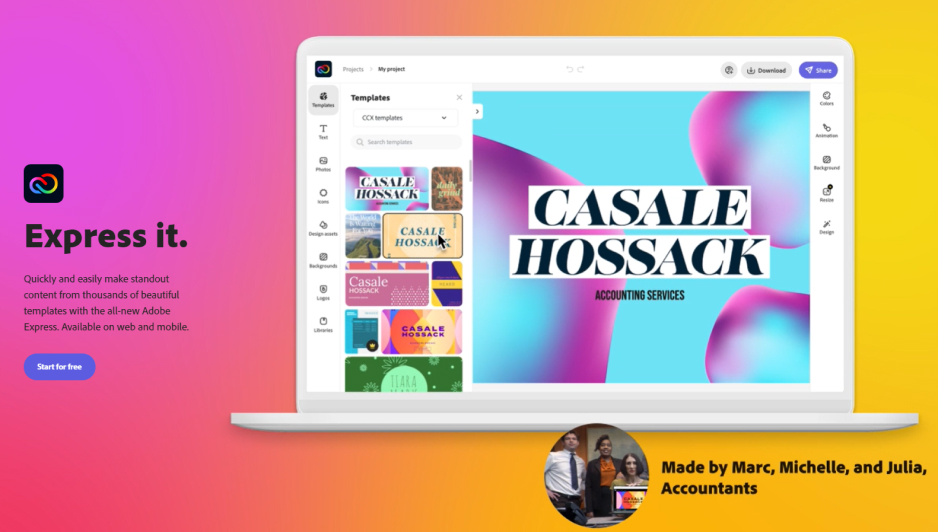
Best for: Entrepreneurs turning quick promos into social media ads with auto subtitles in the browser.
Why we picked it: Adobe® Express® is a lightweight web builder for social posts and marketing, with AI auto subtitles included. It is built for putting a post or short video together from a template. Check the free plan’s AI credit limit first, because credits run out quickly.
Key features:
Pros:
Cons:
Price and platforms: Browser plus a mobile app; an Adobe® account and an internet connection are required. The free plan has limits on features, assets, and AI credits. The paid plan starts from $9.99/month.
Match the tool to the job you need done.
Before you publish, watch the captions against the busiest part of your footage, check names and slang line by line, and keep the subtitle file with the project so you can reuse it.
Pick one tool from the comparison table, run a short clip through it, and read the text before you export. If you want to start on the desktop, Movavi Video Editor Free is a low-pressure place to caption your next vlog.
These steps use Movavi Video Editor. Other tools follow the same order: add the video, generate the text, check it, export.
Subtitles show the spoken words as text, usually for viewers who can hear the audio but want it in another language. Captions also describe sounds, such as music or laughter, for viewers who can’t hear. Closed captions can be switched on and off, while burned-in captions are part of the picture.
Treat them as a first draft. Clear speech is the easy case, and names, slang, and background noise are where slips appear. Read the text once and fix lines before you export. For broadcast or client work that must be flawless, human subtitles, written or reviewed by a person, are the safer route.
Two in this list: Clipchamp’s free tier exports 1080p with no watermark, and DaVinci Resolve’s free version has no watermark or time limit, though it needs a subtitle plugin. Movavi Video Editor Free puts a watermark on exports and stops at 60 seconds, so it works for testing auto subtitles.
Burn captions when every viewer must see them, such as on a social platform that doesn’t take caption files. Keep a separate file when you want viewers to switch captions on or off, or when a platform asks for one.
Yes, with limits that differ by tool. Premiere Pro transcribes in 18 languages and translates captions into 27. Clipchamp lets you choose the language for its free auto subtitles. VEED translates subtitles into other languages and charges AI credits for it, and Movavi Video Editor translates subtitles into English.
Both are formats for the same job: a separate text file that holds subtitle lines and their timing, which you upload beside a video. Which one you need depends on the platform’s upload page.