
Privacy Policy popup
× Privacy Policy popup
×
 16
 15 Minutes
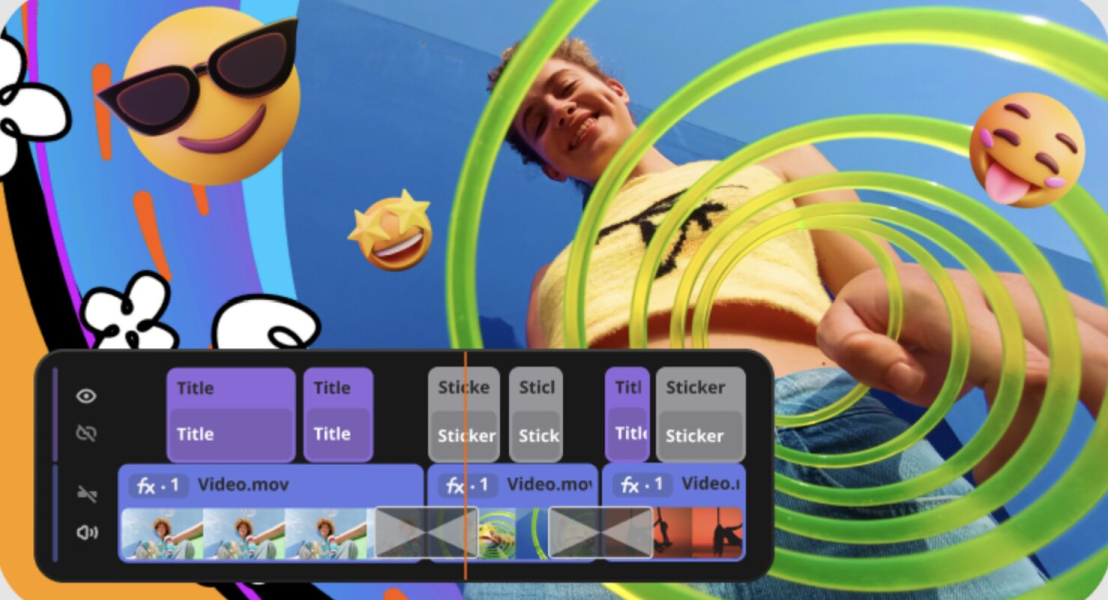
The best video editor for beginners depends on what you film. Vloggers and family creators can start with Movavi Video Editor, students on Windows 11 with Clipchamp, and Apple owners with iMovie. This guide compares eight video-editing software for beginners on price, platforms, learning curve, and the features a first video needs.
Each tool had to pass five checks that matter when you have no editing experience:
Easy to use here means a short learning curve: video-editing tools sit in the interface where you expect them, and effects, titles, and transitions preview before you commit. An experienced editor can start higher up the scale, and one tool on the list rewards that effort with a long learning curve.
| Tool | Best for | Platforms | Free version | Starting price |
| Movavi Video Editor | Vlogs, unboxings, travel and family videos | Windows, macOS | Yes: 60-second export cap, watermark | $19.95/month |
| CapCut | Short vertical clips | Mobile, web, desktop | Yes: watermark on Pro content and AI clips | Standard $9.99/month |
| Filmora | Bloggers who post often | Windows, macOS | Yes: always watermarked | Basic $49.99/year |
| Clipchamp | School projects and screen recordings | Browser, Windows 11 app, iOS app | Yes: 1080p, no watermark | Premium $11.99/month |
| iMovie | First family videos and school projects | Apple devices | Free, no watermark | Free |
| DaVinci Resolve | Color grading and audio work | Windows, macOS, Linux | Yes: no watermark, fewer features | Studio $295 one-time |
| OpenShot | Budget-first school projects | Windows, macOS, Linux | Free, open source | Free |
| Canva | Social posts with video inserts | Browser, desktop, and mobile apps | Yes: limits on paid content | Pro $144/year |
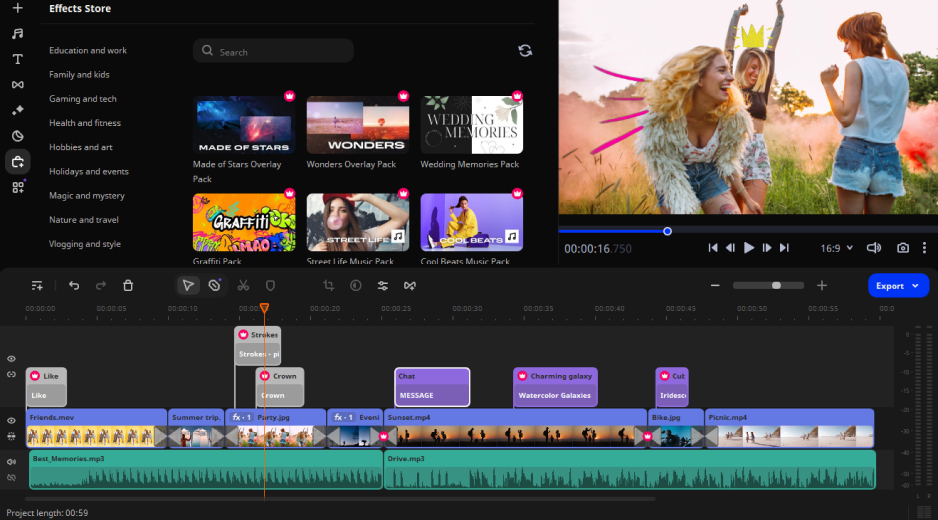
Best for: bloggers and lifestyle creators filming daily routines, unboxings, and travel videos, plus family and school projects.
Price and platforms: free version, then $19.95 per month or $54.95 per year for the full version; Windows and macOS.
Why we picked it: Movavi Video Editor is an intuitive video editor with customizable video templates, one-click AI tools, and hundreds of drag-and-drop effects. It is a desktop app for Windows and macOS. Hover previews show a clip, transition, or exact frame before you commit, so a first cut looks finished without a trial-and-error loop. The free Movavi Ideas hub adds a new step-by-step tutorial every week, which hands you a technique to copy on days you have no plan.
Key features:
Pros:
Cons:
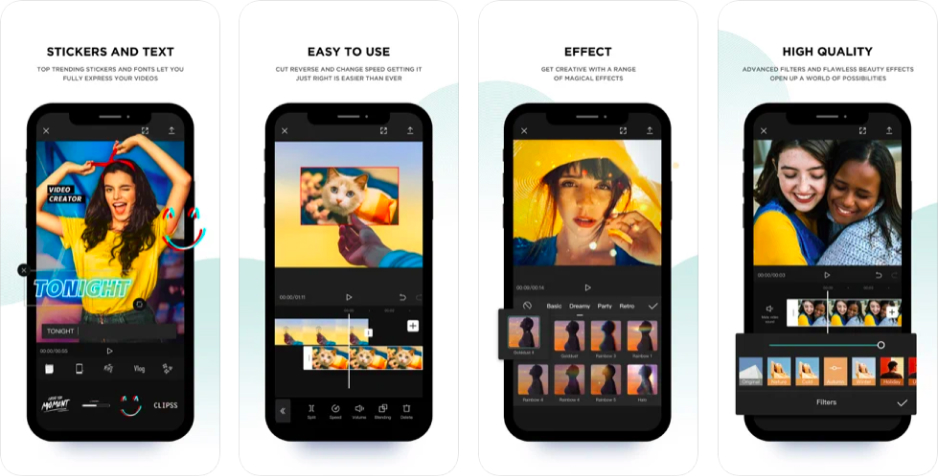
Best for: lifestyle vloggers posting short vertical clips.
Price and platforms: free; Standard $9.99 per month; Pro $19.99 per month or $179.99 per year. Mobile, web, and desktop.
Why we picked it: CapCut keeps the barrier to entry low for short vertical videos, and its library of trending templates and effects gives a quick first result. Auto subtitles and subject-tracked cropping handle the tedious steps.
Key features:
Pros:
Cons:
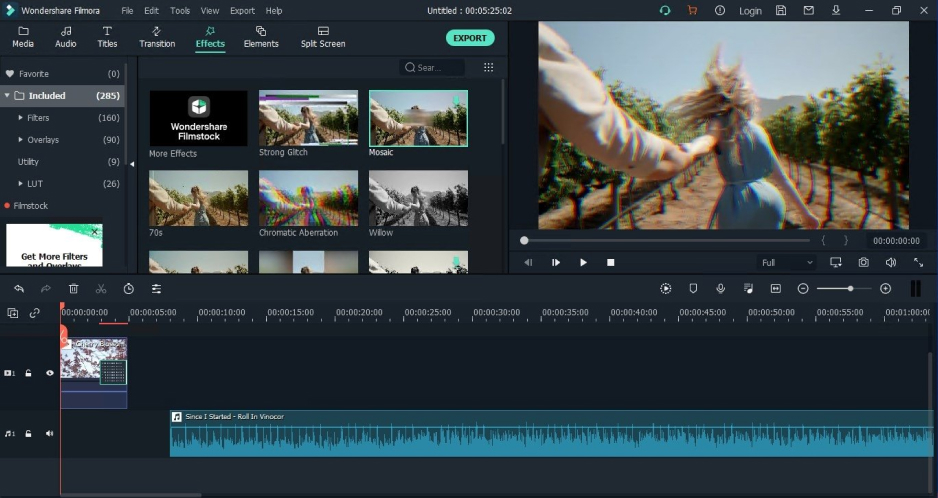
Best for: bloggers who post on a steady schedule and want motion tracking.
Price and platforms: free (always watermarked); Basic $49.99 per year removes the watermark but has no AI tools; Advanced $59.99 per year adds AI. Windows and macOS.
Why we picked it: Filmora is simpler than professional software and covers a lot of ground, with a multitrack timeline, keyframe animation, and motion tracking. Ready-made templates and Instant Mode cover quick projects.
Key features:
Pros:
Cons:
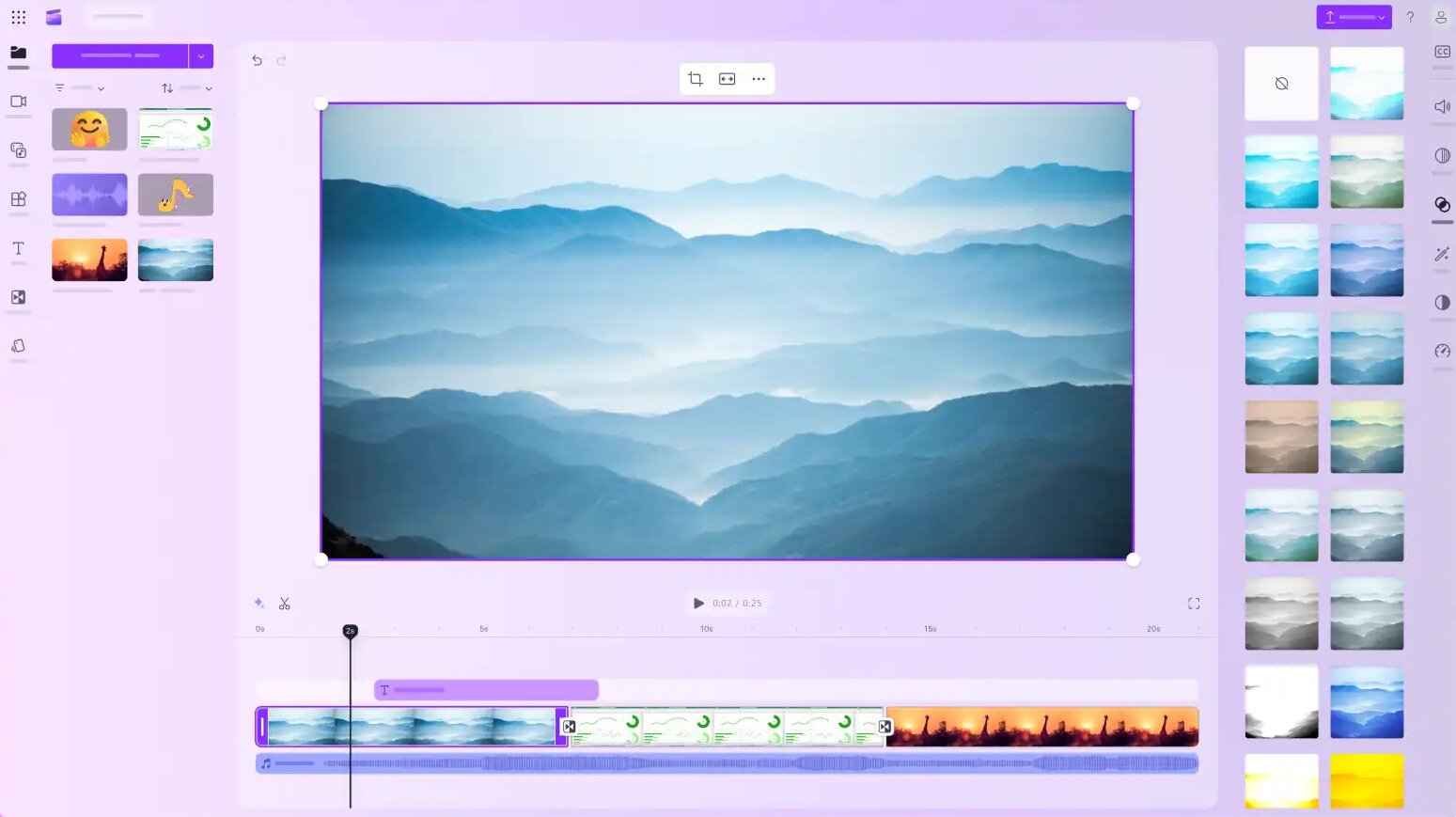
Best for: students building school project presentations, and anyone recording tutorials on Windows 11.
Price and platforms: free; Premium $11.99 per month, or included with Microsoft 365. Browser (Edge or Chrome), Windows 11 app, and iOS app.
Why we picked it: Clipchamp is built into Windows 11 and Microsoft 365, and its timeline is clear to beginners. Screen and webcam recording sit next to the editor.
Key features:
Pros:
Cons:
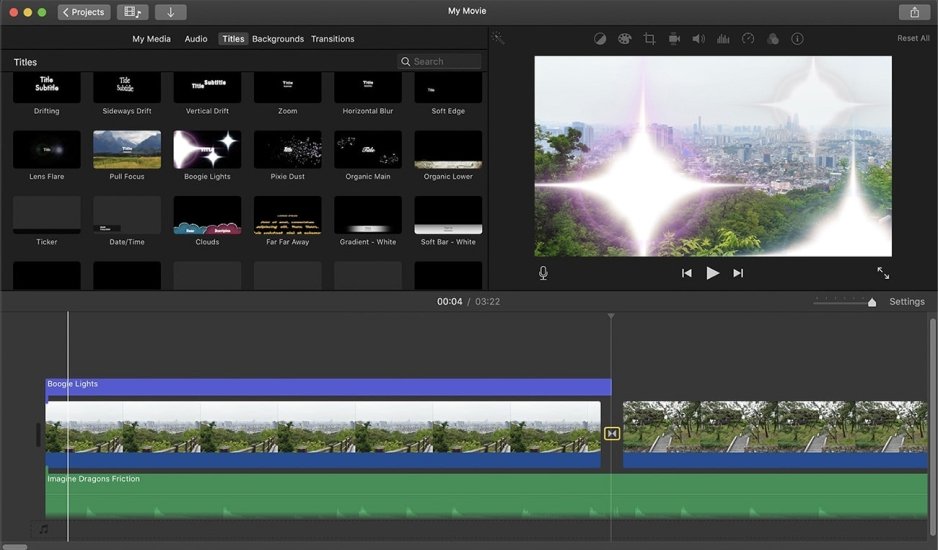
Best for: first family videos and school projects on a Mac or iPhone.
Price and platforms: free; Apple devices.
Why we picked it: iMovie is Apple’s free editor, preinstalled on its devices. Basic editing, ready-made trailer templates, and simple color correction are enough for a first birthday or field trip recap.
Key features:
Pros:
Cons:
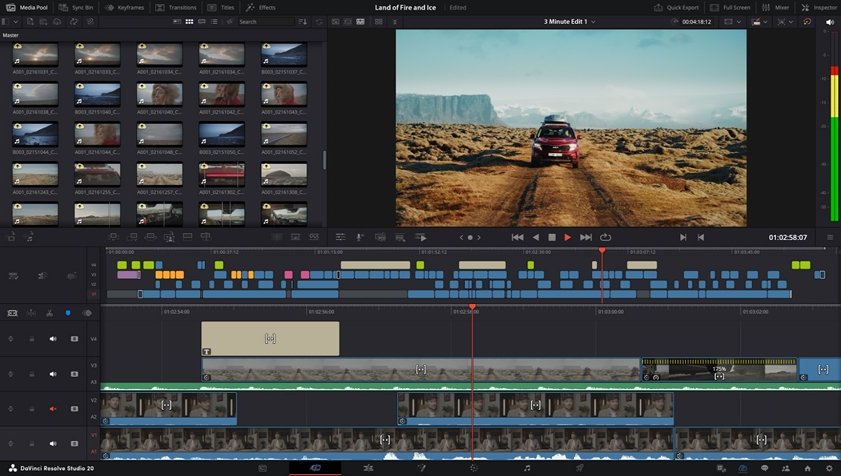
Best for: creators who want to learn film-grade color grading and accept a longer learning curve.
Price and platforms: free; Studio is a $295 one-time purchase. Windows, macOS, and Linux.
Why we picked it: DaVinci Resolve is a professional tool with a free base version that has no time limit or watermark. It earns a place for anyone who plans to grow into color and audio work.
Key features:
Pros:
Cons:
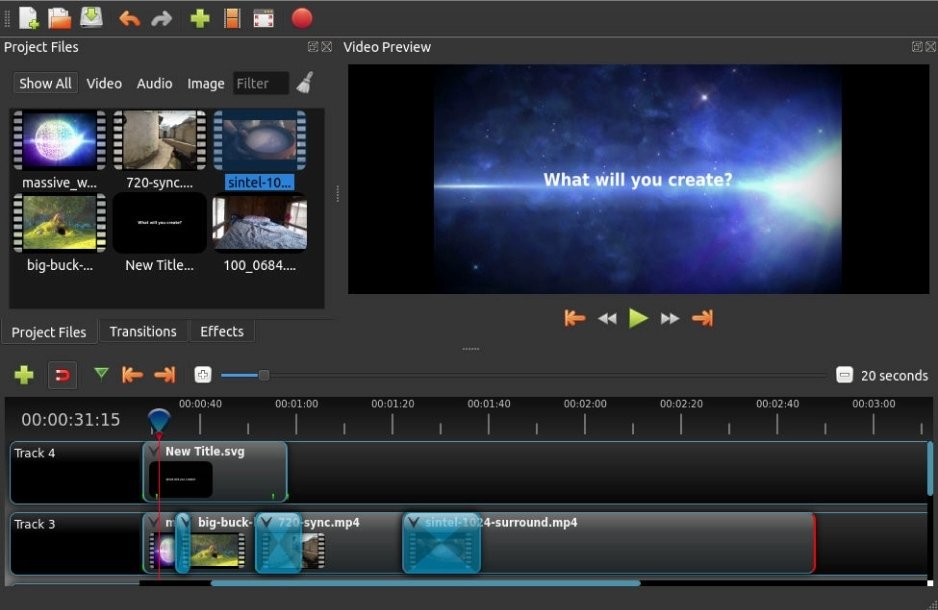
Best for: students on a budget with simple school projects.
Price and platforms: free; Windows, macOS, and Linux.
Why we picked it: OpenShot is a free, open-source editor, so cost is not a barrier. It covers basic editing, keyframes, and simple transitions.
Key features:
Pros:
Cons:
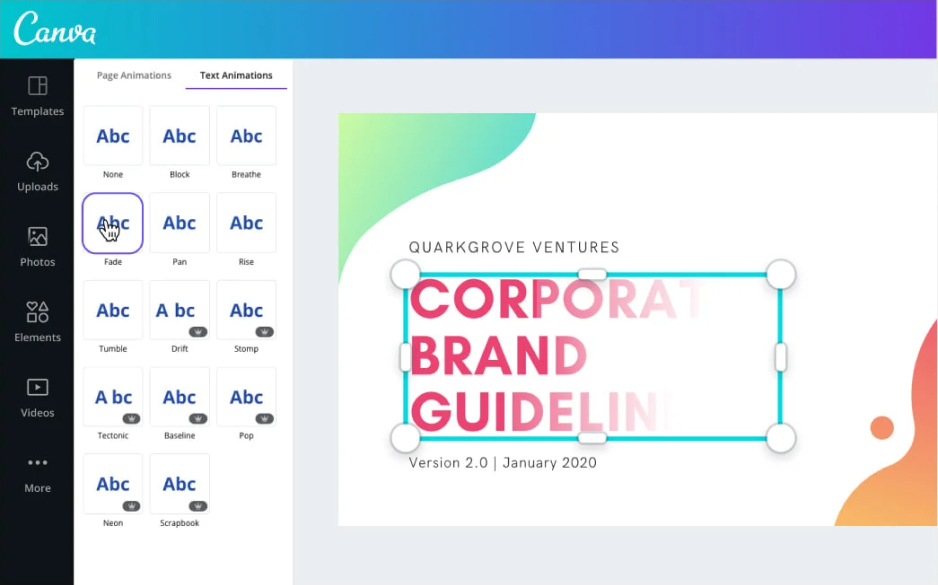
Best for: beauty, fashion, and food creators making short promo posts and stories with video inserts.
Price and platforms: free; Pro $18 per month or $144 per year. Browser, desktop, and mobile apps.
Why we picked it: Canva is a design builder with video as a secondary format. A huge library of templates, fonts and elements makes a good-looking video quick to assemble.
Key features:
Pros:
Cons:
Pick by the video you will make this week. For a travel vlog or an unboxing, our pick is Movavi Video Editor. It matches the vlog task with auto subtitles, noise reduction, and Blocks you fill with your own clips, and it adds Movavi Effects or Movavi Video Templates only if you want more. Hundreds of built-in effects already cover vlog, family, and school styles, and Movavi Effects adds 10,000+ more plus 1,500+ music tracks, all previewable on your own footage before you buy. Start with the free version, move to the Lite version for core tools and built-in effects, or to the full version for no watermark and no export limits. You can keep the setup cheap and buy extra sets only when you need them.
For a school project on a budget, Clipchamp, iMovie, and OpenShot cost nothing. On a Mac, iMovie is the no-cost start, while Movavi Video Editor runs natively on Apple M1 and newer chips. On a PC with Windows 11, Clipchamp is already installed. If you want to grow into professional color grading, DaVinci Resolve is the long game.
Family videos call for a gentler pace. A birthday or a road trip leaves hours of footage and no deadline, so a free editor lets you pick the best minutes first and decide about paying later. Movavi Video Editor trims short segments out of long source files before they reach the project, which keeps a long recording from burying the good moments.
Movavi software has 70M+ users worldwide. It ships 25+ updates a year, so the tools you start with keep growing. Download the free version, drop in the clips from your last trip, and let a weekly idea from Movavi Ideas shape your first cut.
Clipchamp exports 1080p without a watermark on its free plan, iMovie and OpenShot are free with no limits, and DaVinci Resolve’s free version has no watermark. Movavi Video Editor Free adds a watermark and a 60-second cap, which suits testing the tools.
Yes. A Movavi template is a ready-made project, so you replace each Block’s placeholder with your own clip and retype the text instead of building the edit from a blank timeline. Each Movavi Ideas tutorial takes under a minute to follow.
Clipchamp is built into Windows 11. Movavi Video Editor runs on Windows 10 and 11 (64-bit), as well as macOS 12.0 or higher, including Apple M1 and newer.