
Privacy Policy popup
× Privacy Policy popup
×
 12
 21 Minutes

The best CapCut alternatives depend on what you film. Movavi Video Editor suits lifestyle vloggers and first-time editors, DaVinci Resolve suits creators who care most about color grading, Final Cut Pro suits Mac editors cutting iPhone footage, and Descript suits talking-head tutorials. Every pick below is a desktop video editor for Windows, macOS, or both.
This guide is for lifestyle vloggers who film daily routines, unboxings, and trips, for gamers and tech bloggers who cut highlight reels and gadget reviews, and for students building school projects. CapCut is strong where it started: fast editing of short vertical videos, a large library of trending templates, and AI tools such as auto subtitles and subject-tracked cropping. If you are hunting for a CapCut desktop alternative, the usual reasons are longer projects, finer timeline control, and editing offline: some CapCut features and content need an internet connection and an account, and users report feature gaps between its desktop and mobile versions. A 2026 roundup on DEV Community adds that CapCut slows down on longer or higher-resolution footage.
| Program | Best for | Free version | Starting price | AI tools |
| Movavi Video Editor | Lifestyle vlogs, unboxings, travel videos | Yes: Movavi Video Editor Free (60-second exports, 1080p, watermark) | $19.95/month | One-click: auto subtitles, noise removal, silence removal, auto-tracked cropping |
| Wondershare Filmora | Frequent uploads, multi-layer projects | Yes, exports watermarked | From $49.99/year | Many tasks, credit-based |
| DaVinci Resolve | Color grading, pro-style editing | Yes, no watermark | Studio: $295 one-time | Studio only |
| Adobe® Premiere® Pro | Multicam, After Effects workflows | No; 7-day trial | From $22.99/month | Adobe® Sensei and Firefly tools |
| Final Cut Pro | iPhone footage for YouTube | No; 90-day trial | $299.99 one-time | Limited |
| CyberLink PowerDirector | Beginners who want AI-assisted rough cuts | Yes: PowerDirector Essential | From $79.99/year | Auto Edit, background removal, auto reframe |
| iMovie | School projects, first edits | Free | Free | Almost none |
| Descript | Talking-head videos, tutorials | Yes: 60 media minutes a month, 720p, watermark | From $16/month, billed annually | Speech-focused tools |
| Shotcut | Basic edits at no cost | Free, open source | Free | None |
| OpenShot | Simple projects on a budget | Free, open source | Free | Practically none |
Every program here runs on Windows, macOS, or both. We compared them on seven criteria: operating system, templates, effects and transitions, AI tools, performance on long projects, free-version terms, and price. Free-version limits and prices come from each vendor’s plans, so you can see what a download costs before you open it. The table is the quick read, and each entry below adds the features, trade-offs, and limits behind its row.
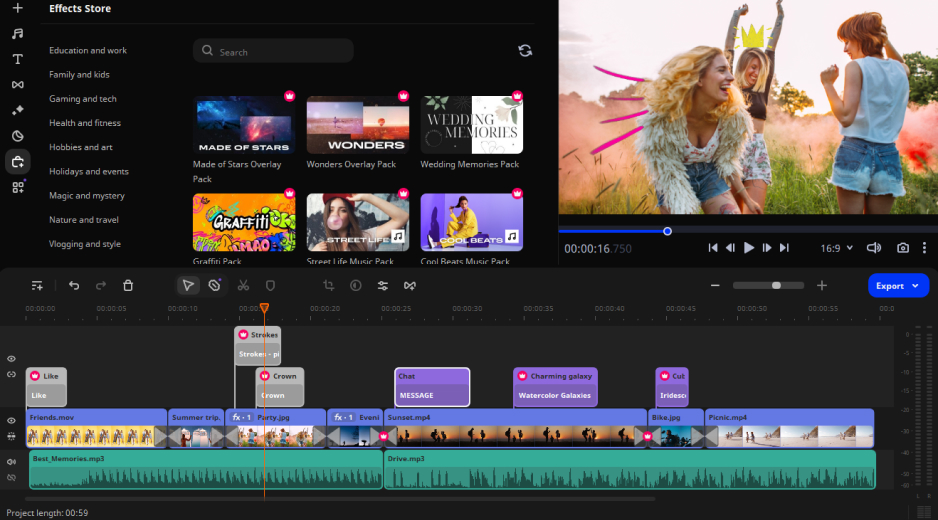
Best for: Lifestyle vlogs: daily routines, unboxings, and travel videos cut on a Windows or Mac computer.
Why we picked it: A week of travel footage, a morning-routine series, an unboxing shot from three angles: that is a lot of clips for one timeline. Movavi Video Editor is an intuitive video editor with customizable video templates, one-click AI tools, and hundreds of drag-and-drop effects. Turn on auto subtitles for a talk-to-camera vlog, pick a design, and the words light up in sync with your voice, so a first edit already carries the look of a reel.
Key features:
Pros:
Cons:
Price and platforms: Desktop app for Windows and macOS, with native support for Apple M-series chips. The full version has no watermark or export limits and starts from [PRICE]. Movavi Video Editor Lite, a standalone version, keeps a small watermark and limits some AI tools and effects. The free version, Lite, the full version, and the optional Movavi Effects and Movavi Video Templates subscriptions let you pay only for what your videos need.
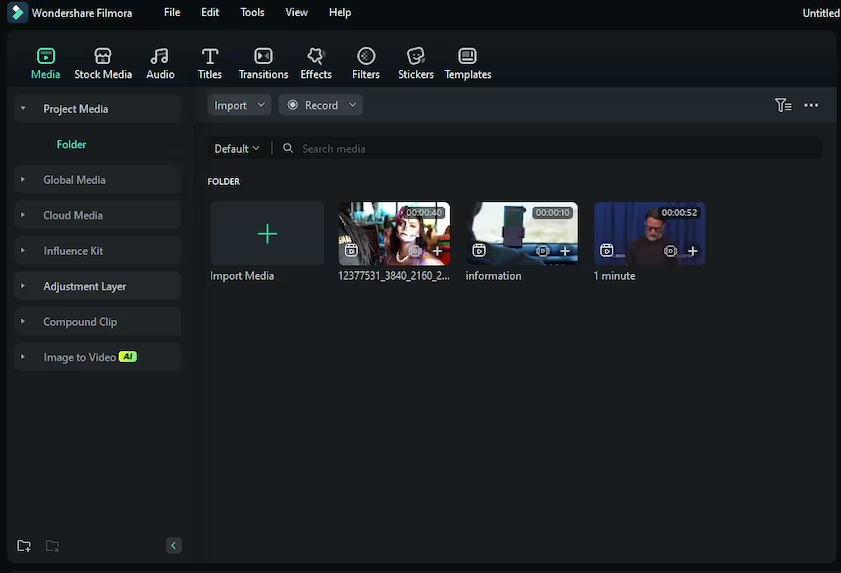
Best for: Bloggers who post often and build multi-layer projects with motion graphics.
Why we picked it: Filmora is an AI-powered editor positioned as a desktop tool for serious content production, aimed at pro bloggers with a constant content pipeline. Its multitrack timeline and keyframe animation give frequent uploaders room to layer titles, overlays, and effects.
Key features:
Pros:
Cons:
Price and platforms: Windows and macOS. Basic starts from $49.99 a year; AI tools sit in higher tiers.
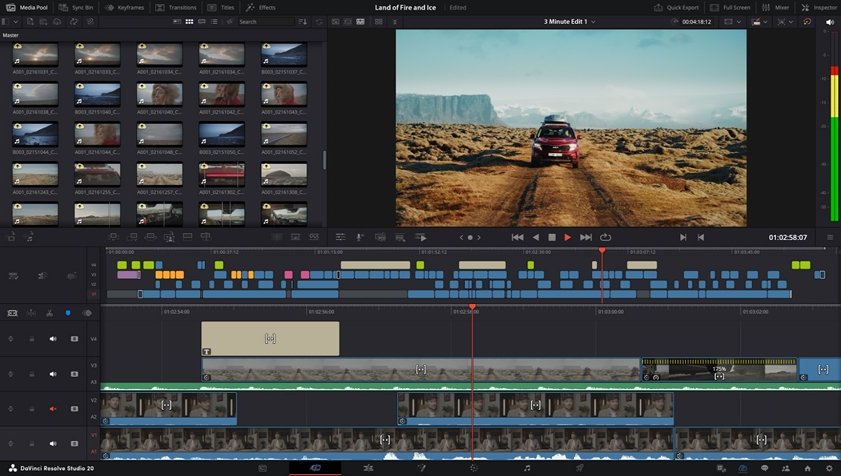
Best for: Bloggers who want film-grade color correction and are ready to learn a pro tool.
Why we picked it: Resolve splits work into separate modules, Edit, Color, Fairlight for audio, and Fusion for VFX, and the free version has no watermark or time limit. It is the pick for a creator whose look is built in the grade, and the one to choose if you are willing to trade learning time for control.
Key features:
Pros:
Cons:
Price and platforms: Windows, macOS, and Linux. Free, with Studio at $295 one-time.
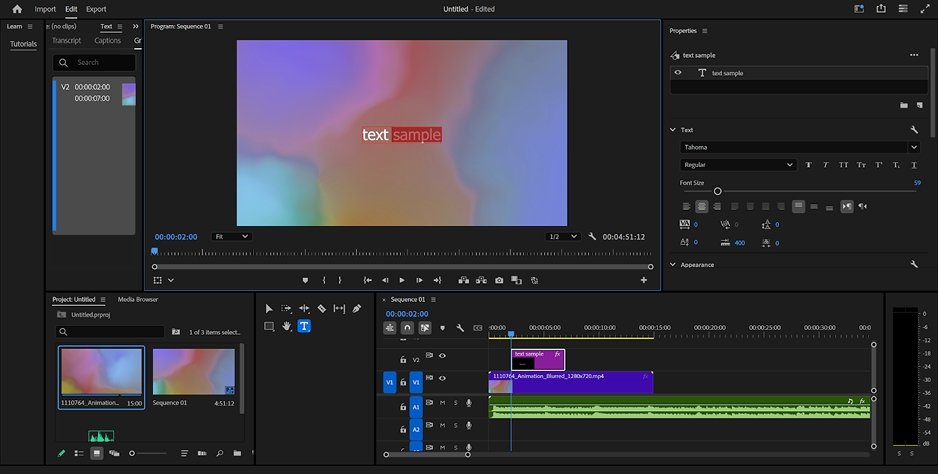
Best for: Creators growing into multicam projects and After Effects workflows.
Why we picked it: Premiere Pro is the industry standard for people who edit video for a living, and it rewards creators who already know what they want from a timeline. Text-Based Editing lets you find and delete pauses, and Auto Reframe keeps the main subject in frame when you change the format.
Key features:
Pros:
Cons:
Price and platforms: Windows and macOS. No free version; the 7-day trial asks for payment details first. Paid plans start from $22.99 a month on an annual plan.
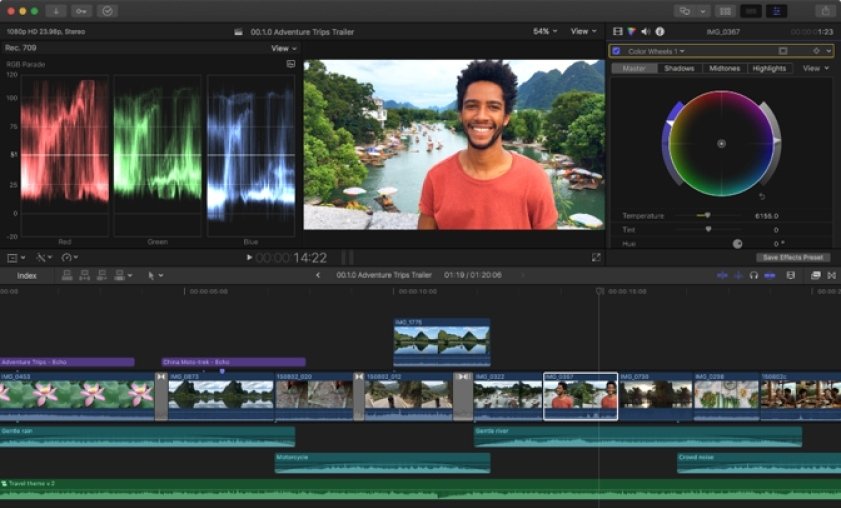
Best for: Mac users who cut iPhone footage for YouTube.
Why we picked it: Final Cut Pro is professional editing built for the Apple ecosystem. Its magnetic timeline, where clips snap together so gaps don’t open up as you edit, keeps long travel cuts tidy. The 90-day trial gives you three months of real projects before you spend anything.
Key features:
Pros:
Cons:
Price and platforms: macOS, with no Windows version. A 90-day trial, then $299.99 one-time.
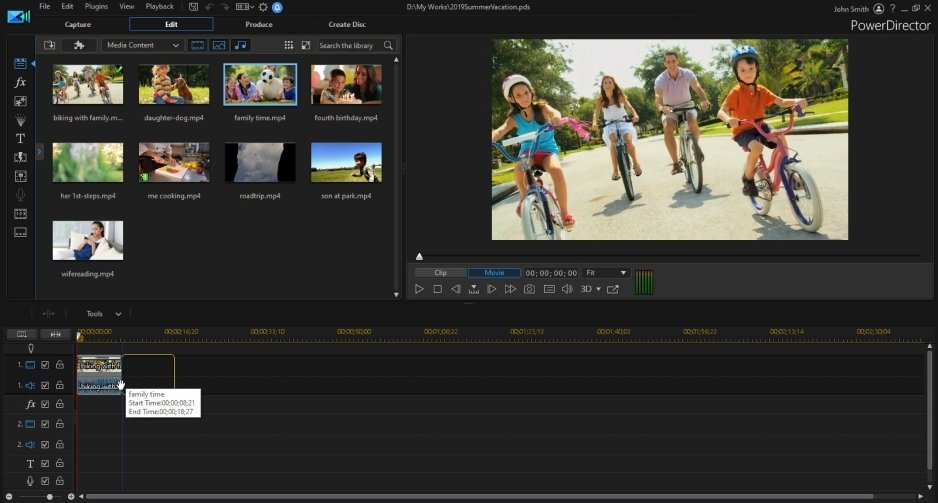
Best for: Beginners who want AI to build a first rough cut.
Why we picked it: PowerDirector has a free Essential edition with no time limit, so you can try its timeline before you pay for anything. Auto Edit takes up to 100 clips, picks the best moments, and syncs them to music.
Key features:
Pros:
Cons:
Price and platforms: Windows and macOS. PowerDirector 365 starts from $79.99 a year; PowerDirector 2027 is $139.99 one-time.
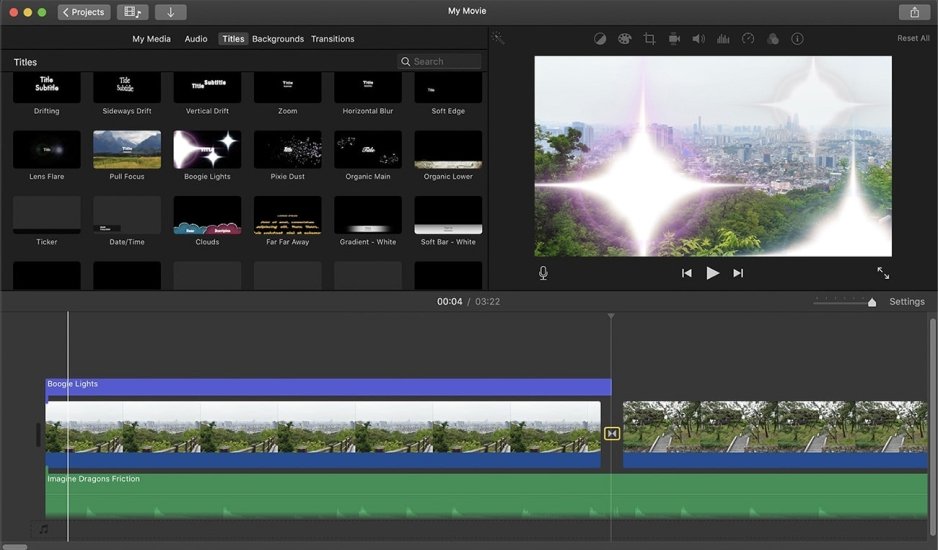
Best for: School projects and first attempts at editing on Apple devices.
Why we picked it: iMovie is Apple’s free, simple editor, preinstalled on its devices. It handles simple family videos, school projects, and first attempts at editing, and ready-made trailer templates give a project a layout from the first click.
Key features:
Pros:
Cons:
Price and platforms: macOS and other Apple devices. Free.
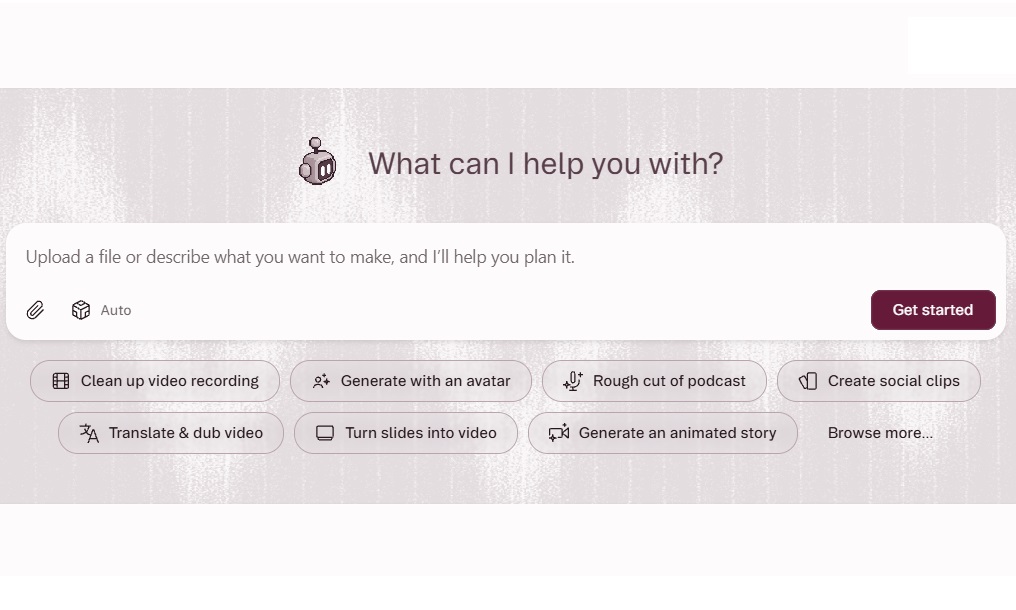
Best for: Tutorials, lectures, and talking-head videos.
Why we picked it: Descript lets you edit video by editing its transcript, which suits lessons, interviews, and screencasts. Filler-word removal does the cleanup you would otherwise do cut by cut, and screen recording sits in the same app, so a tutorial needs one program from capture to export.
Key features:
Pros:
Cons:
Price and platforms: Desktop app for Windows and macOS. Paid plans start from $16 a month billed annually.
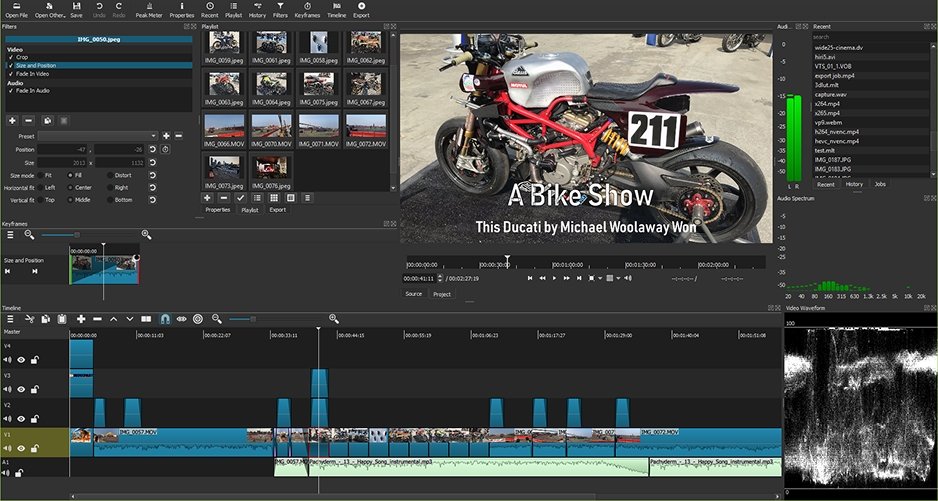
Best for: Tech-savvy students who want basic editing at no cost.
Why we picked it: Shotcut is a free, open-source editor for people who don’t mind doing routine work by hand. It costs nothing, and its basic multitrack timeline covers simple YouTube videos.
Key features:
Pros:
Cons:
Price and platforms: Windows, macOS, and Linux. Free.
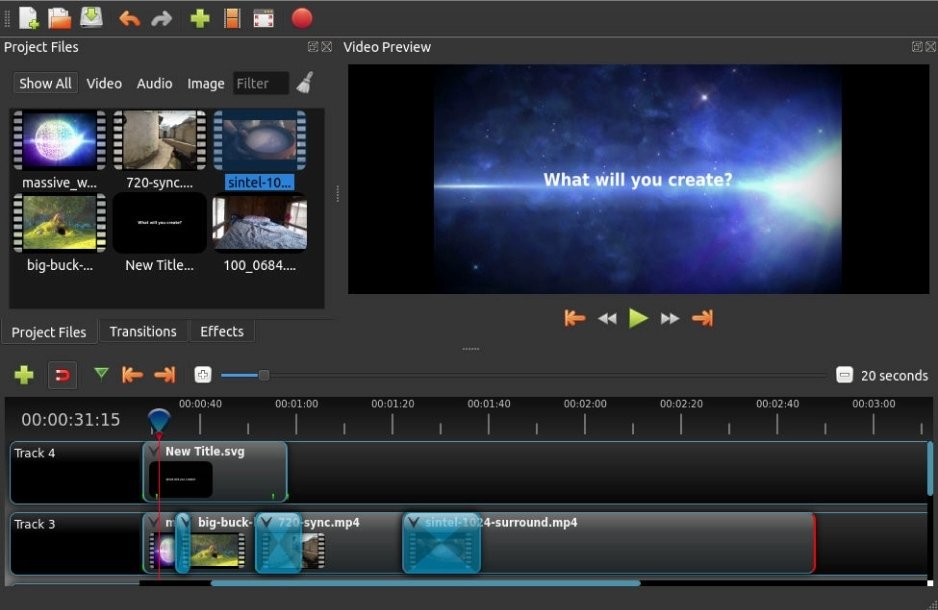
Best for: Beginners on a budget making simple school projects.
Why we picked it: OpenShot is a free, open-source editor with basic editing, keyframes, and simple transitions. It carries no watermark or limits.
Key features:
Pros:
Cons:
Price and platforms: Windows, macOS, and Linux. Free.
Start with Movavi Video Editor, iMovie, or PowerDirector. All three give you a starting layout and keep the first project short: Blocks in Movavi, trailer templates in iMovie, and Auto Edit in PowerDirector. Filmora is also simpler than professional editors, though its many single-task AI features can confuse a beginner at first. Students recording a narrated project can clear traffic, wind, and steady hums with Movavi’s one-click AI audio noise removal.
Filmora fits channels with a steady upload rhythm and layered edits. Pick Descript for talking-head and tutorial videos, and Premiere Pro once your channel needs multicam. For game highlights, Movavi’s pre-timeline trim lifts the good moments out of a long recording before you start editing.
DaVinci Resolve is the most complete free choice and has no watermark, though it asks for study time. Shotcut and OpenShot are completely free. PowerDirector Essential has no time limit but restricts advanced AI tools, and Descript’s free plan covers 60 media minutes a month with 720p exports. Movavi Video Editor Free lets you test every tool, with exports stopping at 60 seconds.
If you want a video editor for Mac, you have the widest choice: Final Cut Pro for iPhone footage, iMovie for free school projects, and Movavi Video Editor, which runs natively on Apple M-series chips.
If you need a video editor for Windows with pro depth, choose Premiere Pro or DaVinci Resolve. Final Cut Pro does the same job on Mac. Premiere Pro and DaVinci Resolve both rate as hard to learn, with multi-part interfaces and tools that need fine-tuning, so budget study time before your first project.
Pick your top two, download the free versions, and cut the same short clip in each. Your hands will tell you which timeline feels like yours.
It depends on your footage. Final Cut Pro and iMovie run only on Apple devices, so the other eight programs here are your PC list. For daily vlogs, start with Movavi Video Editor or Filmora; for color work, go to DaVinci Resolve.
Yes, several. iMovie, Shotcut, and OpenShot are free, and DaVinci Resolve’s free version has no watermark or time limit. Filmora, Descript, and Movavi Video Editor Free let you test with limits: a watermark, 720p exports, or a 60-second export cap, depending on the program.
CapCut templates are applied as a whole and allow little customization. Filmora and iMovie offer ready-made templates, while Movavi Video Templates are made of Blocks you can reorder, add, or remove. PowerDirector’s 2027 edition lists 20,000+ intro and outro templates. DaVinci Resolve has no ready-made video templates, only your own saved presets, and Premiere Pro gets most of its motion graphics templates through Adobe® Stock for an extra fee.
Movavi Video Editor works offline with no account or cloud required. CapCut, by comparison, needs an internet connection and an account for some features and content. For the other picks, check each vendor’s sign-in and cloud terms before you rely on them away from Wi-Fi.