
Privacy Policy popup
× Privacy Policy popup
×
 8
 18 Minutes
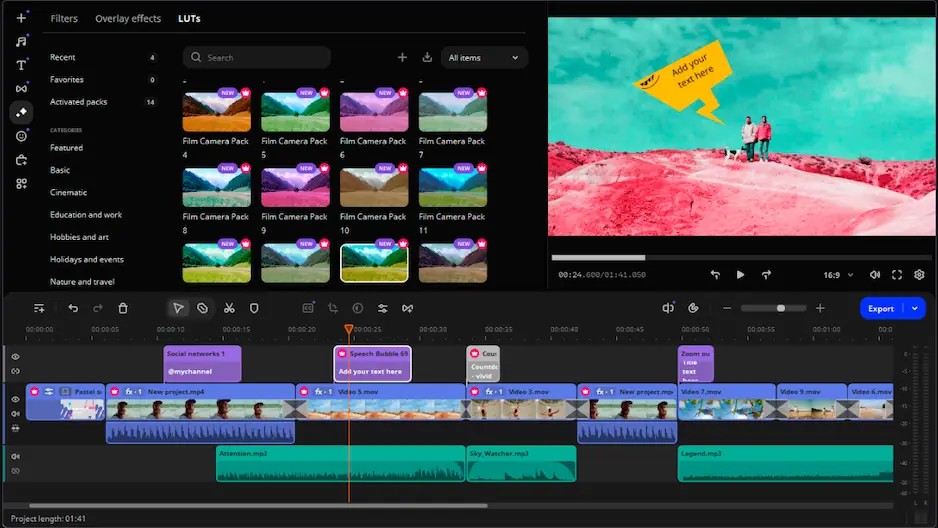
Movavi vs CapCut comes down to the shape of your video. Movavi Video Editor suits long horizontal videos edited on a computer, like YouTube vlogs and gadget reviews. CapCut Desktop suits short, vertical, trend-driven clips. If you’re hunting for a CapCut alternative for the long-video side of your channel, that’s the split to keep in mind.
This guide is for bloggers who shoot vlogs, unboxings, and travel videos, for tech bloggers filming gadget reviews, and for anyone making brand videos for Instagram or Facebook. We compare the desktop version of CapCut vs Movavi on seven points: editing, AI tools, effects and templates, audio, export, offline work, and platforms. CapCut’s mobile app exists too, but it sits outside this comparison.
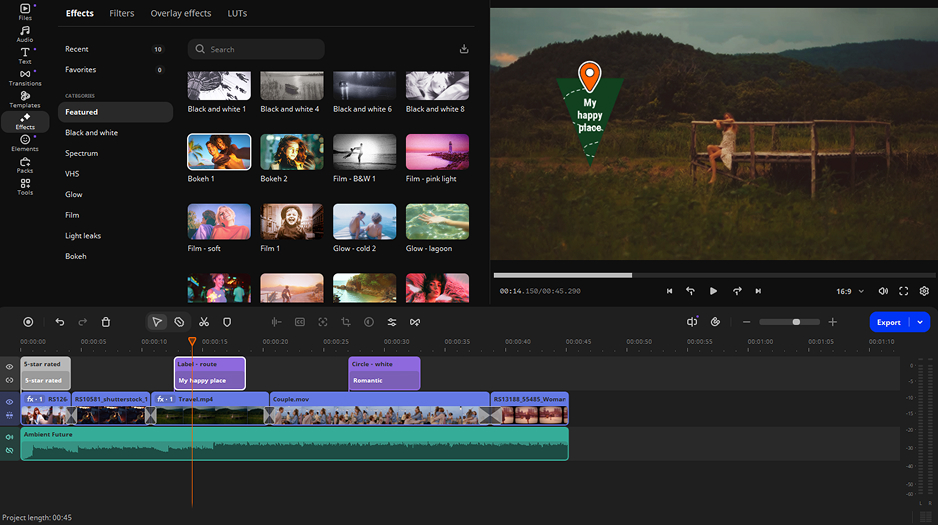
Movavi Video Editor is an intuitive video editor with customizable video templates, one-click AI tools, and hundreds of drag-and-drop effects. It’s a desktop app for Windows and macOS.
Say you film a weekly gadget review and want your evening to go to the story, not to the software. A template gives that review a head start. Movavi Video Templates is a multi-style library of customizable, pro-looking, modular templates for any kind of video. Each template is a ready-made project built from Blocks, short segments of the video such as an intro or an animated collage, and it arrives with music, transitions, and text already in place. You drop your own clips and photos into the Blocks and keep, swap, or delete whatever you like, so your first review already has a finished structure.
Best for: bloggers and tech reviewers who edit long horizontal videos on a computer: vlogs, unboxings, gadget reviews, travel videos.
Key features
Pros
Cons
Platforms: Windows 10 and 11 (64-bit) or macOS 12.0 or later.
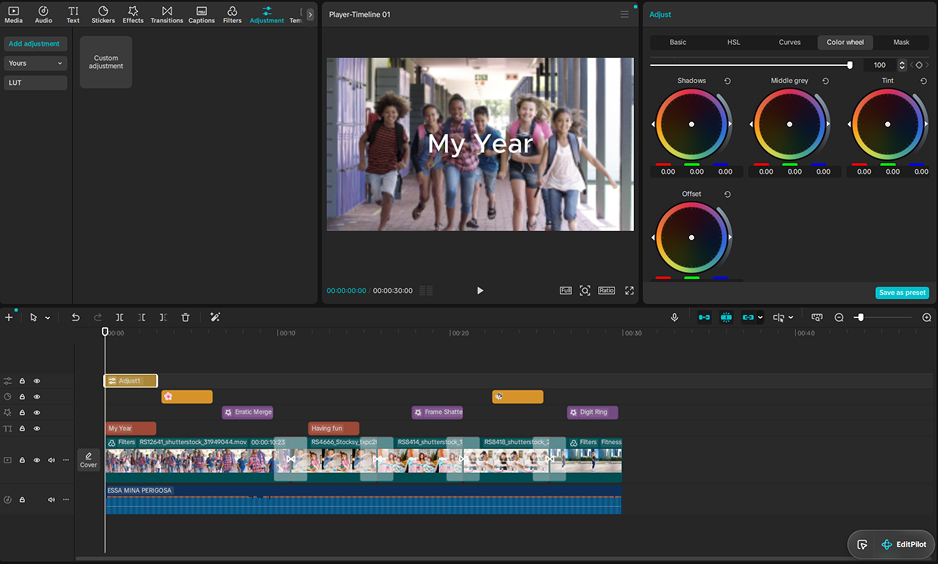
CapCut is a video editor developed by ByteDance, and it comes as a mobile, web, and desktop app. It’s a mobile-first editor for short, trending videos, from the same company as TikTok.
Best for: social media creators who cut short vertical videos for TikTok, Reels, and Shorts, plus UGC ads and quick clips.
Key features
Pros
Cons
Platforms: mobile, web, and desktop. Desktop operating systems: Windows 7 or above (Windows 10 recommended); macOS 10.14 or above.
Feature table: Movavi vs CapCut Desktop
This Movavi Video Editor vs CapCut comparison table is based on the most essential features, learning curve, pricing, and supported platforms.
| Criterion | Movavi Video Editor | CapCut Desktop |
| Learning curve | Easy: intuitive interface anyone can master; ready-made effects and customizable templates | Medium: many fine-tuning settings |
| AI approach | One-click AI for everyday editing; every AI tool is included in the full version – no AI credit system | Broader toolkit for complex jobs, runs on AI credits |
| Video noise removal | AI video denoise | No dedicated tool |
| Templates | Blocks you can reorder, add, or remove; several come with the full version | Trending templates for vertical videos, little room to adjust |
| Effects and music | Hundreds of built-in effects, copyright-free music, optional add-on with 10,000+ effects and 1,500+ tracks | Large library of trending effects and licensed music; the best assets are paid |
| Offline work | Desktop editing, no web version or cloud integration | Some features and assets need internet and an account |
| Learning hub | Movavi Ideas, weekly and free | No built-in hub, only community tutorials |
| Platforms | Windows and macOS | Mobile, web, and desktop |
| Pricing and plans | Free version with a watermark and some limitations. Lite version with a small watermark, with some features restricted. Full version – $19.95/month. | Free tier with access to basic editing tools. Paid plans from $19.99/month. |
Both editors cover cutting, cropping, speed changes, and color work. The difference is how many settings sit between you and the cut. Movavi’s drag-and-drop workflow, hover previews, and clean interface keep that distance short – move the cursor along the timeline, and the exact frame appears; hover over a transition, and it previews before you commit. The Blade tool makes frame-accurate cuts, and pre-timeline trimming pulls a short segment out of a long source file before it reaches the project, which helps when a travel vlog starts as one endless recording. Speed goes up to 100x for time-lapses of a long process, and color work begins with ready-made presets, then manual fine-tuning of tone, contrast, and saturation.
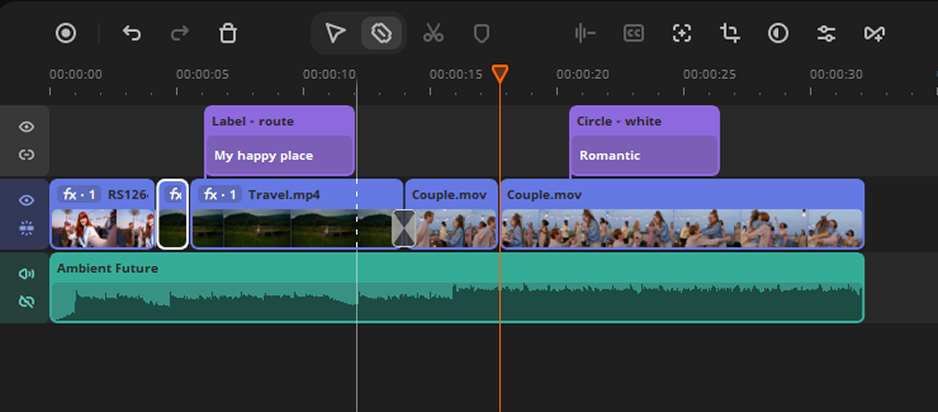
CapCut leans on fine-tuning: speed ramping presets and plenty of precise settings, which suits creators who like to tweak. The trade-off is a medium learning curve. Movavi’s trade-off runs the other way, as it lacks advanced, detailed controls for a professional workflow.
Better for: Movavi if you want the shortest path from clip to cut; CapCut if you enjoy fine-tuning.
Movavi’s AI tools handle the tedious parts of a video: subtitles, noise, silence, and cropping. Silence removal finds pauses and cuts them, with pause length and volume thresholds you can adjust. In Movavi’s internal testing, it ran nearly 5 times faster than cutting the timeline by hand, which adds up on a talking-head vlog. AI video denoise clears grain from low-light and older mobile footage while keeping faces and edges sharp, and CapCut has no dedicated tool for that. AI motion tracking locks a sticker or graphic to a moving subject. Background removal works without a green screen on any video with a person, and you can swap in anything from a solid color to a custom image; CapCut lists background replacement, too.
CapCut’s AI toolkit is wider and aimed at complex jobs: prompt-based editing, camera tracking, relighting, retouching, background replacement, and AI voiceover. It runs on AI credits. Users also praise its auto subtitles, subject-tracked cropping, and automatic pause removal, so the everyday basics are covered there, too.
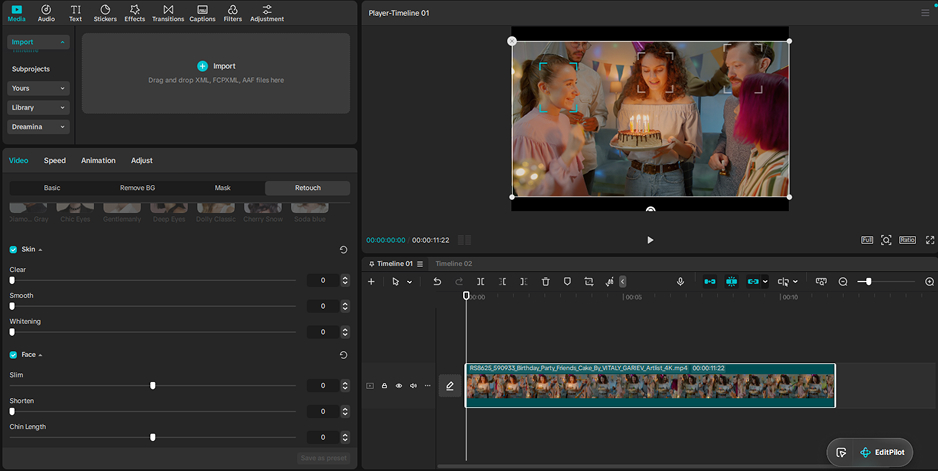
Auto subtitles (also called auto captions) exist on both sides, with translation and a choice of styles.
Better for: CapCut for broad creative AI, such as prompt-based editing and AI voiceover; Movavi for everyday fixes that ship with the full version.
CapCut leads on trends; Movavi leads on templates you can rebuild for horizontal videos. Movavi brings hundreds of built-in drag-and-drop effects, titles, transitions, and copyright-free music for any style, plus an optional add-on with 10,000+ effects and 1,500+ music tracks. You can preview any effect or template on your own footage before buying.
CapCut templates are trend-led and lean vertical. They work as one piece with little room to adjust, and the best ones cost extra. Movavi Templates go the other way. Because each template is a project of Blocks, you can reorder, add, or remove them, or build a whole video from Blocks alone. They cover vlogs, business promos, family videos, holidays, and reviews, and the Templates tab has a Vlog category perfect for horizontal YouTube videos. Several templates come with the full version at no extra charge. Access to the whole templates collection requires an additional Movavi Video Templates subscription.
Better for: CapCut for trend-led vertical clips; Movavi for horizontal videos where you want to reshape the template Block by Block.
Both editors give you a music library, voiceover recording, noise removal, voice effects, and fades. Movavi’s AI audio noise removal clears traffic, wind, and steady hums, and sound autocorrect presets cover voice recording, noisy places, and studio sound. For manual tuning there’s an equalizer, noise gate, compressor, and reverberation, and beat detection marks the rhythm on the timeline so your cuts can land on it. CapCut’s audio side leans on AI, with precise settings and AI voiceover for narration.
Better for: CapCut for AI voiceover; Movavi for cleaning a noisy recording and fine-tuning it by hand.
Movavi exports MP4, MOV, AVI, MKV, and WMV video, plus MP3, WAV, and FLAC audio. Fast Track HD acceleration speeds up processing. It also has TV presets in 1080p and 4K and uploads straight to YouTube, Vimeo, Google Drive, or TikTok. CapCut can export videos in MP4 and MOV up to 4K resolution.
Offline work is the clearest split. Movavi is a desktop app with no web version or cloud integration, so the edit happens on your computer, no account needed. CapCut offers mobile, web, and desktop versions, and some features and assets require an internet connection and an account. That mix suits creators who move between devices, but it asks for a connection and a login.
Better for: Movavi for offline desktop video editing; CapCut for creators who work across devices.
Say you shoot a product clip horizontally for Instagram or Facebook and need a vertical cut by tonight. Both editors can reframe. Movavi’s auto-tracked cropping keeps the speaker or product centered while it converts horizontal footage into vertical, and in Movavi’s internal testing against other video editors, it tracked more smoothly and precisely in 7 of 10 comparisons. CapCut reframes too, and its trending vertical templates speed up the rest of the job when you’re riding a trend. For this kind of clip, CapCut is the handier pick.
A horizontal YouTube vlog: Movavi
A travel vlog or a movie review for YouTube is a long, horizontal project. With Movavi, you just pick a template from the Vlog category in the Templates tab, put your own clips into its Blocks, and let the pre-set music, transitions, and text give the video its shape. Trim long recordings before they reach the timeline, add auto subtitles, and send the finished video to YouTube from the app. CapCut handles YouTube videos too, offering a large set of tools for editing blogger content, with plenty of precise settings, so the editing process will take more time.
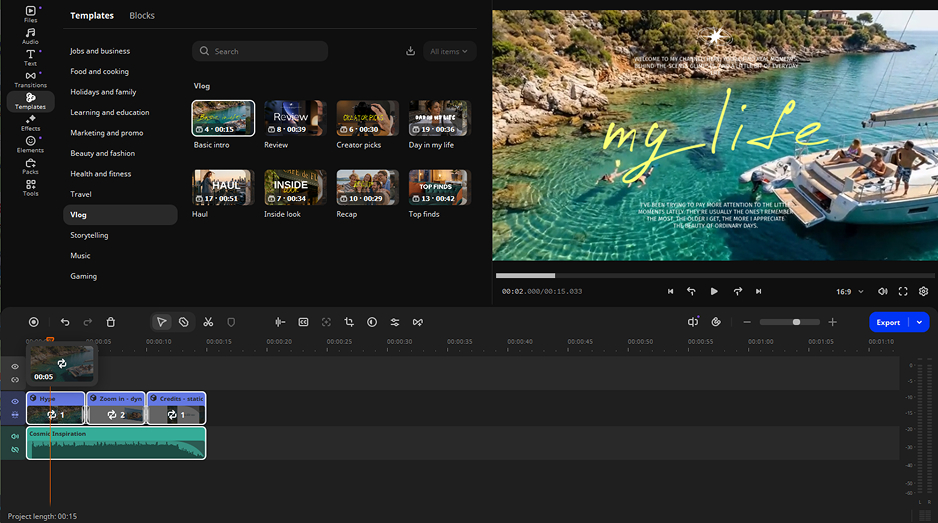
A gadget unboxing lives on rhythm: a quick intro, a cut to the box, a title for each feature. Movavi’s titles take flexible text and formatting settings, and its transitions have adjustable durations. Hover previews show the result before you drop either one on the timeline.
Picture a travel vlogger on a long trip with moody Wi-Fi. Movavi Video Editor runs on the desktop with no web version or cloud integration, so the edit happens on the laptop. CapCut needs an internet connection and an account for some features and assets, so check which ones your video uses before you leave.
Feedback on Reddit and review sites lines up with the tables above. Movavi gets praise for an interface you can start using without tutorials, good value, and a large library of effects, titles, and licensed music in the base version. The complaints: the free version limits what you can export, some effects and music need an add-on subscription, and separate licenses for the program and the add-on extras can make activation and payment confusing.
CapCut gets praise for fast, simple editing of short vertical videos, strong AI tools such as auto subtitles, subject-tracked cropping, and automatic pause removal, and a huge library of trending templates and effects. Users complain about growing paywalls on assets that used to be free, gaps between the desktop and mobile versions, and are wary about privacy questions tied to ByteDance and TikTok, including how face and voice data is used.
The choice depends on the video in front of you. Movavi Video Editor is aimed at beginners and everyday creators, and as a CapCut alternative for PC it fits anyone who edits long horizontal videos at a desk: vlogs, unboxings, travel videos, and gadget reviews. CapCut Desktop fits creators who live in short vertical clips and trends.
Yes. CapCut PC is one of three versions, next to mobile and web. Some desktop tools mirror the mobile app, so the layout feels familiar if you started on your phone.
Yes for editing: it’s a desktop app with no web version or cloud integration, so you work on your computer without an account. It also offers direct upload to YouTube, Vimeo, Google Drive, and TikTok when you’re back online.
You can easily edit long horizontal videos with Movavi Video Editor thanks to its intuitive interface, one-click AI tools, and editing Blocks. CapCut’s own audience includes long-form YouTube videos, so either editor can run a channel; the split is long horizontal against short vertical.
While CapCut is a mobile-first editor for short vertical videos, Movavi Video Editor is an intuitive desktop app for Windows and macOS. Both offer templates, auto subtitles, and auto-tracked cropping. If you also edit on your phone, Movavi has a separate iOS app, Movavi App, for social media reels with pre-designed templates and trending effects.