
Privacy Policy popup
× Privacy Policy popup
×
 9
 20 Minutes
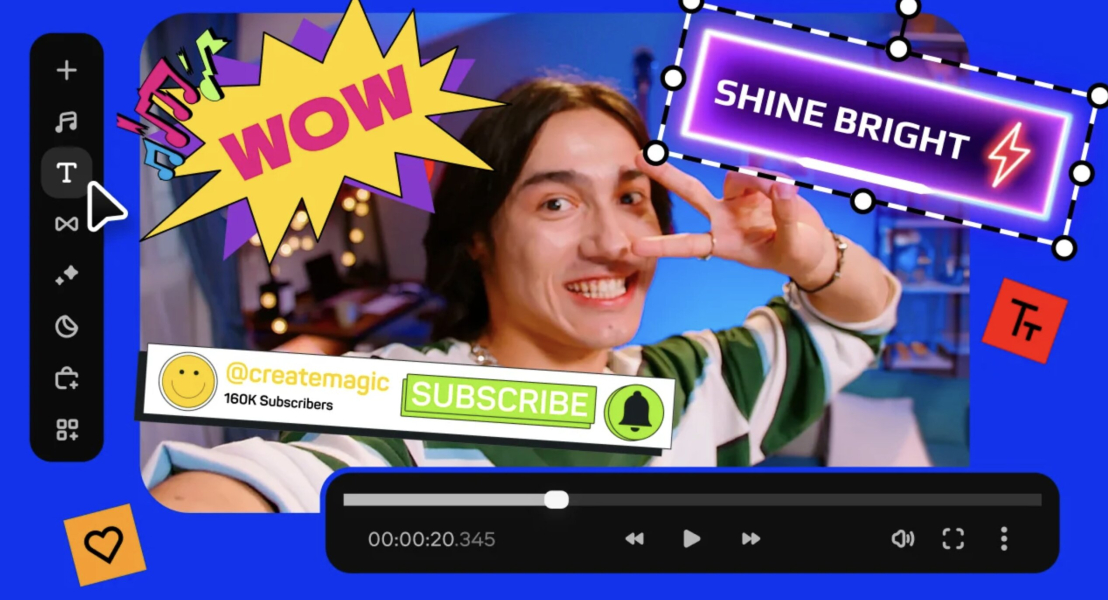
This Movavi Video Editor vs. Clipchamp comparison is for beginners and everyday creators: lifestyle bloggers cutting a daily-routine vlog, small business owners putting together a social media ad, and students or teachers recording a lesson or a school project. We line Movavi vs. Clipchamp up on pricing and free limits, functionality, performance, support, and where your projects are stored.
The short verdict: Clipchamp fits quick, light videos made inside Windows and Microsoft 365. Movavi fits you if you want a desktop editor that works offline, copes with long videos, and puts more AI features one click away. Ratings in this review come from G2 and Software Advice (November 2026).
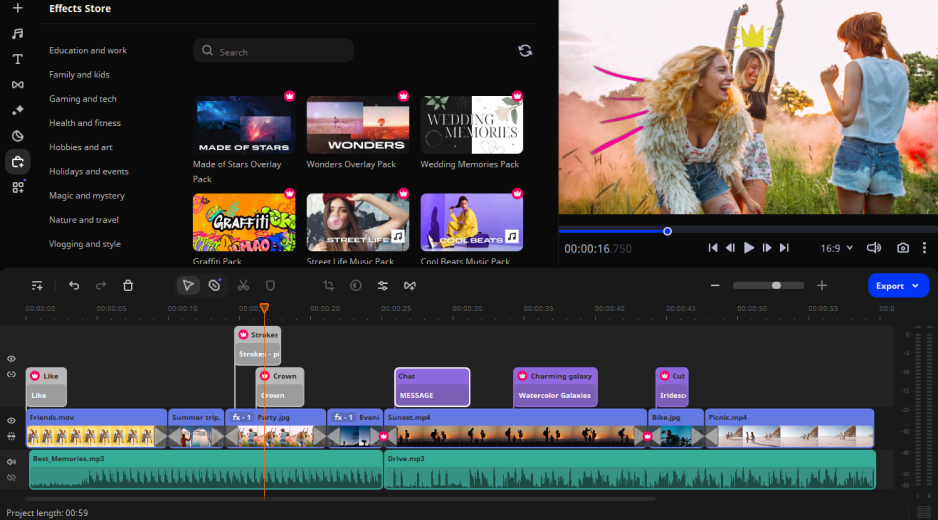
Movavi Video Editor is an intuitive video editor with customizable video templates, one-click AI tools, and hundreds of drag-and-drop effects. It is a desktop app for Windows and macOS, and your projects are saved on your own computer.
Templates are where the good-looking first result comes from. Say the vlog is a morning routine and you would rather not build its structure from scratch. Movavi Video Templates is a multi-style library of customizable, pro-looking, modular templates for any kind of video. Every template is a ready-made project made of Blocks, which are short segments of the video, for example an intro, a countdown, a quick cut, or an animated collage.
Hover over a clip or along the timeline and a preview of that exact frame appears. Drag a transition, title, or filter onto the timeline and it lands in place, so the evening goes into the vlog instead of into learning the software.
Millions of people already work this way: more than 70 million users in 190+ countries rely on Movavi software.

Clipchamp is Microsoft’s browser-based editor, built into Windows 11 and Microsoft 365. It runs in Edge and Chrome, needs a Microsoft account, and also comes as a Windows app from the Microsoft Store. On a Mac it works only in the browser.
The free plan covers a lot of ground. You can export as many videos as you like in up to 1080p without a watermark, and the free tools include trimming, cropping, rotating, resizing, animated titles, and a screen, camera, and voice recorder. A stock library and templates for social media, work, and school sit alongside them.
Clipchamp’s audience is Windows users, office workers, and students: simple social media videos, screen recordings for training, and internal presentations, especially when the video is needed fast and online.
| Comparison parameter | Movavi Video Editor | Clipchamp |
| Platforms | Desktop app for Windows and macOS | Browser (Edge, Chrome), Windows app; browser only on Mac |
| Account and internet | Works offline, no account or cloud required | Microsoft account; fast connection needed for importing files |
| Free version | Movavi Video Editor Free: 60-second cap, no 4K, watermark | Up to 1080p export, no watermark, all AI features free |
| Paid version | Full version: $19.95 per month or $54.95 per year | Microsoft 365 Personal: $9.99 per month or $99.99 per year. Family: $12.99 per month or $129.99 per year |
| Average rating, G2 | 4.6 out of 5 (416 reviews) | 4.1 out of 5 (52 reviews) |
| Average rating, Software Advice | 4.8 out of 5 (1,135 reviews) | 4.3 out of 5 (101 reviews) |
| Users who recommend, Software Advice | 88% | 72% |
| AI features | Auto subtitles, video and audio noise removal, silence removal, auto-tracked cropping, motion tracking | Auto subtitles, silence removal, noise reduction, AI voiceover from text, background removal for images |
| Project storage | Files on your computer | OneDrive: 5 GB on a free account, 1 TB with Microsoft 365 Personal |
| Templates | Editable Blocks you reorder, add, or remove | Templates for social media, work, and school |
| Learning hub | Movavi Ideas, weekly | Microsoft blog and help articles |
Movavi Video Editor Free is the free version. You can try the core editing tools plus auto subtitles, auto crop, and silence removal. Exports carry a watermark, stop at 60 seconds, and skip 4K. Movavi Video Editor Lite is a standalone version with all built-in effects and a small watermark, and it limits AI noise removal, AI background removal, chroma key, stabilization, animation, and audio effects. Lite suits basic, simple editing at a low price.
The full version costs $19.95 per month, with no watermark and no export limits. Every AI tool is included, and nothing runs on credits. Movavi Effects and Movavi Templates are separate subscriptions you add only if you want them, and you can preview Movavi Effects on your own footage before buying.
Clipchamp’s free version exports up to 1080p with no watermark, and all its AI features are free. 4K, paid stock, and the brand kit come with Microsoft 365 Personal or Family, which start at $9.99 per month. Clipchamp lists no separate plan of its own.
Better for…: Clipchamp when you want short 1080p videos at no cost and no watermark. Movavi when you want to grow into longer videos, AI tools without credits, and optional effects and templates.
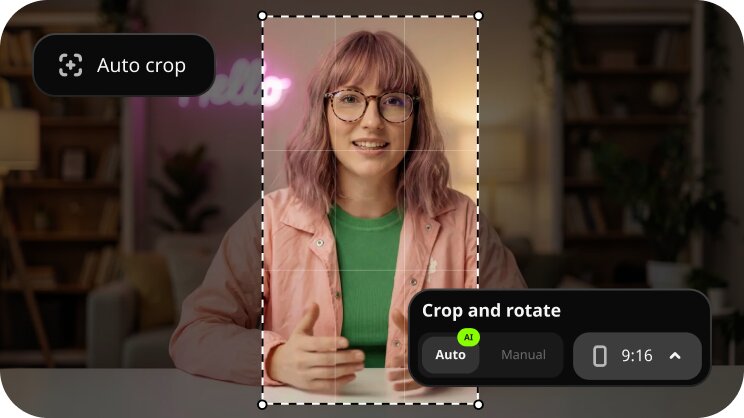
Movavi handles the tedious parts of editing in one click, and every AI tool comes with the full version. Take a lifestyle creator filming a skincare routine in a dim bathroom. AI video denoise clears grain from the low-light shots while faces and edges stay sharp. AI background removal swaps the bathroom for a plain color backdrop with no green screen. Auto-tracked cropping then reframes the same horizontal clip for Reels or Shorts and keeps the speaker centered.
Auto subtitles recognize more than 100 languages and light up each word in time with the audio. Silence removal cuts dead air from a talking-head take, AI audio noise removal clears traffic or wind, and AI motion tracking pins a sticker or label to a moving object.
A teacher turning a recorded lecture into a course video gets the same help. Silence removal runs automatically or by hand, with adjustable pause length and volume threshold, and auto subtitles turn the speech into captions you can restyle in one place if you want another font or design.
Clipchamp’s AI set is smaller and free. It covers auto subtitles with a choice of language and a downloadable transcript, silence removal with automatic clip cutting, a noise-reduction toggle, and AI voiceover from text. Background removal works on images only. For video it offers a chroma key filter that removes blue, red, or green. It has no AI video noise removal, no auto-reframing with subject tracking, and no stabilization. You can pick a 9:16 format and social media templates for vertical ads, but nothing tracks the subject to keep it in frame.
Better for…: Clipchamp when the job is subtitles, silence cuts, or a quick AI voiceover at no cost. Movavi when your footage needs denoising, a new background, stabilizing, or a vertical reframe.
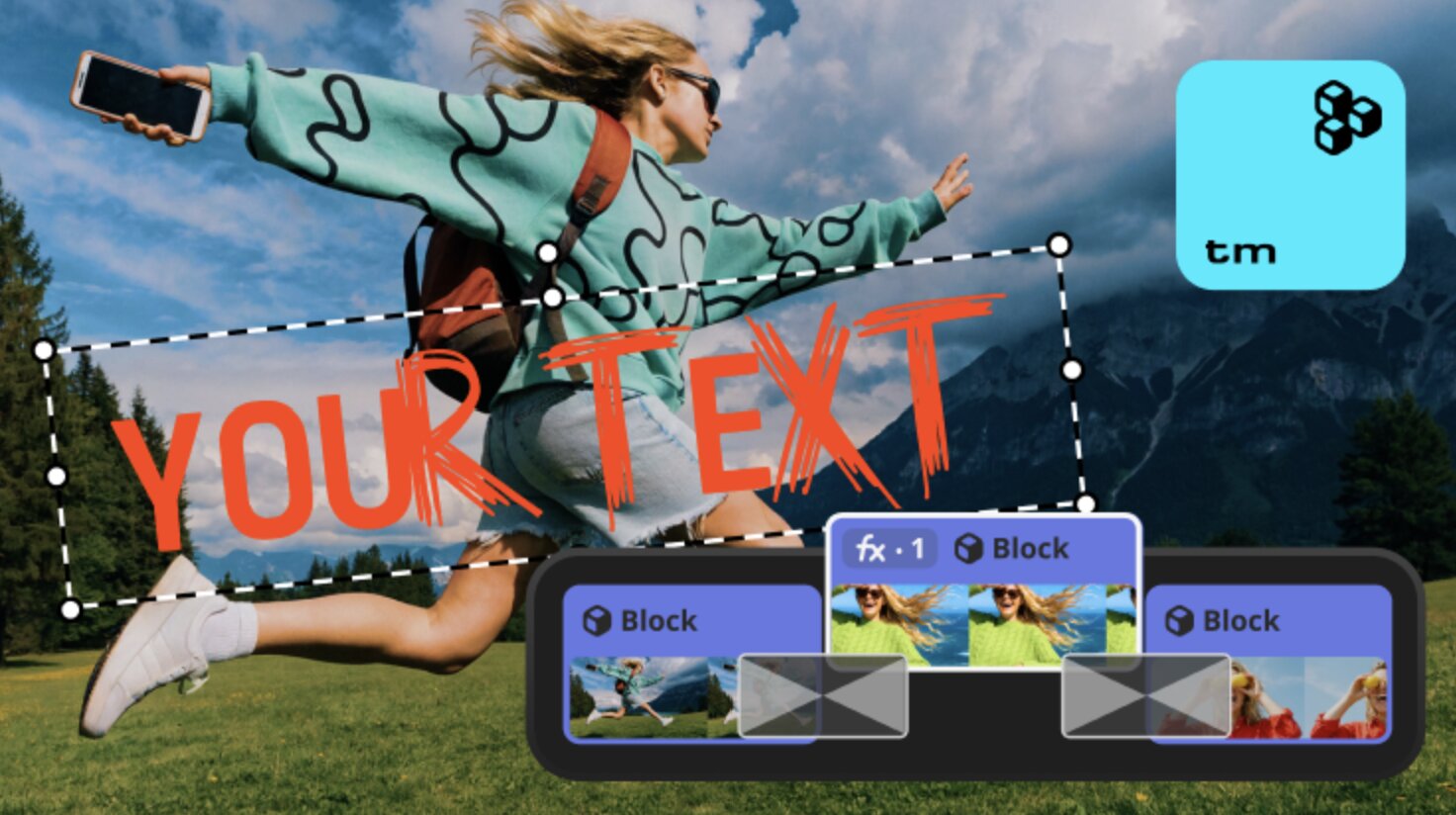
Clipchamp’s templates cover social media, work, and school, in formats such as intros, promos, and slideshows, and the paid tier includes all templates and assets. A Clipchamp template is a timeline edit you have to figure out. The built-in media library is limited, and paid stock sits behind the paid tier.
Movavi’s Blocks come already cut, and you drop your video into them. Effects and templates cover every style out of the box: hundreds of built-in drag-and-drop effects, several templates, and copyright-free music ship with the full version. The Movavi Effects subscription adds 10,000+ effects for blogs, business, family videos, and holidays. It also brings 1,500+ music tracks for every mood. You can preview any effect or template on your own footage before buying, which suits a brand video for Instagram or Facebook where the look has to match.
Better for…: Clipchamp for work and school slideshows. Movavi for vlogs, reviews, and holiday videos where you want to reorder and add Blocks.
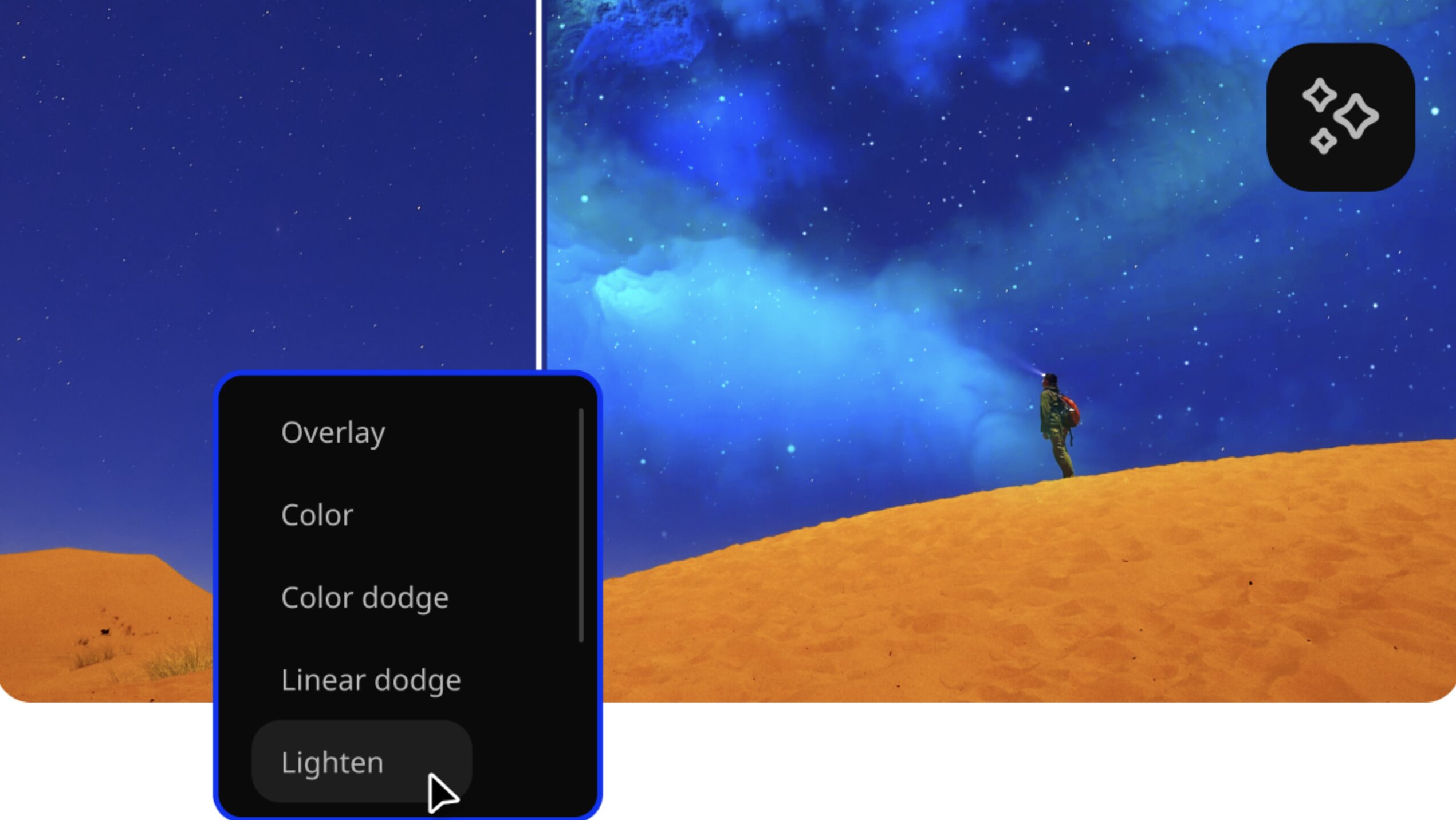
Movavi’s toolkit goes deeper once you need it. The Blade tool makes frame-accurate cuts, and pre-timeline trimming pulls a short segment out of a long file before it reaches the project. Speed goes up to 100x for time-lapses. Color correction runs on ready-made presets or manual sliders. Stabilization, chroma key, keyframe animation, and picture-in-picture are in the same program. On the audio side you get an equalizer, a noise gate, a compressor, and one-click sound autocorrect presets.
Clipchamp keeps things simple: a basic timeline, basic effects and transitions, color settings for exposure, contrast, saturation, and temperature, and basic audio controls for volume, fades, and detaching audio. Voice work splits too: Clipchamp has AI voiceover from text and no ready-made voice effects, while Movavi records narration and adds voice effects. Clipchamp’s other strength is recording. Screen and webcam capture happen inside the editor, which suits an internal how-to for colleagues. Movavi Video Editor records from a connected camera. Screen recording lives in Movavi Screen Recorder, a separate program in the Movavi lineup.
Better for…: Clipchamp for screen-recorded training. Movavi for footage that needs color, steadiness, and audio finishing.
Movavi exports to MP4 for broad compatibility, with adjustable resolution, aspect ratio, and quality. You can send a finished video straight to YouTube, Vimeo, Google Drive, or TikTok, export just a fragment of the project, or pick a preset for phones, tablets, and TVs. For a blogger who posts every week, direct upload skips the step of hunting for the file. Clipchamp’s free version exports up to 1080p with no watermark, and 4K needs Microsoft 365 Personal or Family.
Better for…: Clipchamp for a free, watermark-free 1080p file. Movavi for posting straight to a platform and exporting in several formats.
Because Clipchamp runs in a browser, its speed depends on your connection. Slow internet makes importing files take a long time, and the editor can freeze mid-edit. Large files can lag, and export can freeze at the final stage.
Movavi runs on the desktop, works offline, and handles long videos steadily. It also runs on low-end PCs. Supported systems are Windows 10 and 11, and on a Mac, macOS 12.0 or later with native support for Apple’s ARM-based chips. Fast Track HD acceleration speeds up processing, and MP4, MOV, AVI, MKV, and WMV open without conversion. The editor gets 25+ updates a year, and recent ones added auto-tracked cropping and one-click video denoise.
Where your projects live differs too. Movavi saves projects as files on your computer, and portable projects bundle all media so you can reopen them on another machine. The flip side is that Movavi has no web version and no cloud integration. Clipchamp saves personal projects to OneDrive, and a project has to live there to stay editable. A free account gets 5 GB of cloud storage, and Microsoft 365 Personal brings 1 TB.
Better for…: Clipchamp for short projects on a PC with a solid connection. Movavi for long videos and editing without the internet.
Software Advice reviewers rate customer support 4.6 for Movavi and 4.1 for Clipchamp, and that site lists a knowledge base and video training for Movavi against documentation for Clipchamp.
Movavi backs the app with a knowledge base and manuals on its website, tooltips inside the interface, a how-to center, and guides. Movavi Ideas goes further than help articles. Each idea comes with a tutorial that takes less than a minute to follow, covering vlogs, short vertical clips, business videos, holidays, family videos, and memes. A student recording an explainer for YouTube can follow one of those and be editing the same afternoon.
Clipchamp’s help comes from Microsoft’s documentation, blog, and help articles. It has no dedicated hub for new editing ideas and tutorials.
Better for…: Movavi when you learn best from short step-by-step tutorials. Clipchamp when Microsoft’s help pages already answer your questions.
Best for: lifestyle vlogs, beauty and fitness videos, and brand clips for Instagram or Facebook, made by beginners who want a desktop editor.
Price and platforms: Movavi Video Editor Free, Lite, and the full version at $19.95 per month or $54.95 per year. Desktop app for Windows and macOS.
Key features:
Pros:
Cons:
Best for: simple social media videos, screen recordings for training, and internal presentations that need to be done quickly and online.
Price and platforms: free, with 4K and paid stock through Microsoft 365 Personal at $9.99 per month or Family at $12.99. Browser and Windows app; browser only on a Mac.
Key features:
Pros:
Cons:
Review sites repeat the same patterns. On G2, reviewers of both editors name ease of use as the top strength. Movavi users praise a simple interface they can start using without tutorials, good value for the price, a machine that does not groan, and a large library of effects, titles, and licensed music in the base version. Their complaints: the strict export limit in the free version, add-on subscriptions for some effects and music.
Clipchamp users like that it is free, watermark-free, and already inside Windows. They find it clear for quick tasks, and they enjoy the free subtitles, voiceover, and noise reduction. The complaints: slowdowns on large files, export freezing at the final stage, limited product features for advanced editing and audio, and 4K and paid stock locked behind a subscription.
Pick Clipchamp if your videos are short, you work on a Windows PC with a steady connection, and 1080p with no watermark is enough. Three signals point to Movavi. You edit long footage, you want it to work offline, and you need AI tools like background removal behind a person, video denoise, or auto-reframing. If you are a student or teacher recording a lesson, either works, so let the length of your videos decide.
Movavi Video Editor is the one to start with if you are new to editing and plan to keep going. The free version is a no-pressure way to see whether it feels right. Download Movavi Video Editor Free, drop in your last trip’s clips, open the Templates tab, and see how much of the vlog is already waiting for you. Movavi Ideas has the next trick lined up.
It depends on the job. Clipchamp suits quick videos inside Windows and Microsoft 365. If you need a desktop editor with a flexible timeline, large files, and AI tools such as background removal behind a person or stabilization, Movavi Video Editor covers those. Clipchamp vs. Movavi comes down to how long your videos run and how much you want to rely on the internet.
Yes, for beginners and everyday creators. Movavi Video Editor is built for bloggers, family video makers, small business owners, and students who want results without a long learning curve. It opens MP4, MOV, AVI, MKV, and WMV files, and the full version exports up to 4K. If your workflow needs advanced, detailed controls, that is the one area where Movavi is light.
No single editor wins every job. DaVinci Resolve is built for colorists and professional editors, and Adobe® Premiere® Pro is the standard for people who edit video for a living. Movavi is aimed at beginners and everyday creators who want a simpler workflow.
CapCut is a mobile-first editor for short, trending videos, and it is part of the TikTok ecosystem. Movavi Video Editor is better for long horizontal videos and for full desktop editing offline, with no account or cloud required. It also keeps every AI tool in one subscription, with no credits to count.