
Privacy Policy popup
× Privacy Policy popup
×
 6
 19 Minutes

Movavi vs. DaVinci Resolve is a question about three costs: money, learning time, and the computer you already own. DaVinci Resolve is free with no watermark and no time limit, and its paid version, DaVinci Resolve Studio, is a one-time purchase. Movavi Video Editor starts with a free version, then moves to a subscription for the full version, with optional add-ons on top. DaVinci Resolve fits people who are ready to learn a professional tool before they see a first result; Movavi fits beginners who want a finished video soon.
This guide is for beginner bloggers and lifestyle creators who cut unboxings, travel videos, or skincare tips on a tight budget, and for small business owners who make Instagram or Facebook ads between other jobs.
We compare the free versions, the paid versions and what each one includes, hardware demands, and the extra costs. Ready-made templates get their own row. Movavi Video Templates is a multi-style library of customizable, pro-looking, modular templates for any kind of video, while DaVinci Resolve has no ready-made video templates.
| Comparison parameter | Movavi Video Editor | DaVinci Resolve |
| Free version | Essential editing tools plus auto subtitles, auto crop, and silence removal. Exports carry a watermark, stop at 60 seconds, and don’t reach 4K | Free base version with no watermark and no time limit. Some functionality is limited. |
| Paid version (prices are listed as of publication) | Full version by subscription: $19.95 a month | DaVinci Resolve Studio, one-time purchase with no subscription: $295 |
| What the paid version adds | All tools, no watermark, no export limits, 4K export | AI tools, noise reduction, advanced HDR grading, up to 120fps, resolutions beyond 4K, no cap on timeline tracks |
| AI tools | One-click AI tools in the full version, no credit system | Full AI toolkit in Studio only. The free version has practically no AI tools |
| Templates | Several free templates included with the editor; the whole collection is a separate subscription | No ready-made video templates. You can reuse presets you build yourself (Power Bins) |
| Effects and music | Hundreds of built-in effects and copyright-free music. Movavi Effects subscription adds 10,000+ effects and 1,500+ tracks | Very little ready-made content and no built-in licensed music library |
| Hardware | Windows 10 and 11 (64-bit) with a dual-core 1.5 GHz processor and 4 GB of RAM; macOS 12.0 or higher, native Apple M1 support | Windows: 16 GB of memory (32 GB with Fusion) and a GPU with 4 GB of VRAM; Mac: Apple silicon, macOS 15, 8 GB of memory |
| Platforms | Windows and macOS | Windows, macOS, and Linux |
So, is DaVinci Resolve free? The base version of DaVinci Resolve is free, with no watermark and no time limit, and it includes nearly all of the editing, color, audio, and visual effects tools. If you need a free video editor without a watermark, that’s the headline: your finished video leaves the program clean. What you pay instead is learning time, which we cover under hidden costs below.
Movavi Video Editor Free works differently. It’s a free download from the official website with the essential editing tools and a few automated helpers: auto subtitles, auto crop, and silence removal. You can try every tool in the app, and using a paid feature restricts the export. Exported videos carry a watermark, stop at 60 seconds, and don’t reach 4K, and codec support is limited. It works as a test drive: you judge the interface on your own footage before spending anything.
Templates sit on the free side of Movavi in a limited way. Several come with the full version at no extra charge, and the whole collection is a separate subscription.
Better for: DaVinci Resolve if you want zero cost, no watermark, and no length cap. Movavi Video Editor Free if you want to test an easy interface first.
The DaVinci Resolve Studio price is $295, paid once. There is no subscription. Studio adds the AI tools, noise reduction, advanced HDR grading, and support for higher resolutions and frame rates.
Movavi takes the opposite shape. Movavi Video Editor Lite is a standalone version with core editing tools, auto subtitles, auto crop, silence removal, and all the built-in effects. Its exports carry a small watermark, and AI noise removal, AI background removal, chroma key, stabilization, animation, and audio effects are limited. The full version of Movavi Video Editor is a subscription, $19.95 a month or $54.95 a year, with no watermark and no export limits. Movavi Effects and Movavi Templates are optional subscriptions on top.
That ladder is the idea behind Movavi’s pricing: start free, add what a project needs, skip what it doesn’t.
Better for: DaVinci Resolve if you prefer one payment and no renewals. Movavi Video Editor if you’d rather start small and add paid pieces only when a video calls for them.
In DaVinci Resolve free vs. Studio, the gap is AI and finishing tools. The full AI toolkit, built on DaVinci Neural Engine, works only in Studio. It includes Magic Mask, which selects a subject or background automatically, and AI upscaling called Super Scale. The free version has practically no AI tools, and using them takes an understanding of the process plus manual fine-tuning. Studio also adds noise reduction and advanced HDR grading, and it removes limits such as the number of tracks on the timeline. The free version tops out at 60fps in Ultra HD; Studio goes up to 120fps.
Some everyday jobs take extra steps in DaVinci Resolve. Auto subtitles come through a third-party plugin installed separately. Background removal behind a person is manual, through specialized tools in the Nodes workflow.
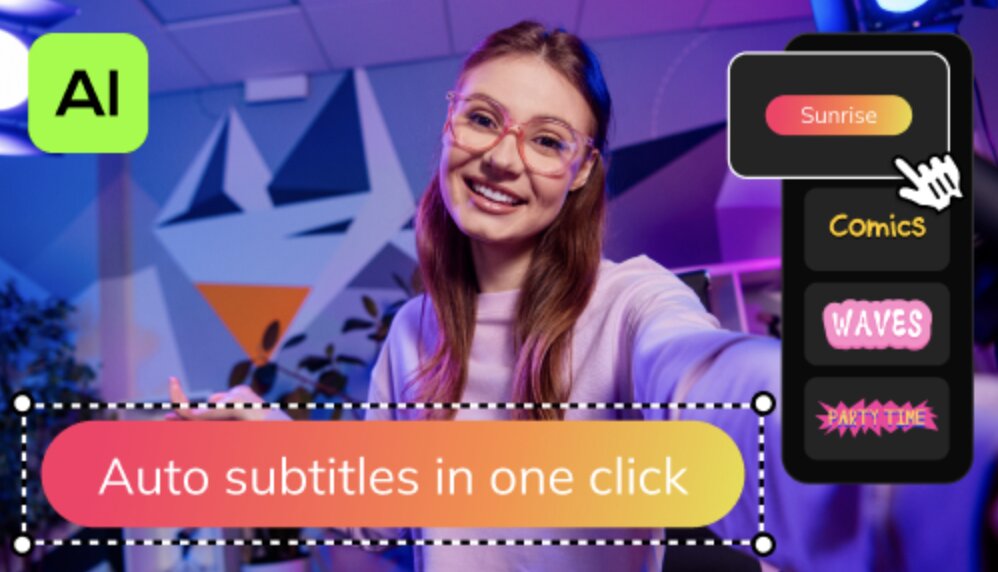
Movavi Video Editor keeps its AI tools in one place. Every AI tool is included in the full version, and there’s no AI credit system, so you never count credits or pay extra to press a button. These are the tools that handle the tedious parts in one click, starting with auto subtitles that recognize 100+ languages.
Resolve goes further where color is concerned. Its color correction runs through Nodes, with secondary correction, HSL, HDR grading, and LUTs. Movavi offers ready-made color presets plus manual fine-tuning of tone, contrast, and saturation.
Better for: DaVinci Resolve Studio if you grade color seriously or need advanced HDR. Movavi if you want one-click AI included in the full version without credits.
DaVinci Resolve system requirements deserve a check before you download anything. The program is resource-intensive, and powerful hardware is recommended. On Windows, Blackmagic asks for 16 GB of memory, or 32 GB when you use Fusion. The graphics card needs at least 4 GB of VRAM, and the advanced AI tools want at least 16 GB of it. A Mac needs Apple silicon and macOS 15 Sequoia. Users report crashes and a rough ride on low-end PCs, especially in the Fusion module, which handles visual effects.
Movavi Video Editor runs on 64-bit Windows 10 and 11 and on macOS 12.0 or higher, with native Apple silicon support, including M1 and newer. Fast Track HD acceleration speeds up processing. The Windows minimum is a dual-core 1.5 GHz processor, 4 GB of RAM, and an entry-level graphics card such as Intel HD Graphics 2000.
DaVinci Resolve also runs on Linux, and Movavi doesn’t support it.
Better for: DaVinci Resolve if you own a powerful machine or run Linux. Movavi Video Editor if you use Windows or macOS and want to compare minimum specs before you commit.
A free price tag can hide three bills.
Movavi Video Editor has costs of its own, and they’re optional. Movavi Effects and Movavi Templates are separate subscriptions. You can preview every Movavi Effects item on your own video for free, and even save it with a watermark, before you buy.
Better for: DaVinci Resolve if your time is free and your hardware is ready. Movavi if you want extra spending to be a choice you make per project.
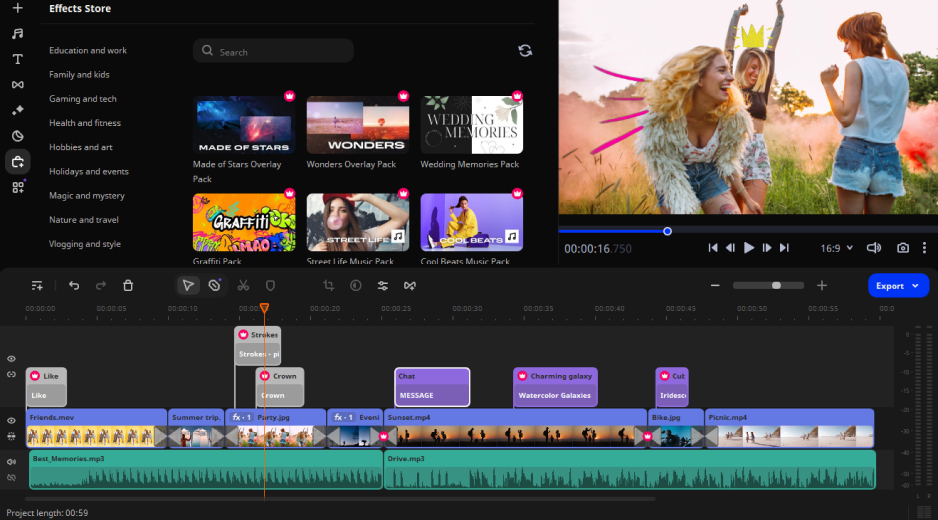
Movavi Video Editor is an intuitive video editor with customizable video templates, one-click AI tools, and hundreds of drag-and-drop effects. It’s a desktop app for Windows and macOS. Hover previews show a clip, effect, or exact frame before you drop it on the timeline, so you spend your time creating instead of figuring out the software. Movavi Ideas, a free tutorial hub, adds a new editing idea every week, each with a step-by-step tutorial short enough to follow in under a minute.
Templates are where a first video comes together fast. Each template arrives with pre-set editing, music, transitions, and text, and it’s built from Blocks: short, pre-edited segments, where you drop in your own videos, photos, and text. You can reorder, add, or delete Blocks, and keep the template’s music or replace it.
Effects and templates cover every style. The editor includes hundreds of built-in drag-and-drop effects, and Movavi Effects adds 10,000+ more for themes such as blogs, business, family, and holidays, plus 1,500+ music tracks. You can preview any of them on your own footage before you buy.
Key features:
Pros:
Cons:
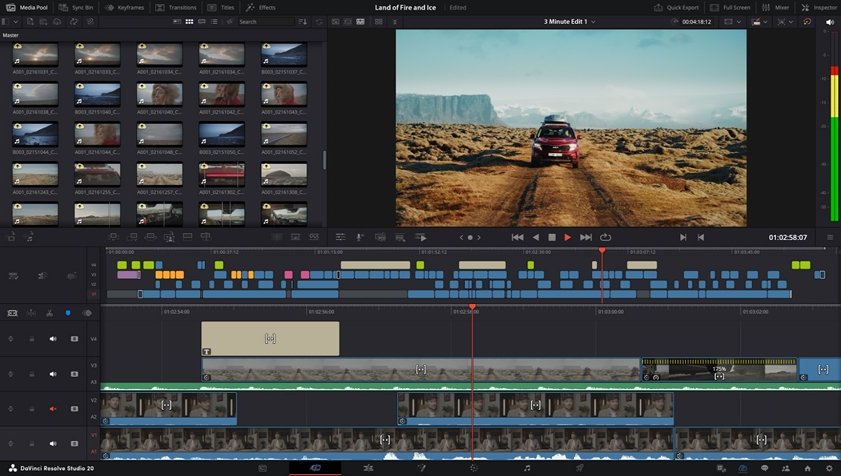
DaVinci Resolve is a professional application from Blackmagic Design that combines editing, color correction, visual effects, motion graphics, and audio post-production in one program. It’s split into pages, each a dedicated workspace for one job: Cut and Edit for editing, Color for grading, Fusion for visual effects, Fairlight for audio, and Deliver for export. It comes in two versions, a free one and the paid Studio version, and it runs on Windows, macOS, and Linux. It’s built for colorists and professional editors, so beginners should expect to learn the interface before they see a first result.
Key features:
Pros:
Cons:
A beginner blogger on a mid-range laptop. Check hardware first: on Windows, Resolve asks for 16 GB of memory, while Movavi’s minimum is 4 GB. Then download Movavi Video Editor Free and cut one unboxing to see how the interface feels on your own footage. If you’d rather not leave a watermark, Resolve’s free version is the other test.
A creator or business owner who needs AI. Say you shot a product demo horizontally and need it vertical for an Instagram ad. Auto-tracked cropping keeps the product centered, and auto subtitles add captions, both in the full version with no credits to count. Resolve’s AI toolkit sits behind the Studio price, and auto subtitles still need a plugin.
Someone ready to learn for the sake of a free tool. If you want node-based color grading on your travel videos and don’t mind the learning curve, DaVinci Resolve’s free version gives you that at zero cost.
On review sites G2 and Capterra, Movavi Video Editor reviewers keep returning to the same few points: an interface simple enough to start editing without tutorials, good value for the price, and a large library of effects, titles, and licensed music already in the base version. The complaints cluster around the free version’s 60-second export cap and watermark, some effects and music needing a separate subscription, and activation and payment feeling confusing because the program and the add-on content are licensed separately.
DaVinci Resolve reviewers on G2 and Capterra praise its quality and its free features. Many call it professional-grade at no cost, and users say that once you learn the shortcuts and workflow it’s very fast and reliable on powerful hardware. The most common critique is the learning curve: reviewers say almost nothing works intuitively, the interface is dense, and the program is demanding on hardware, with crashes reported and the Fusion module running poorly on low-end PCs.
Open Movavi Video Editor Free, drop one of your own clips on the timeline, and see whether the interface feels like yours before you pay for anything. If Resolve’s color tools are what you came for, install its free version next to it and compare both on the same footage.
Yes. The base version is free with no watermark and no time limit, and it covers nearly all editing, color, audio, and visual effects tools. Some functionality is limited, and the AI tools sit in the paid Studio version. It runs on Windows, macOS, and Linux.
It depends on your videos. Studio adds AI tools, noise reduction, advanced HDR grading, and support for higher resolutions and frame rates, for a one-time $295. If your videos need none of those, the free version already includes most of the editing, color, audio, and visual effects tools.
The full version is a subscription for $19.95 a month. Movavi Video Editor Free and Movavi Video Editor Lite sit below it, and Movavi Effects and Movavi Templates are separate optional subscriptions.
Resolve is resource-intensive, and powerful hardware is recommended. Blackmagic’s Windows minimum is an integrated GPU or a discrete GPU with at least 4 GB of VRAM, and the advanced AI tools want at least 16 GB.
Yes, there’s a lifetime license. The standard full version is sold by monthly or yearly subscription, so check the checkout page for the current lifetime price before you buy.