
Privacy Policy popup
× Privacy Policy popup
×
 9
 18 Minutes
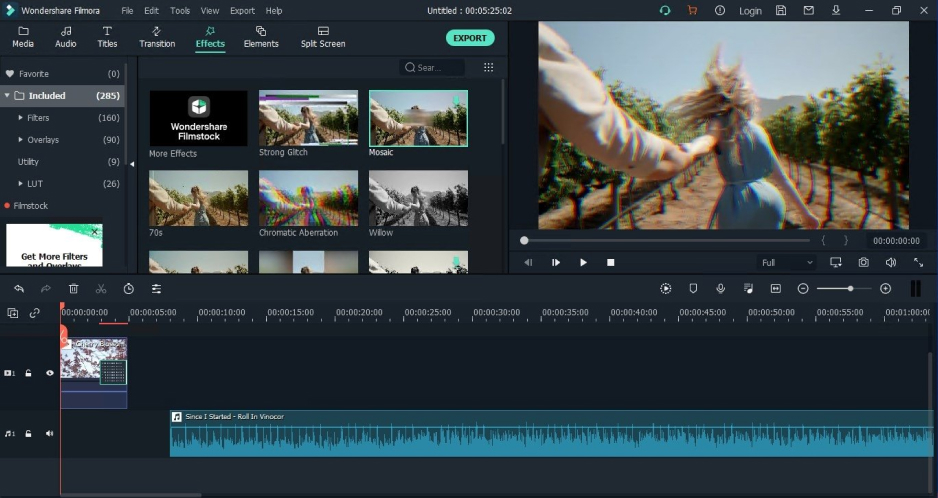
Movavi vs. Filmora is a choice between one-click tools with no credit counting and a larger toolbox built for steady production. If you make vlogs, unboxings, or tutorials for YouTube and want a finished video in one sitting, Movavi fits. If you upload on a schedule, edit for clients, or build layered projects with keyframes, Filmora fits.
Templates show the split well. Movavi Video Templates is a multi-style library of customizable, pro-looking, modular templates for any kind of video. Filmora has ready-made templates and an Instant Mode, applied as a whole to your footage.
We compared Movavi Video Editor vs. Filmora on six points: learning curve, AI tools, templates and effects, system requirements and rendering speed, pricing, and the pros and cons of each.
| Comparison parameter | Movavi Video Editor | Filmora |
| Best for | Beginners and everyday creators: vlogs, unboxings, tutorials | Frequent uploads, client edits, multi-layer projects with motion graphics |
| Platforms | Windows, macOS | Windows, macOS |
| Learning curve | Intuitive interface, hover previews, Movavi Ideas tutorials | Simpler than pro editors; many single-task AI features and fine-tuning settings |
| AI tools | Auto subtitles, silence removal, auto-tracked cropping, motion tracking, AI video and audio noise removal | Auto subtitles, pause removal, auto reframe, AI Portrait Cutout, lighting correction, AI music matching, prompt-based generation |
| AI credits | None; AI tools come with the full version | Separate AI credits on top of the base subscription |
| Video noise removal | One-click AI | Only inside overall quality enhancement |
| Templates | Blocks you reorder, add or remove; several included in the full version | Templates and Instant Mode; paid templates need a subscription |
| Effects and music | Hundreds of built-in effects, copyright-free music; Movavi Effects adds 10,000+ effects and 1,500+ tracks | Library of effects, transitions and templates; most assets need a separate subscription |
| Free version | Movavi Video Editor Free: watermark, 60-second cap, no 4K | Free: always watermarked, limited exports |
| Paid plans | Lite; full version at $19.95 a month or $69.95 a year; add-on subscriptions | Basic at $49.99 a year; Advanced at $59.99 a year |
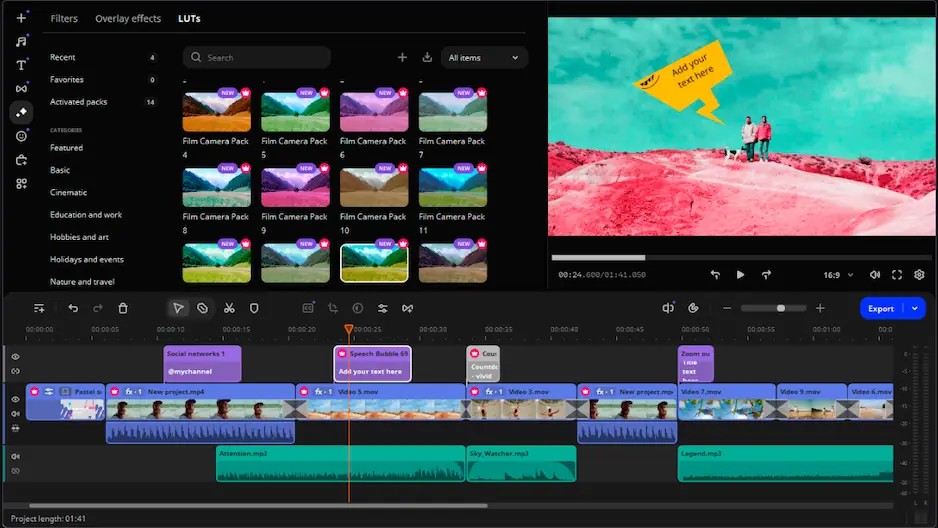
Best for: bloggers and lifestyle creators editing vlogs, unboxings and travel videos for YouTube, and anyone who wants a finished video without a long learning curve.
Price and platforms: Windows and macOS. The full version costs $19.95/month and a Lifetime option sits next to the yearly plan.
Movavi Video Editor is an intuitive video editor with customizable video templates, one-click AI tools, and hundreds of drag-and-drop effects. It is a desktop app for Windows and macOS.
It is simple and fast by design. Hover over a clip, effect or transition and an instant preview appears; drag an effect onto the timeline and it is applied.
Templates carry the first-try result. Each one is a ready-made project built from Blocks: short, pre-edited segments such as an intro, a countdown, a quick cut or an animated collage. The template arrives with pre-set editing, music, transitions and text, so your first vlog has pacing and titles before you add a single effect.
Key features:
Pros:
Cons:
Best for: creators who upload to YouTube often, edit for clients, or build complex multi-layer projects with motion graphics.
Price and platforms: Windows and macOS. Basic costs $49.99 a year, Advanced $59.99 a year and Perpetual $79.99 once; the pricing section below covers each plan.
Filmora, from Wondershare, is an AI-powered video editor positioned as a desktop tool for serious video production. It runs on Windows and macOS. Filmora has a multitrack timeline with keyframe animation and motion tracking support layered projects with motion graphics.
Key features:
Pros:
Cons:
Filmora’s interface is simpler than a professional editor’s, and its templates and AI automation shorten the path to a first video. Volume is the slowdown: the number of single-task AI features and fine-tuning settings gives a beginner more to sort through. Its Filmora Learning Center, a blog of editing tutorials, lives outside the app.
Filmora does give beginners a shortcut: templates and Instant Mode mean a first video does not have to start from a blank timeline.
Movavi Video Editor keeps learning inside the editing flow and most tools work in one click. Movavi Ideas, a free tutorial hub, brings new editing tricks every week, each with a short step-by-step guide, so your next vlog always has something new to try.
Better for… first-timers who want results in a few clicks: Movavi Video Editor. Creators who already work with layers and keyframes: Filmora.
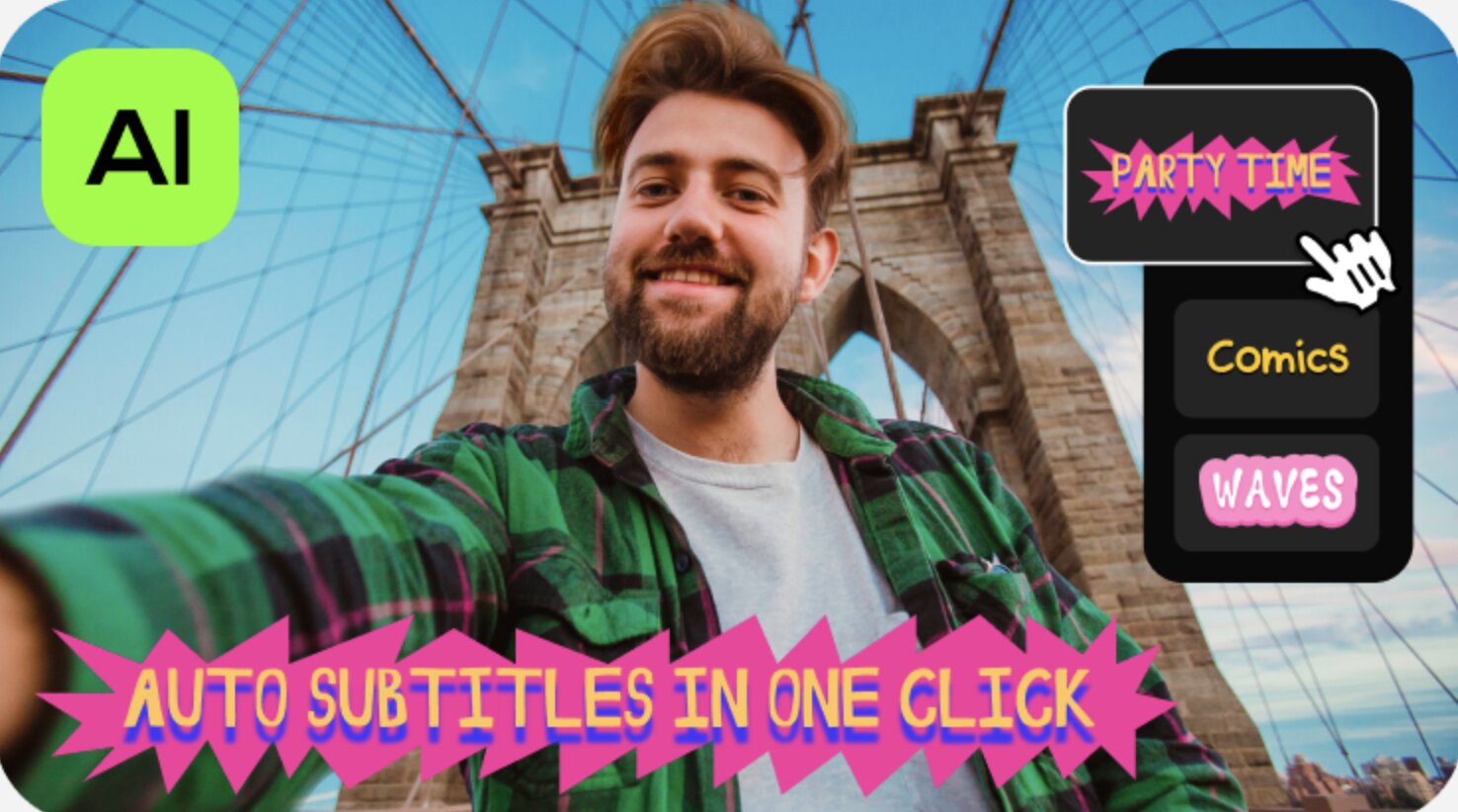
Movavi’s AI video-editing tools save time where it counts, on the tedious parts of editing, and each tool runs in a single click: auto subtitles, video and audio noise removal, silence removal, auto-tracked cropping, and motion tracking. All of them come with the full version, and no credit system meters them.
Filmora’s AI toolkit is wider. Beyond subtitles, pause removal and reframing, it adds prompt-based video and image generation, AI music matching, and AI lighting correction. Those run on separate AI credits, and the number of credits is limited.
Movavi’s AI motion tracking locks an image, video, or graphic to a moving subject in one click, so a label or sticker follows the gadget you are holding.
Both editors generate AI subtitles, remove pauses, reframe vertical clips with subject tracking and remove a background behind a person without a green screen. Movavi adds one-click AI video noise removal; Filmora handles video noise only inside its overall quality enhancement.
Better for… one-click cleanup with no credits to count: Movavi Video Editor. Generative features such as prompt-based video and image creation: Filmora.
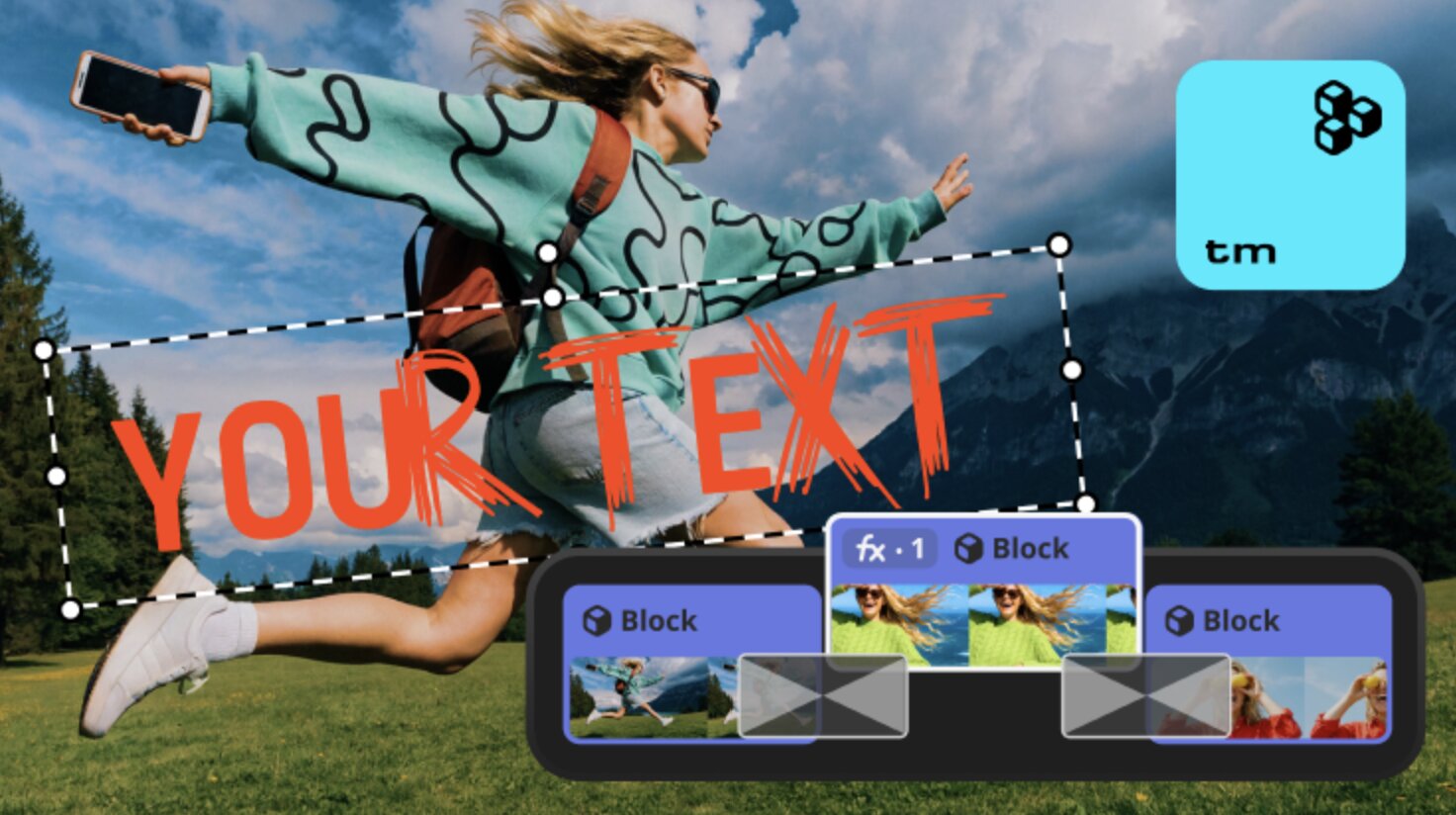
Movavi Video Editor has effects for every style: hundreds of built-in drag-and-drop effects, plus templates for every vibe and occasion, from vlogs and reviews to family videos and holidays. Because each template is made of Blocks, you can reorder, add, swap, or remove segments, or build a video from Blocks alone. The template’s music stays unless you replace it, and default text can be retyped or restyled.
Filmora’s templates and Instant Mode work as a whole across your footage. Its library of trending templates and effects is large, though most assets and paid templates sit behind a subscription.
Both sell extras separately. Movavi Effects adds 10,000+ effects, and a Movavi Templates subscription adds the whole collection; every effect and template previews on your own footage before you buy, and previews can even be saved with a watermark first.
Better for… reshaping a template Block by Block: Movavi Video Editor. Quick results from a large library of trending templates: Filmora.
Filmora vs. Movavi Video Editor on hardware starts with the operating system. Movavi runs on Windows 10 and 11 (64-bit) with current patches and on macOS 12.0 or higher, with native support for Apple M1 and newer chips. It asks for a dual-core 1.5 GHz processor, 4 GB of RAM and 400 MB of disk space to install.
Filmora supports 64-bit Windows 7 or later and macOS 10.15 or later, including Apple M-series Macs. Its Windows minimum is an Intel 6th Gen or AMD Ryzen 3 1300X processor, and Wondershare recommends 16 GB of RAM for HD and 4K editing.
For speed, Movavi’s Fast Track HD edits HD footage through temporary lower-size copies and swaps the full-quality originals back in on export. Optional Intel, NVIDIA, and AMD acceleration speeds up encoding and decoding where your hardware supports it.
Better for… older and mid-range machines: Movavi Video Editor, with the lighter requirements and the faster result in that test. Heavier AI work on a stronger machine: Filmora.
Movavi Video Editor offers tailored options for every budget: you start free and add only what you use.
Movavi Effects and Movavi Templates are separate subscriptions on top.
Filmora’s plans include following options:
Lifetime license: Movavi Video Editor Plus lists a Lifetime option next to its 1-year plan. Filmora’s Perpetual license costs $79.99 once, covers one platform, and stays on one major version.
Better for… budget-minded creators who want every AI tool inside one subscription: Movavi Video Editor. Buyers who want the cheapest yearly entry and may add credits later: Filmora Basic.
It depends on the video. Three common jobs show where each editor earns its place.
A lifestyle vlog or travel video. You shot a weekend trip and want a vlog by evening. Drop your clips into one of the free templates that ship with the editor, keep the pre-set music and transitions, retype the text, then add auto subtitles. A ready-made color preset then evens out clips shot at different times of day, and manual controls fine-tune tone, contrast, and saturation. Movavi fits: the structure arrives ready and you fill it. Filmora also starts from a ready-made base. The gap shows later, when you want to rearrange the structure Block by Block (Movavi) or layer motion graphics on top (Filmora’s multitrack timeline).
A gadget unboxing or review. Raw audio carries steady hums and long pauses while you hunt for the box. Movavi’s AI audio noise removal clears the hum in one click, and auto-silence removal cuts the pauses. Filmora’s AI Smart Cutout also removes pauses, though its AI toolkit needs separate credits. Then cut a vertical Short from the same review: Movavi’s auto-tracked cropping keeps you centered in the frame. Filmora’s Smart Short Clips also reframes with subject tracking, and it can pull vertical highlights from long videos.
A tutorial or explainer for YouTube. You walk through a lesson and want readable captions. Movavi lets you set the screen position and pick from over 60 subtitle designs. Filmora generates subtitles too, with translation and style choices, so this job suits either editor.
Movavi Video Editor
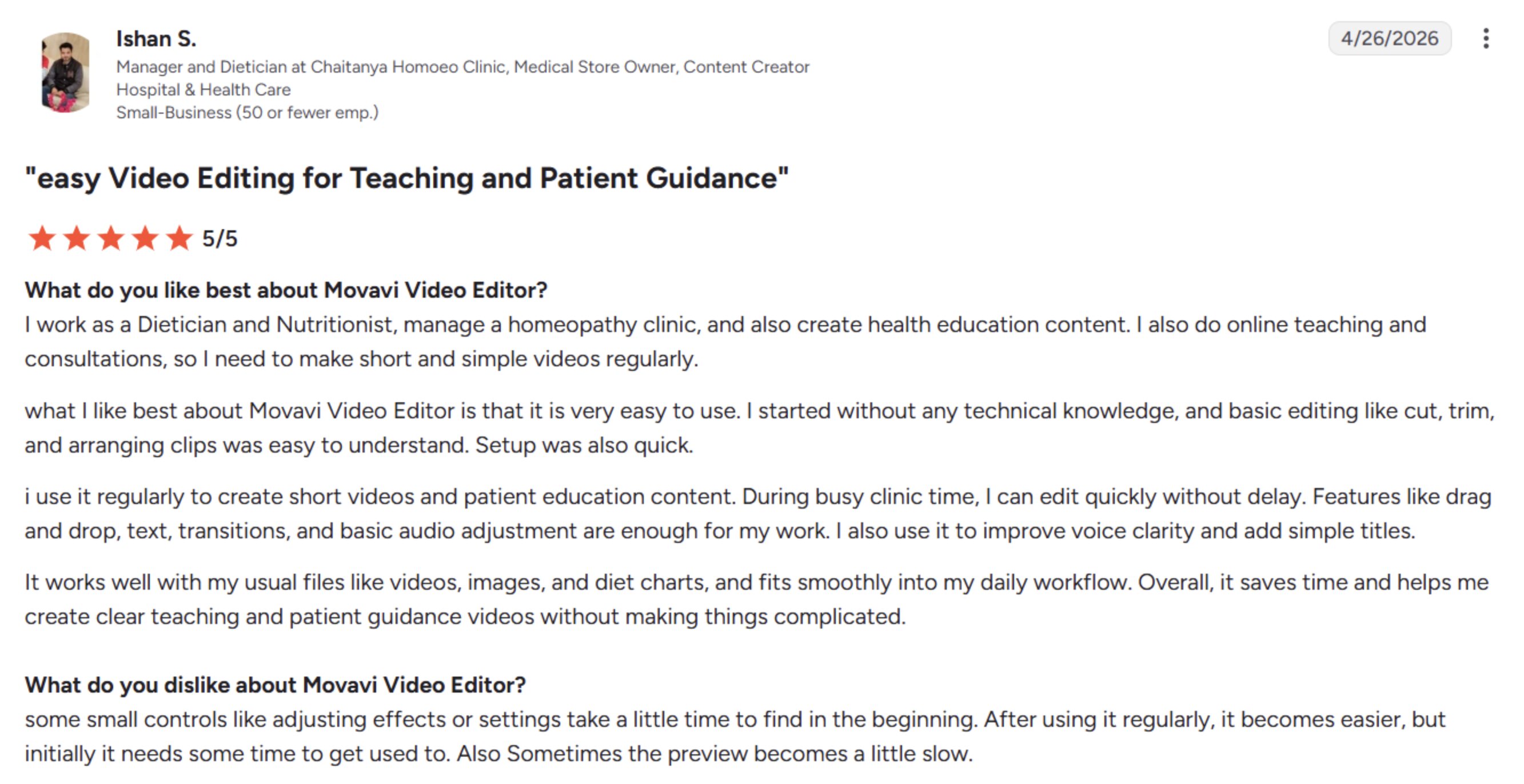
Reviewers on G2 and Capterra like that they could start editing without a tutorial. They also mention fair value for the price, smooth running on low-end PCs, and a base version that already includes plenty of effects, titles, and licensed music.
The complaints: the interface cannot be customized, and some effects and music need an add-on subscription.
Filmora
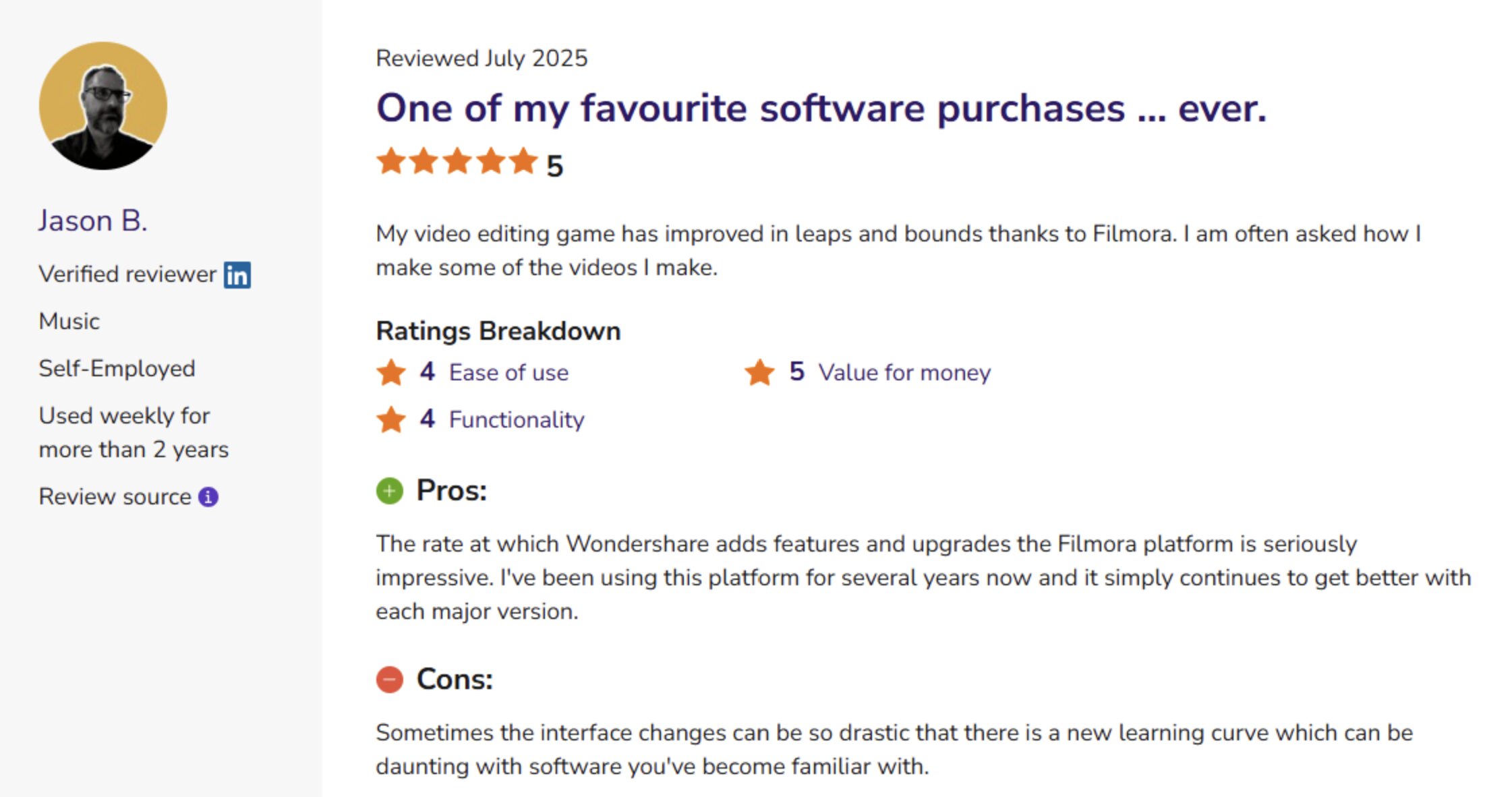
Reviewers on Capterra and Software Advice point to a big library of trending templates and effects, and describe the software as simpler than professional editors.
The complaints: paywalls that keep growing, AI credits that run out and call for a higher-tier plan.
Next step: grab Movavi Video Editor Free, import last weekend’s footage and run it through auto subtitles. Your viewers get captions, you get your evening back, and a fresh Movavi Ideas tutorial is waiting for round two.
For beginners and everyday creators who want desktop editing without AI credits, Movavi Video Editor is the alternative this comparison covers. You can test it before buying: Movavi Video Editor Free already includes auto subtitles, auto crop, and silence removal.
No single editor holds that spot for everyone, because the right pick depends on the job. A first-time vlogger, a client editor, and a colorist need different tools. Between Filmora vs. Movavi, the free versions let you try each workflow before you pay.
In the Movavi vs. Filmora 2026 matchup, it depends on what you edit. Movavi is better for beginners and everyday creators making their own videos. Filmora is better for frequent uploads, client work, and layered projects. Both run on Windows and macOS, so the platform will not decide it.