
Privacy Policy popup
× Privacy Policy popup
×
 8
 17 Minutes

Movavi Video Editor suits you if you vlog, review gadgets, or record tutorials and want a finished video without a long learning curve. Premiere® Pro suits you if you cut multi-camera interviews or work in a team on a complex project. That is the short answer to the Movavi vs. Premiere® Pro comparison.
We compare eight things: editing, transitions and effects, video templates, color, audio, AI tools, export, and platforms.
| Comparison parameter | Movavi Video Editor | Premiere® Pro |
| Best for | Vlogs, unboxings, travel videos | Professional editors and studios |
| Editing | Drag-and-drop timeline, Blade tool, pre-timeline trimming | Multicam editing, precise timecode |
| Transitions and effects | Hundreds of built-in drag-and-drop effects | Modest built-in library; stock comes from Adobe® Stock, paid separately |
| Video templates | Modular templates made of Blocks | No built-in ready-made video templates |
| Color correction | Ready-made presets plus manual tuning | Lumetri controls plus Auto Color |
| Audio | One-click AI noise removal, equalizer, compressor | Essential Sound, auto-ducking, Audition® link |
| AI tools | One-click tools | Speech to Text, Auto Reframe, Object Mask; generative features use credits |
| Export | Device and TV presets, direct upload to YouTube, Vimeo, Google Drive, TikTok | H.264 presets for YouTube and Vimeo, direct publishing to YouTube, TikTok, Facebook |
| Platforms | Windows and macOS | Windows and macOS |
| Learning curve | Most tools work in one click | Many panels; fine-tuning before results |
| Pricing model | Free version, then full version from $19.95 per month | Subscription only, $22.99 per month on an annual plan |
Is Movavi a Premiere® Pro alternative for everyday creators? Yes, for vlogs, unboxings, and travel videos. No, for team-based professional production.
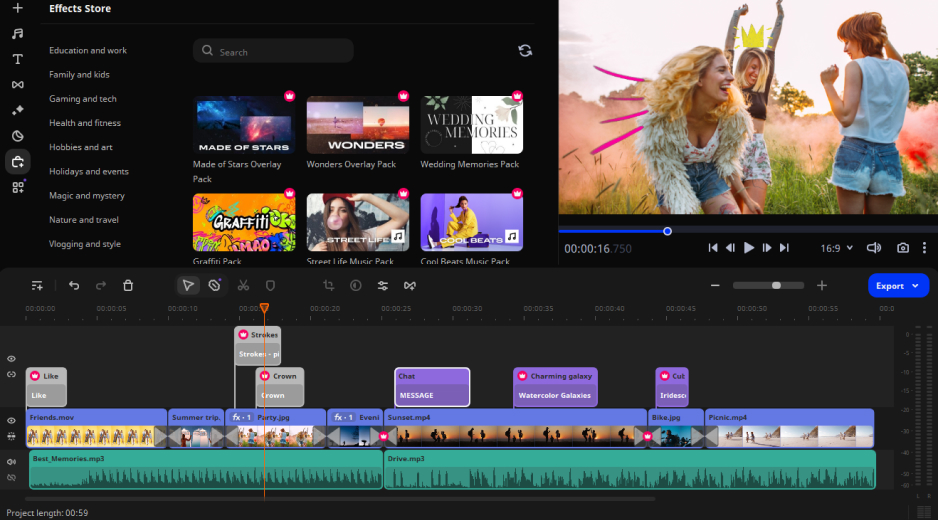
Best for: lifestyle vlogs, unboxings, gadget reviews, and travel videos.
Movavi Video Editor is an intuitive video editor with customizable video templates, one-click AI tools, and hundreds of drag-and-drop effects. Movavi Video Templates is a multi-style library of customizable, pro-looking, modular templates for any kind of video. Each template is built from Blocks: short segments of the video where you drop in your own clips, photos, and text. Pick a template, drop in your clips, and the pre-set editing, music, transitions, and text are already there, so a first video can look finished on the first try. Movavi Ideas, a free tutorial hub, adds new editing ideas every week, each with a step-by-step tutorial that takes less than a minute to follow.
Key features:
Pros:
Cons:
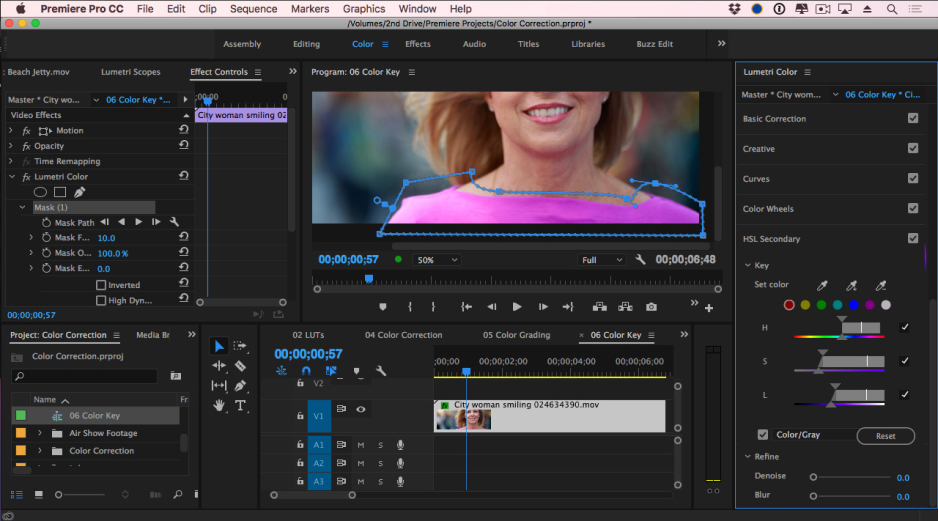
Best for: complex multicam projects, commercials made with a team, and film or TV work.
Premiere® Pro is the editor that professional editors, studios, and production companies choose. It treats editing as manual, precise work, and it connects to other Adobe apps.
Key features:
Pros:
Cons:
Movavi Video Editor is simple and fast by design: the drag-and-drop workflow, hover previews, and clean interface mean you spend your time creating instead of figuring out the software. Drag a clip onto the timeline, and hover along it to see exact frames. The Blade tool makes instant cuts, and Shift + click extends them across several clips. Pre-timeline trimming pulls a short segment out of a long source file before it reaches the project. Speed goes up to 100x for time-lapses. Layers work too: Trio puts up to three videos in one frame, a taste of multitrack editing, where video and audio live on separate timeline tracks. Stabilization has adjustable accuracy, smoothing, and edge cropping. Fast Track HD works on temporary lower-size copies of HD footage while you edit, then swaps the originals back on export; editors call that approach a proxy workflow.
Premiere® Pro features aim for control over speed. Multicam editing and precise timecode sit in its core toolkit, and cutting is frame-accurate. Warp Stabilizer steadies shaky shots, with settings to adjust. The trade-off is manual setup: its tools usually need fine-tuning before you get a result. Movavi Video Editor is the lighter tool here.
Each editor has a limit. Movavi Video Editor lacks advanced, detailed controls for a professional workflow. Premiere® Pro asks you to learn its panels first.
Better for… everyday vlog cuts: Movavi. Multicam and timecode work: Premiere® Pro.
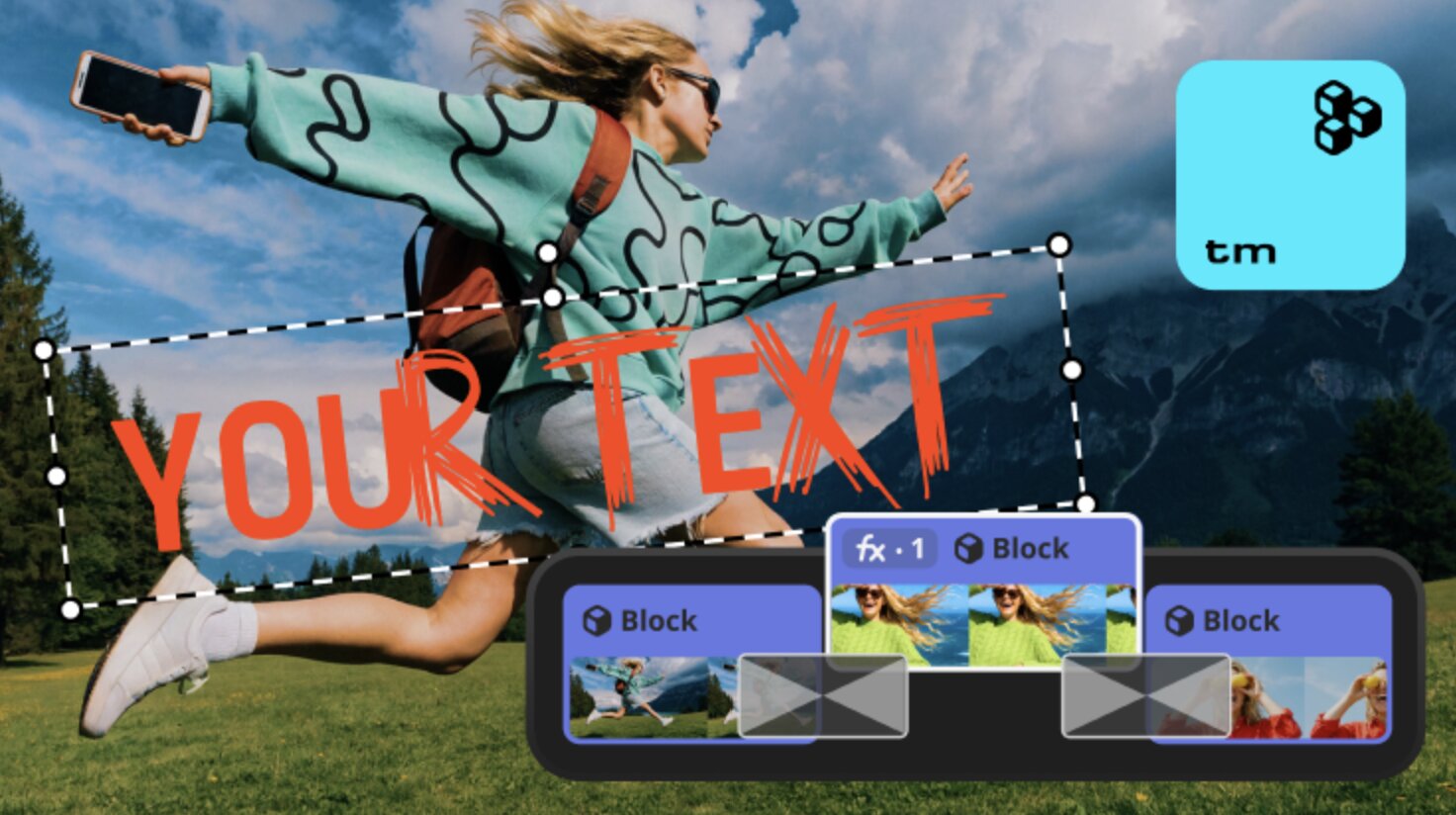
Effects and video templates for every style start in the box. Movavi Video Editor comes with hundreds of drag-and-drop effects: transitions, titles, filters, overlays, and stickers, plus copyright-free music and sounds. A transition’s duration is adjustable, with fill modes for trimmed content, freeze frame, and slow motion. Titles come with style presets, custom fonts, colors, outlines, and backgrounds, a countdown title for timers, and motion tracking that makes text follow a moving object. For more, the Movavi Effects subscription adds 10,000+ effects and 1,500+ music tracks. You can preview any of them on your own video for free, and even save a watermarked version before buying.
Premiere® Pro handles titles through Essential Graphics, which needs manual fine-tuning. Its own library of effects is modest. Extra stock arrives through Adobe® Stock, paid separately, and Motion Graphics templates (titles, lower thirds) mostly come from there too: you download them, install them, and import them onto the timeline.
Premiere® Pro has no built-in ready-made video templates, so this is where Movavi pulls ahead for beginners. A Movavi template is a ready-made project, not an effect or a preset. It includes pre-set editing, music, transitions, and text, and you can keep, change, or remove any of it. Templates do not fill themselves: you replace each placeholder with your own media. Blocks can be reordered, added, deleted, or swapped, which lets one template fit a short sequence or a longer one. The music is yours to keep or replace, and transitions can be kept, swapped, removed, or joined by new ones. Text can be retyped, restyled, and set in a different font. Templates cover vlogs, business promos, family videos, holidays, and reviews, and every category is built from Blocks. Past the starter set, the whole collection needs a Movavi Templates subscription.
Better for… ready-made looks: Movavi Video Editor. Custom motion graphics built with other Adobe apps: Premiere® Pro.
Movavi Video Editor offers ready-made color presets and manual fine-tuning for tone, contrast, and saturation. You can save your own presets and import custom .cube LUT files. Premiere® Pro goes deeper: Lumetri brings curves, color wheels, and HSL controls, plus Auto Color.
On sound, Movavi Video Editor removes traffic, wind, and steady hums in one click, with a claimed 95% noise reduction. It also includes an equalizer, a noise gate, a compressor, reverberation, and beat detection, which marks musical beats on the timeline. Premiere® Pro offers Essential Sound, auto-ducking that lowers music under speech, and a link to Audition®. It has no ready-made sound library, so effects like clicks and applause come from Adobe® Stock, mostly paid.
Better for… quick fixes and a built-in music library: Movavi Video Editor. Detailed grading and mixing: Premiere® Pro.
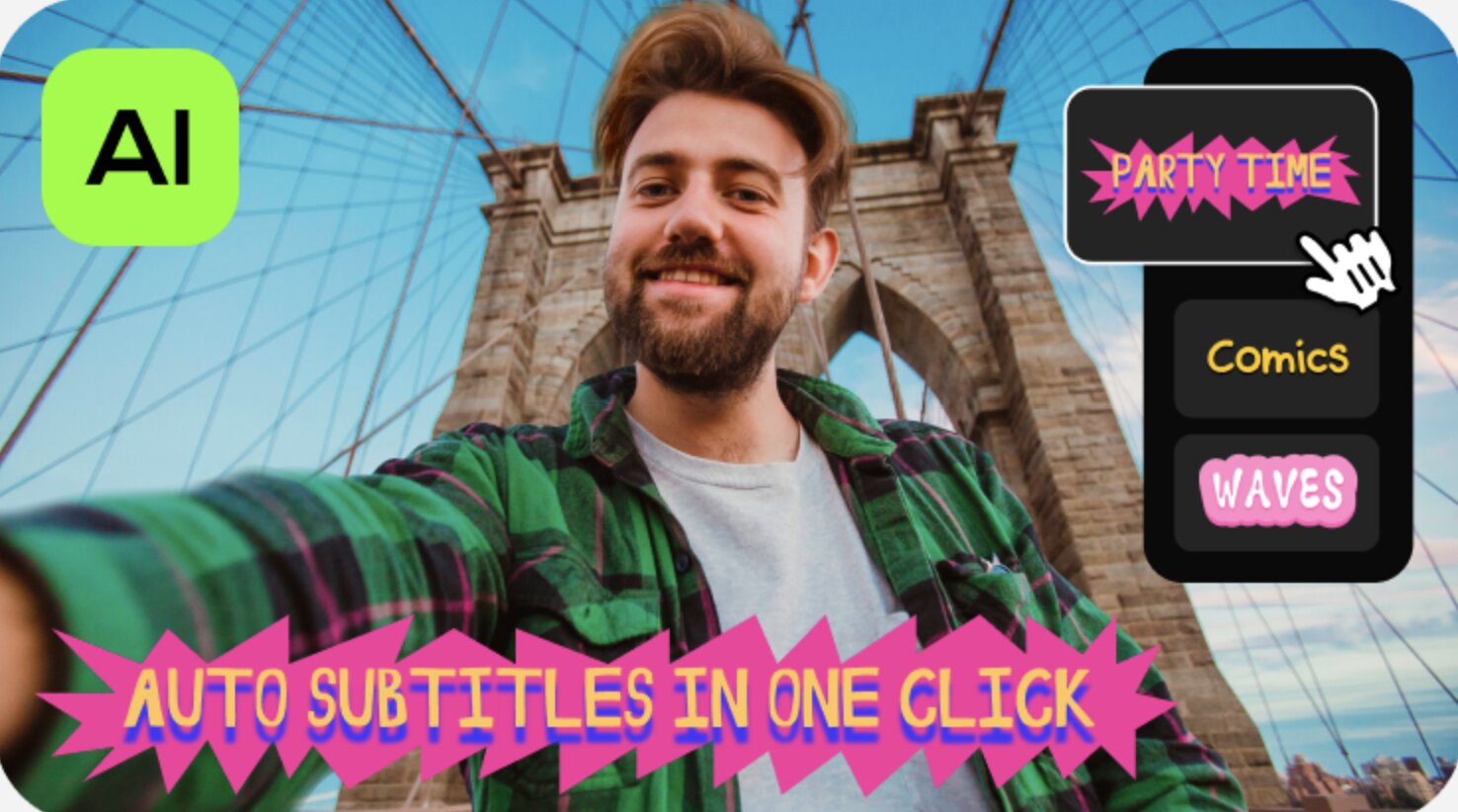
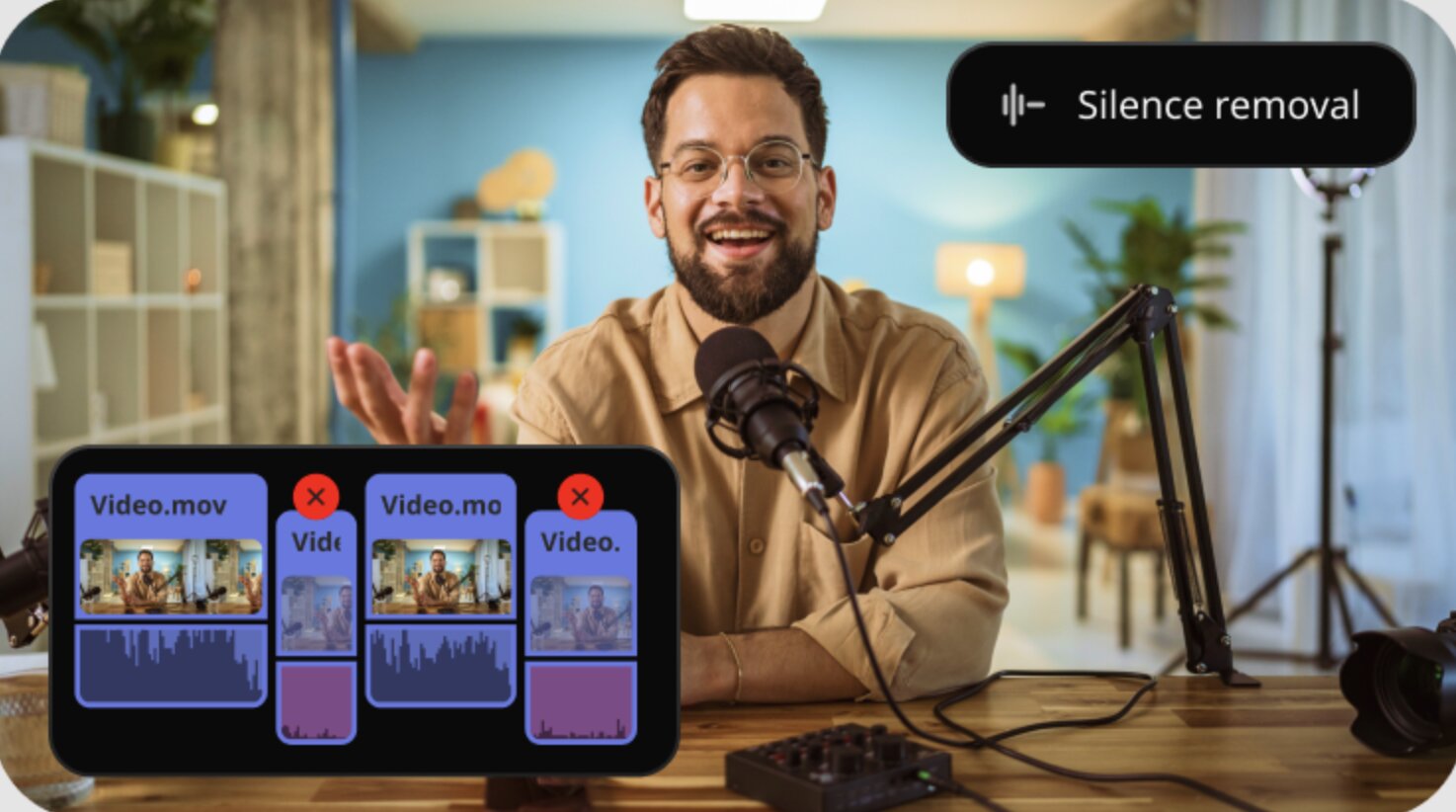
Movavi Video Editor puts AI to work on the tedious parts, saving time one click at a time. Auto subtitles turn speech into text in 100+ languages at 99%+ accuracy, with a library of subtitle designs and word-by-word highlighting synced to the audio. Silence removal cuts unwanted pauses, with adjustable pause length and volume thresholds. AI background removal swaps the backdrop in any video with a person, no green screen needed, and motion tracking pins a graphic to a moving subject. One-click video denoise clears grain and low-light artifacts while keeping faces, textures, and edges sharp, which helps with a gadget review shot under a desk lamp. Every one of these comes with the full version, with no AI credit system.
Premiere® Pro runs Speech to Text for subtitles and can translate them into 27 languages, though subtitle styling is set up by hand. Auto Reframe keeps the subject in frame, Object Mask selects a person or object (you need to understand how masks work), and Generative Extend comes with its regular AI updates. Generative features use Firefly credits, and the AI tools sit inside the program’s complex logic, so you need to know the interface.
Better for… one-click helpers: Movavi Video Editor. Generative and masking work: Premiere® Pro.
Movavi Video Editor exports to MP4 with adjustable resolution, aspect ratio, and quality. Direct upload sends a video to YouTube, Vimeo, Google Drive, or TikTok with its title, description, privacy setting, and tags. A lecture or tutorial can go straight from export to your channel. Auto-tracked cropping, meanwhile, turns horizontal footage into vertical clips for YouTube Shorts, Instagram Reels, or TikTok. The full version exports 4K without a watermark; Movavi Video Editor Free caps exports at 60 seconds, with a watermark.
Movavi runs on Windows 10 and 11 (64-bit) and macOS 12.0 or higher, with native support for ARM-based Macs. It has no web version or cloud integration, so projects live on your computer.
Premiere® Pro runs on Windows and macOS and is resource-intensive, so powerful hardware is recommended. For delivery, it ships H.264 presets for YouTube and Vimeo, and its Publish settings can send a video straight to YouTube (Shorts included), TikTok, or Facebook. Adobe Media Encoder queues several exports, so you can keep editing while a batch renders.
Better for… a beginner sending one video to YouTube or TikTok: Movavi Video Editor. Batches of several versions: Premiere® Pro.
A vlog or a gadget review. Say you filmed a morning routine, or unboxed a new phone. Turn on auto subtitles with word highlighting so the captions follow your voice, run silence removal on the talking take so the pauses disappear, and swap the backdrop with AI background removal. The result is a captioned, tightly paced video built with one click per task. A desk tour gets the same treatment.
A travel video with titles and transitions. Picture a weekend getaway: clips from the road, the hotel, and the beach. Drag a title onto the first clip and a transition between each pair, and hover previews show every choice on your own footage before you commit. Speed controls then turn the long drive into a short time-lapse. Premiere® Pro can build the same video, but you would set up titles through Essential Graphics and fine-tune each one by hand.
A two-camera interview. Choose Premiere® Pro, where a team can cut both angles with multicam editing and send graphics to After Effects®.
A video on a template. Build your video on a Travel video template. Its transitions, text, and music arrive pre-timed, so you add your clips and photos to its Blocks, retype the text, and keep or swap the music.
Movavi Video Editor has more than 70 million users worldwide, in 190+ countries. On G2 and Capterra, Movavi Video Editor reviews come back to the same few points: a layout they could use without tutorials, good value for the price, and a library of effects, titles, and licensed music that ships with the base version. The grumbles cluster around the free version’s 60-second export cap and watermark, add-on subscriptions for some effects and music, and activation that gets confusing when the program and its add-ons carry separate licenses.
Premiere® Pro users on G2 and Capterra call it the industry standard. They praise its links to After Effects®, Photoshop®, and Audition®, editing that stays flexible at any level of complexity, and regular AI updates such as Object Mask and Generative Extend. The criticism is just as consistent: a subscription with no way to buy it outright, crashes on demanding hardware, and a high barrier for beginners.
The budget works differently for each. Movavi lets you start with Movavi Video Editor Free, step up to the full version, and add Movavi Effects or Movavi Templates only when a project calls for them, so you pay for what you use. Premiere® Pro has one route, a subscription, also available inside Creative Cloud® Pro for teams already living in Adobe apps. Movavi ships 25+ updates a year, so tools like auto-tracked cropping and one-click denoise keep arriving.
Your next step is small: open Movavi Video Editor, load a travel clip, and try a video template. Movavi Ideas has the next one waiting.
The difference is in audience, pricing, and learning route. Premiere® Pro serves professional editors and is subscription only; the full version of Movavi Video Editor is a monthly or yearly subscription, from $19.95 per month, for everyday creators. Premiere® Pro costs $22.99 per month on an annual plan. To learn, Movavi has Movavi Ideas, while Adobe points to its tutorials and community courses.
Yes. Movavi Video Templates covers vlogs, business promos, family videos, holidays, and reviews. Every template and effect can be previewed on your own footage before you buy.
It suits non-professional and semi-professional editors. A professional workflow needs advanced, detailed controls, which Movavi Video Editor lacks.