
Privacy Policy popup
× Privacy Policy popup
×
 2
 24 Minutes
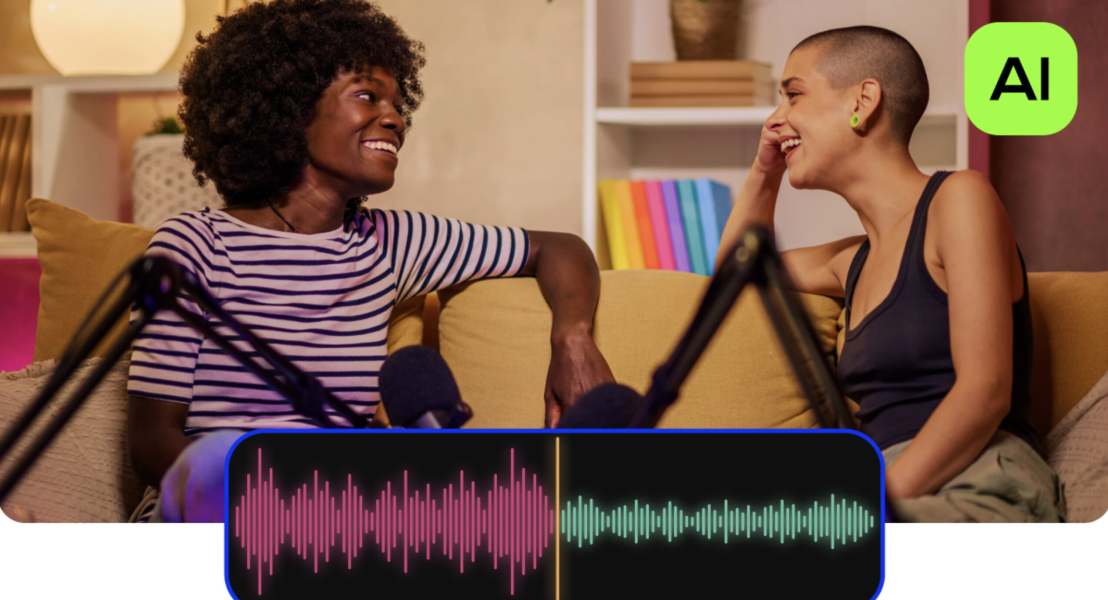
The simplest way to remove background noise from a video is to clean the soundtrack inside your video editor, right on the timeline where you cut the clip. Our picks: Movavi Video Editor for one-click AI noise removal on a desktop, DaVinci Resolve and Adobe® Premiere® Pro for hands-on sound control, VEED and Kapwing for editing in a browser, and Descript for transcript-based editing of talking-head videos.
Wind on a beach walk, traffic behind a city vlog, the hum of an air conditioner or fridge during a kitchen take, and echo in a bare room are the usual suspects. Audio noise reduction is the process of removing that unwanted sound from the signal. When you clean up audio in a video without leaving the editor, you also skip exporting the soundtrack to a separate app and bringing it back.
If you film daily vlogs, travel clips, or cooking videos, or you review gadgets and record desk tours at home, these are the background noise removers worth a look.
Every pick is video-editing software rather than standalone noise reduction software, so the audio cleanup happens in the same project as your cuts, titles, and music. If you want a video editor with noise reduction so you can reduce background noise in a video without juggling two programs, that’s the whole point.
Five criteria shaped the list. The first is how the tool works: one-click AI noise removal, where artificial intelligence picks the noise out for you, or manual settings you dial in yourself. The second is what happens to your voice. Noise reduction algorithms may distort the signal to some degree, so we looked for tools that protect audio clarity and give you a way to ease off.
The third criterion is preview: hearing the cleaned clip before you export saves a re-render. The last two are practical. Price covers what the free tier allows and how paid plans are billed, and platforms cover where you edit, from a Windows laptop or a Mac to a browser tab.
| Tool | Noise reduction feature and where it is | One click or manual | Platforms | Free version | Starting price |
| Movavi Video Editor | Noise removal: Tools > Audio > Noise removal | One click (AI mode) or manual Noise suppression slider | Windows, macOS | Yes: 60-second exports, watermark | $19.95/month |
| Adobe® Premiere® Pro | Enhance Speech: Window > Essential Sound > Dialogue | One toggle plus Mix Amount slider | Windows, macOS | No; 7-day trial | $22.99/month (annual plan, billed monthly) |
| DaVinci Resolve | Noise Reduction: Fairlight page > Effects Library; Voice Isolation: Inspector (Studio) | Manual noise profile; Voice Isolation slider | Windows, macOS, Linux | Yes, no watermark | Studio: $295 one-time |
| Final Cut Pro | Voice Isolation, Noise Removal: Audio inspector > Audio Enhancements | Checkbox plus Amount slider | macOS | No; 90-day trial | $299.99 one-time |
| Filmora | AI Audio Denoise: right panel > Audio > Denoise | Toggles per mode | Windows, macOS | Yes, watermarked | $49.99/year (Basic) |
| CapCut (Desktop) | Noise reduction: right panel > Audio > Basic | One toggle | Windows, macOS, web, mobile | Yes, 1080p, watermark on Pro assets | Pro: $19.99/month or $179.99/year |
| Kapwing | Clean Audio: right sidebar > Edit | One click | Browser | Yes: watermark, 720p, Clean Audio up to 5 minutes | Pro: $16/month billed annually |
| iMovie | Reduce background noise: Noise Reduction and Equalizer button (Mac) | Checkbox plus percentage slider | Mac (noise tool), iPhone, iPad | Completely free | Free |
| VEED | Clean Audio: left panel > AI Tools | One click | Browser, mobile app | Yes: watermark, 720p, one Clean Audio use | Creator: $12/month per user, billed yearly |
| Descript | Studio Sound: Properties panel > Audio Effects | Toggle plus Intensity slider | Windows, macOS, web | Yes: 1 media hour a month, watermark | Hobbyist: $16/month billed annually |
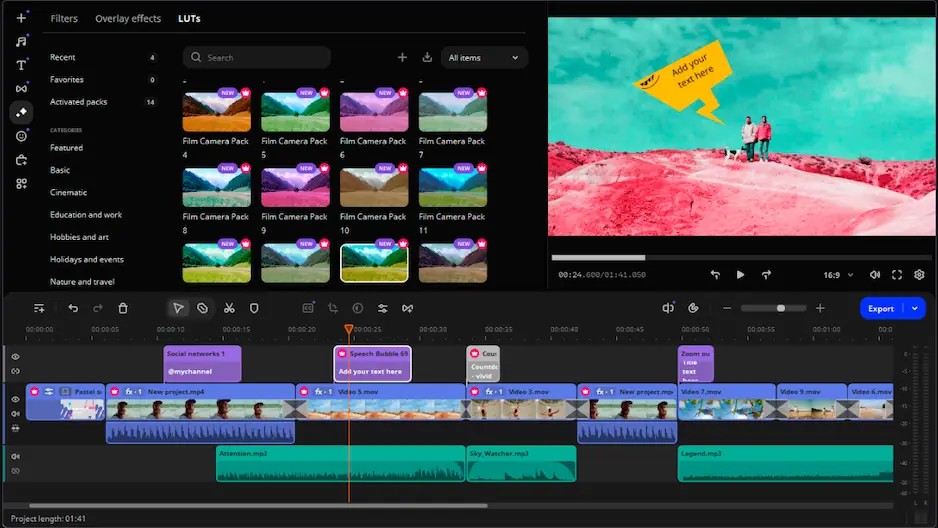
Best for: travel vlogs, cooking videos, and gadget reviews where you want wind, traffic, or hum gone without leaving the editor.
Price and platforms: Movavi Video Editor Free exports up to 60 seconds with a watermark; the full version starts at $19.95/month. A desktop app for Windows and macOS.
Why we picked it: Movavi Video Editor is an intuitive video editor with customizable video templates, one-click AI tools, and hundreds of drag-and-drop effects. Its AI noise removal pulls traffic, wind, and steady hum back while keeping your voice sharp, so the very first playback of your travel vlog already has your voice up front and the street pushed back. The drag-and-drop workflow and hover previews keep the rest of the edit quick, and if you’re brand new, the free Movavi Ideas hub publishes a fresh editing idea with a step-by-step tutorial every week.
Key features:
Pros:
Cons:
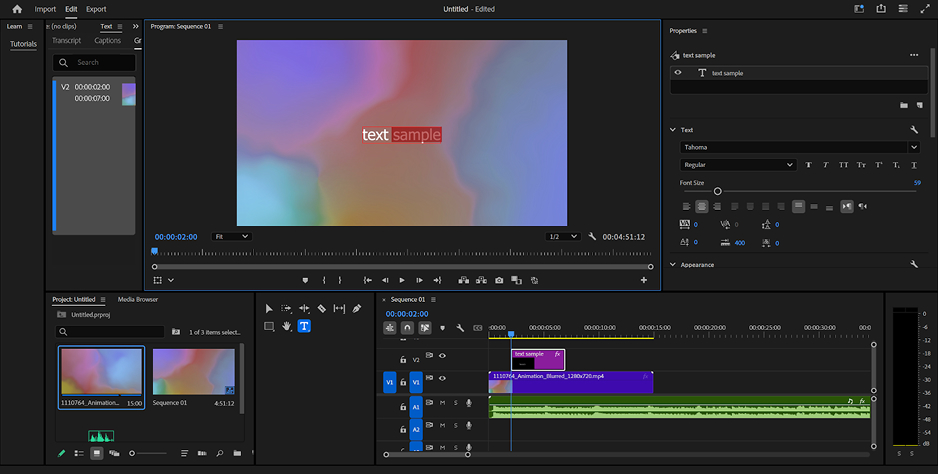
Best for: vlogs and reviews edited inside Adobe’s workflow, when you want room to grow into detailed sound work.
Price and platforms: $22.99/month on the annual plan billed monthly, or as part of Creative Cloud® Pro, with a 7-day trial. Windows and macOS.
Why we picked it: Premiere® Pro is the industry standard for professional video editing, and its AI Enhance Speech cleans noise from a voice track. The audio side goes further than a one-click fix, with Essential Sound repair sliders, automatic ducking of music under speech, and integration with Audition®.
Key features:
Pros:
Cons:
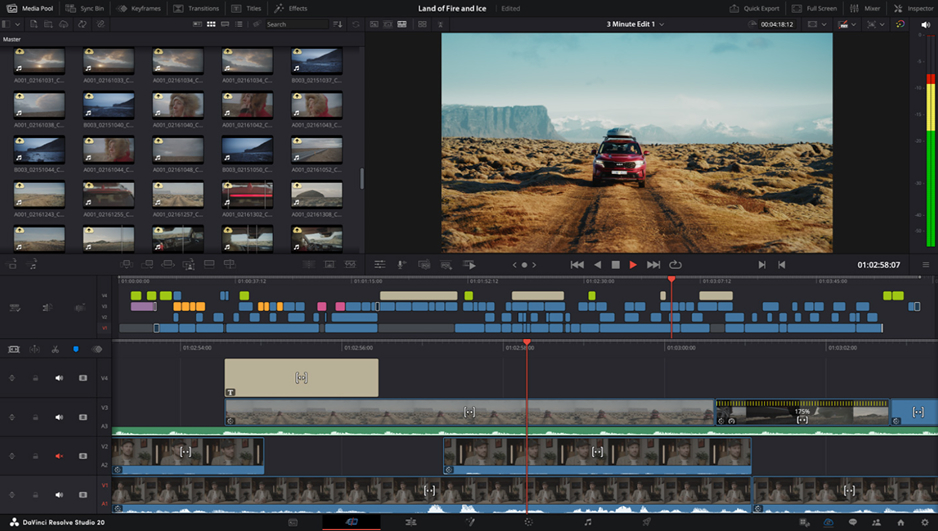
Best for: gadget reviews and desk tours when you want free, hands-on control over every audio setting.
Price and platforms: free base version; DaVinci Resolve Studio is a $295 one-time purchase. Windows, macOS, and Linux.
Why we picked it: the free version carries no watermark or time limit and includes nearly all of the editing, color, audio, and VFX tools. Its Fairlight module is a full sound engineering studio, more than a quick fix needs, but a real playground once you want to shape a voice yourself.
Key features:
Pros:
Cons:
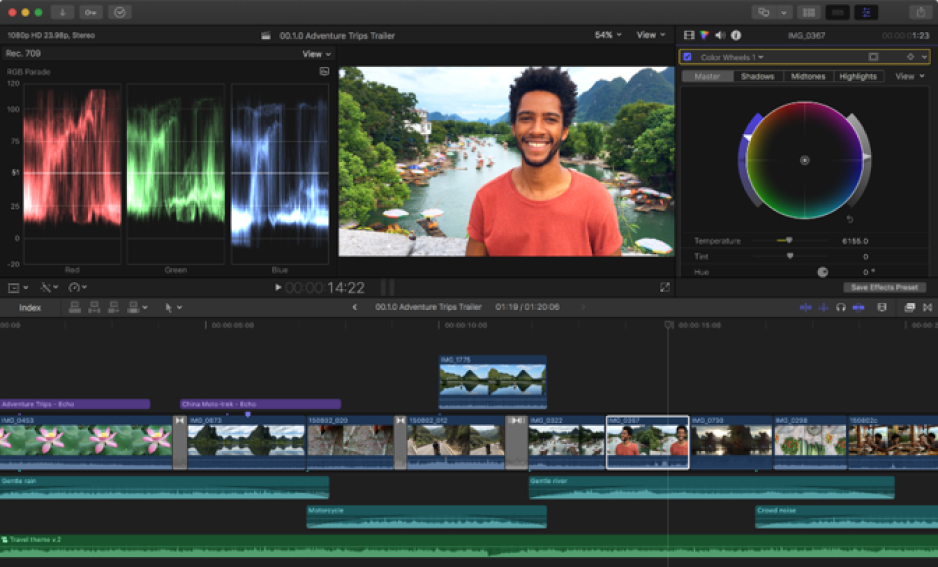
Best for: unboxing and travel vlogs edited on a Mac with a pro timeline.
Price and platforms: macOS; $299.99 one-time purchase, with a 90-day trial.
Why we picked it: Apple’s professional editor pairs a magnetic timeline with advanced color correction and multicam editing, and it suits creators cutting iPhone or pro-camera footage for YouTube. Its Voice Isolation and Noise Removal enhancements sit right in the Audio inspector, so cleanup stays on the timeline.
Key features:
Pros:
Cons:
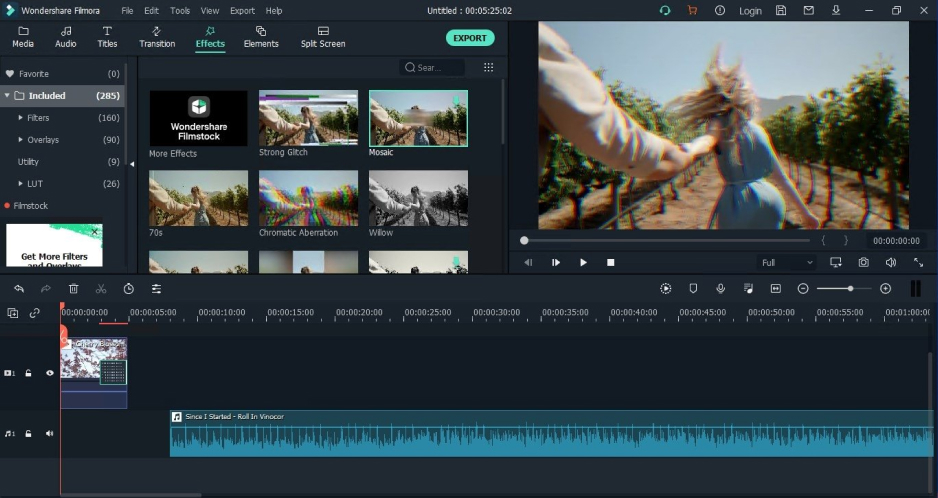
Best for: vlog channels that post often and want AI audio tools without complex settings.
Price and platforms: basic plan from $49.99/year, with Advanced above it for more AI credits. Windows and macOS.
Why we picked it: Filmora is an AI-powered desktop editor aimed at steady video production, and its AI Audio Denoise splits cleanup into separate modes for wind, hum, hiss, and echo. That makes it easy to match the fix to the noise you actually have.
Key features:
Pros:
Cons:
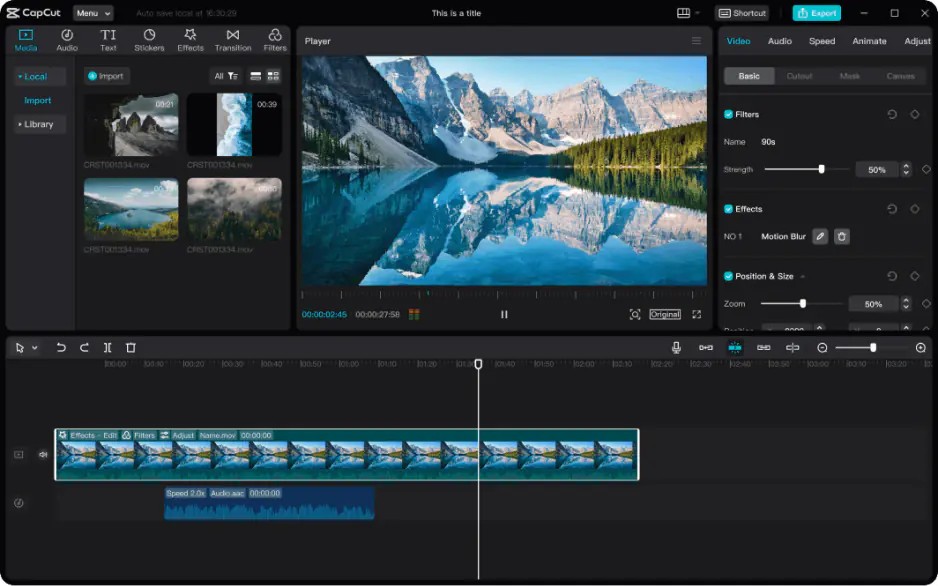
Best for: short vertical cuts of vlogs and unboxings for TikTok, Reels, and Shorts.
Price and platforms: free version; Pro, the plan that covers desktop, costs $19.99/month or $179.99/year, while the $9.99/month Standard plan is aimed mainly at mobile. Windows, macOS, web, and mobile.
Why we picked it: CapCut is a mobile-first editor for short, trending videos, and its desktop version mirrors the mobile tools many creators already know. Noise reduction is a single toggle, next to a large AI toolkit for vertical clips.
Key features:
Pros:
Cons:
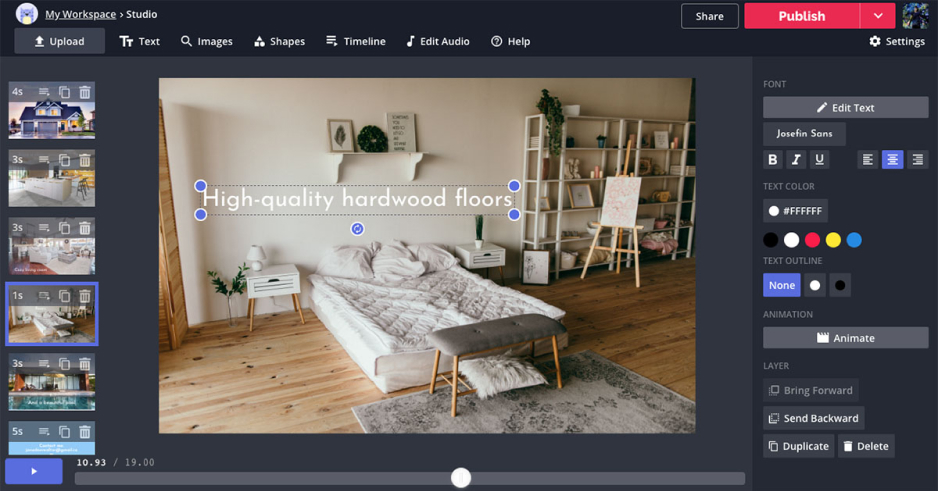
Best for: vlogs and reviews edited together with a teammate in the browser.
Price and platforms: Pro costs $16/month per member billed annually, or $24 billed monthly, with a Business plan above it. Works in a browser.
Why we picked it: Kapwing is a browser-based editor for teams and social videos, with real-time collaboration built in. Its Clean Audio tool handles noise in one click, right inside the same project your teammate is editing.
Key features:
Pros:
Cons:
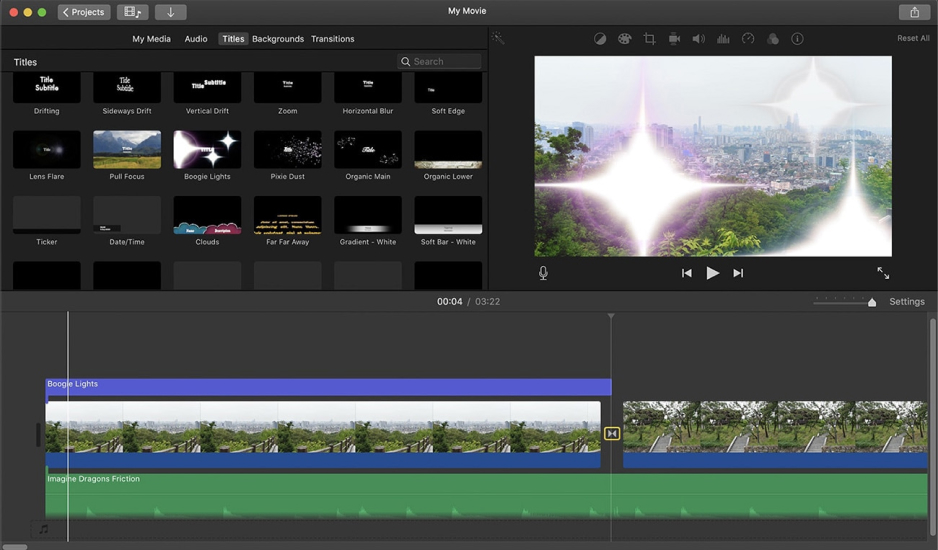
Best for: first vlog edits on a Mac or iPhone at zero cost.
Price and platforms: free. Mac, iPhone, and iPad.
Why we picked it: iMovie is Apple’s free, simple editor, preinstalled on its devices, which makes it the easiest starting point for Apple owners. On a Mac, its Reduce background noise slider takes care of light hiss and room rumble.
Key features:
Pros:
Cons:
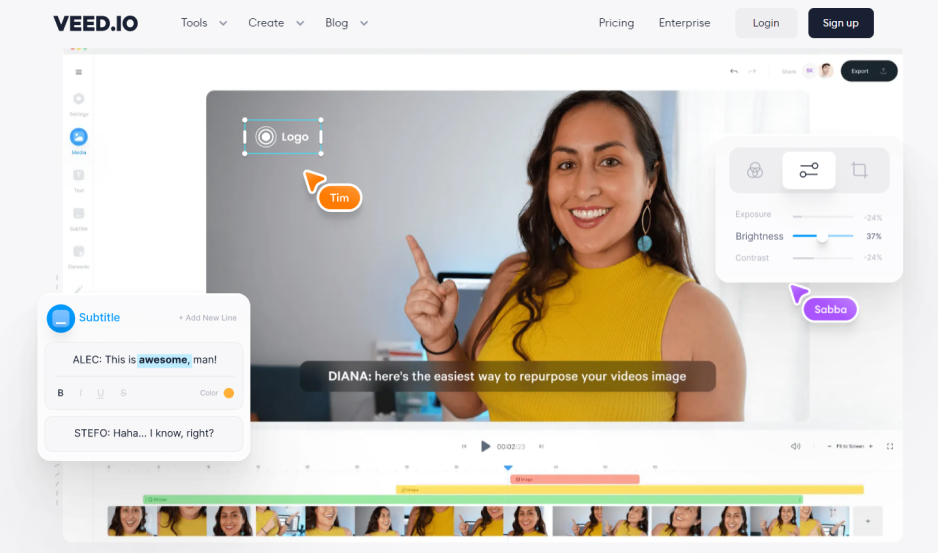
Best for: captioned review clips made in a browser.
Price and platforms: Creator from $12/month per user billed yearly, with Pro and Studio plans above it. Browser and mobile app.
Why we picked it: VEED is a browser-based AI editor, and its Clean Audio tool cleans a track in one click. Remove Silences pairs well with it on talking-head videos.
Key features:
Pros:
Cons:
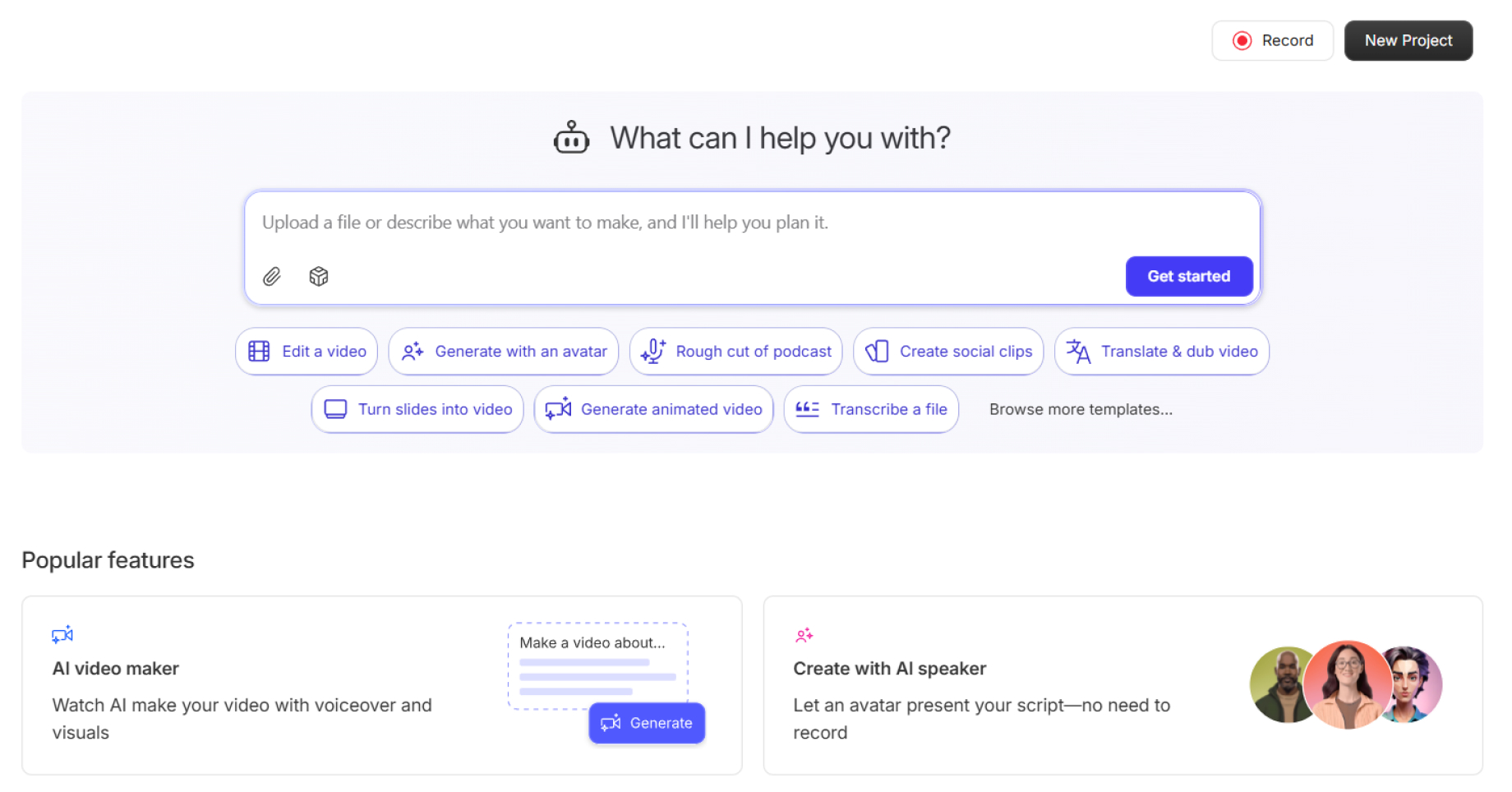
Best for: podcast-style and talking-head videos edited through the transcript.
Price and platforms: free plan with 1 media hour a month and a watermark; Hobbyist from $16/month billed annually. Windows, macOS, and web.
Why we picked it: Descript is a text-based editor for podcasts, interviews, and talking-head creators: you edit the video by editing its transcript. Its Studio Sound effect reduces background noise and echo in the voice track.
Key features:
Pros:
Cons:
A vlog shot outside, with wind and traffic: Movavi Video Editor. Its AI tools take the tedious parts off your plate in one click, from noise removal to silence removal and auto subtitles. Once the sound is clean, a template from the Vlog or Travel category turns those clips into a finished cut, and hundreds of built-in drag-and-drop titles, transitions, and filters cover any style you’re after. The optional Movavi Effects subscription adds 10,000+ effects across every theme, and you can preview each one on your own footage before you buy. More than 70 million people already use Movavi software, and the editor gets 25+ updates a year; recent ones added one-click video denoise and silence removal.
A talking head at home, with AC or fridge hum: steady hum is one of the noises Movavi’s AI noise removal targets, so a desk-side gadget review or a kitchen recipe video fits there too. If you’d rather stay in a browser, VEED’s Clean Audio does a one-click pass on any paid plan.
A video podcast: Descript, since you cut the episode by editing its transcript, the filler words come out along the way, and Studio Sound runs on the same layer.
Professional editing: DaVinci Resolve if you want a full sound studio at no cost and don’t mind building a noise profile by hand, Premiere® Pro if you already work in Adobe apps and want Audition® close by, and Final Cut Pro if you edit on a Mac and prefer a one-time purchase.
AI audio tools and manual filters alike work better on a clean recording, and good audio quality starts at the shoot. Four habits help:
Got a windy beach clip from last weekend waiting in a folder? Movavi’s license lineup lets you start with free access and add tools as your projects grow, so open that clip, run AI noise removal, and let silence removal tighten the pauses on the same timeline.
Yes, with trade-offs. iMovie is free, and on a Mac its Reduce background noise slider costs nothing. Kapwing’s free plan runs Clean Audio on up to 5 minutes of audio, with a watermark on export. In Movavi Video Editor Free, you can test every tool, noise removal included, but some advanced features are unavailable when you export.
A strong setting on a very noisy clip makes the distortion that noise reduction can introduce easier to hear. Ease off: in Movavi’s Noise removal tool, switch from AI to Default and lower the Noise suppression slider, then use the equalizer to boost the frequency bands that now sound thin.
Run AI noise removal on the clip, since wind is one of the noises Movavi’s tool clears. If gusts still break through between sentences, the noise gate lowers everything under the threshold you set, so the quiet gaps go silent while your speech stays. On the next shoot, keep the mic close so your voice sits well above the wind.